
VAT
VAT on an invoice is worked out for you, line by line, from your country and your client's. You set your own VAT details once under Settings → VAT; each client's country and VAT number decide the rest.
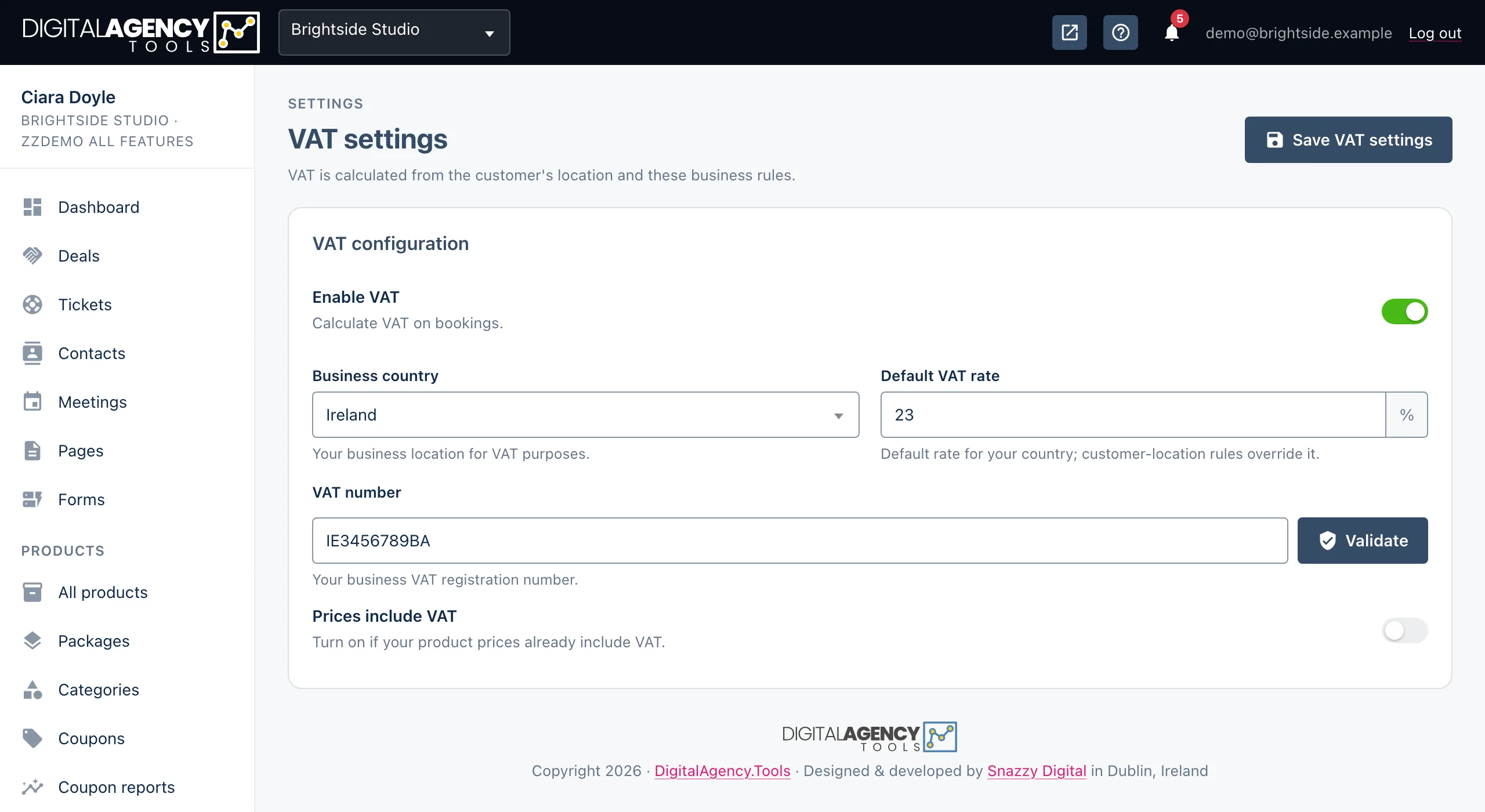
How to set up VAT
- Open Settings → VAT.
- Turn on Enable VAT to show the fields. The switch also turns on VAT for bookings.
- Choose your Business country and check the Default VAT rate.
- Enter your VAT number and click Validate to check it with the EU's VIES service. When VIES knows the company, its registered name is shown.
- Turn on Prices include VAT only if your booking product prices already include it.
- Click Save VAT settings.
Which rate an invoice charges
Prices on invoice lines are before VAT. When a line has no rate typed in, the rate comes from these rules, in order:
| Situation | VAT charged |
|---|---|
| Your own VAT country is not set, or has no rate | None. The invoice says your VAT country is not set. |
| Your client is in the same country as you | Your country's rate, for businesses and consumers alike. |
| You and your client are both in the EU, and the client has a correctly formatted VAT number | None, as a reverse charge. The invoice carries the reverse-charge wording. |
| You and your client are both in the EU, and the client has no VAT number | Your country's rate. |
| Your client is outside the EU | None, as an export of services. |
| Your client has no country on record | None. The invoice asks you to add the client's country. |
When an invoice charges no VAT, a line under the totals says why.
Per line
line price (ex VAT)
− its share of any discount
× rate
= line VAT, rounded to the cent

invoice VAT = sum of lines
Setting a rate yourself
On a draft, type a rate in a line's VAT % box to fix it for that line. A fixed rate is never recalculated. Leave the box empty to let the rules above decide. The standard rate for each country comes from the platform's own rate table.
Client details matter
The client's country is taken from the billing country on their contact, or their main country if that is empty. Before you issue, make sure it is right: a missing country means no VAT.
If you change a client's details after creating a draft, click Refresh client details on the invoice. An open invoice with nothing paid can be refreshed too; its number stays, but the VAT and total may change. Once money has been received, the invoice can no longer be refreshed.
Validation is a check, not a gate
The Validate button asks the EU's VIES service whether a number is registered. Issuing an invoice only checks that the client's VAT number is in the right format for their country. It does not ask VIES, so an invoice is never held up because VIES is down. If a reverse charge matters, validate the client's number on their contact first.
Still stuck?
Can't find what you're looking for? Send us a message and we'll reply by email.