
Create an invoice
Every invoice starts as a draft for one client. Add lines, apply a discount if you need one, and check it over. Nothing is sent and nothing is numbered until you issue it.

How to
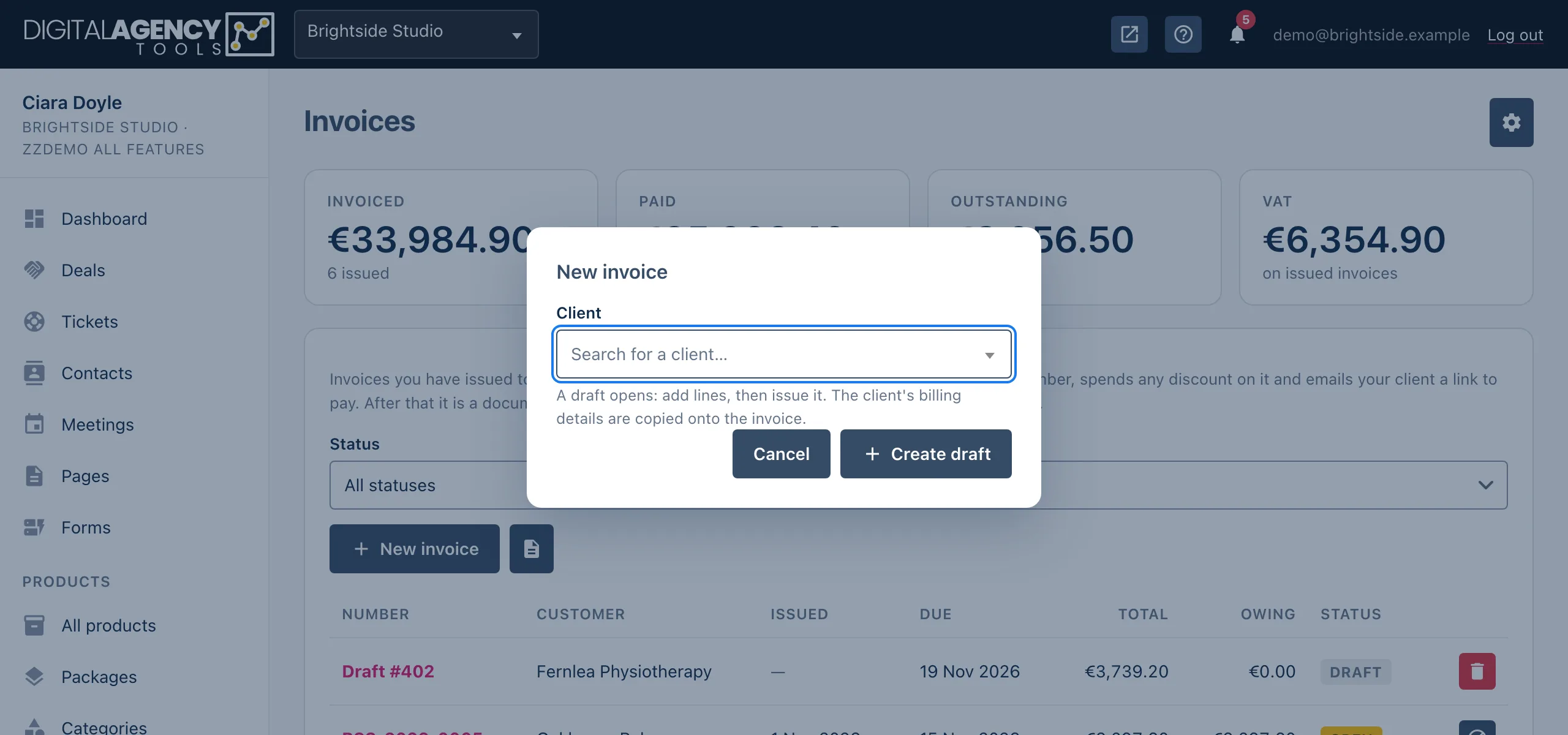
- Open Products → Invoices and click New invoice.
- Search for the client and pick them, then click Create draft. The draft opens under the list, with the client's billing details copied onto it.
- Under Add a line, choose a product or leave it on Free text, then enter a description, quantity and unit price. Click Add. Repeat for each line.
- Optionally enter a code under Discount and click Apply.
- Under Details, set the due date and an optional note, then click Save.
- Use the eye icon to preview the document. When it looks right, issue it.
Who you can invoice
An invoice is always for one of your contacts. When the draft is created, the contact's name, company, billing email, billing address and country are copied onto it. The email is where the invoice will be sent, so check it before you issue.
If you change the contact's details while the invoice is still a draft, click the Refresh client details icon to copy them across again. Issuing also refreshes them one last time.
Lines
Picking a product fills in its name and price for you. You can still change both before you click Add. The line keeps its own copy of the price, so editing the product later does not change the invoice.
Prices are entered before VAT. Leave the VAT % box empty and the rate is worked out from your country and the client's (see VAT). Type a rate to fix it for that line. To remove a line, use the bin icon on its row.
How the total is built
subtotal   sum of the lines
− discount coupon, if any
+ VAT      per line, after discount
= total
Discounts
A coupon code is checked when you apply it, but it is not used up until the invoice is issued. A fixed-amount coupon has to be in the same currency as the invoice. To remove a discount, clear the box and click Apply. Codes are made under Coupons.
Drafts are private
A draft is never shown to the client, not even in the client portal. You can edit it as often as you like, or delete it with the bin icon. The list shows a draft as Draft # followed by its internal id, because it has no invoice number yet.
Still stuck?
Can't find what you're looking for? Send us a message and we'll reply by email.