
Invoice settings
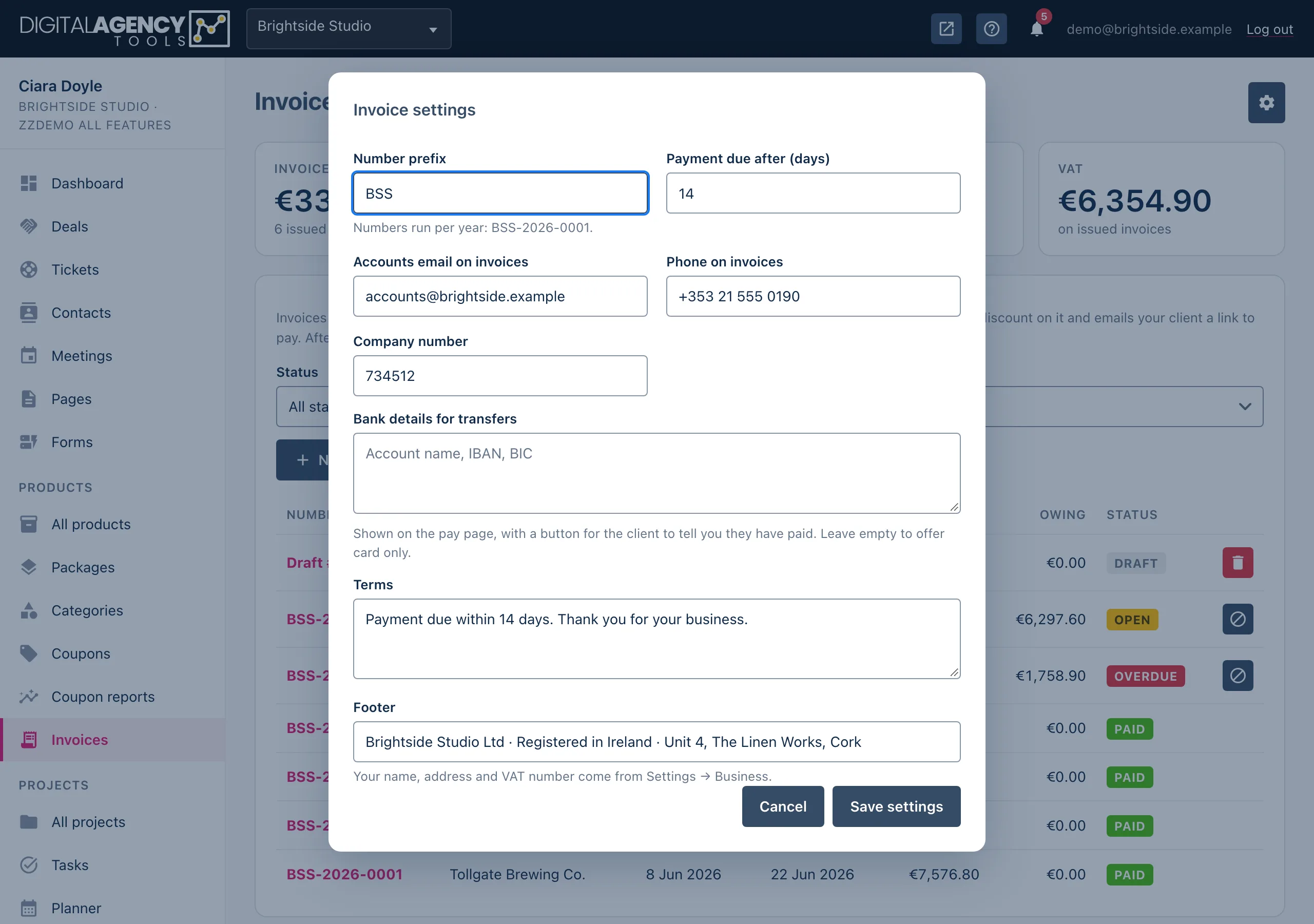
One dialog sets how your invoices are numbered, when they fall due, what contact details and terms they carry, and whether clients can pay by bank transfer.
How to
- Open Products → Invoices.
- Click the Invoice settings cog at the top right.
- Fill in the fields you need (see the table below).
- Click Save settings. You will see Invoice settings saved.
The fields
| Field | What it does |
|---|---|
| Number prefix | The letters in front of every invoice number. Letters, numbers and hyphens only, up to 12 characters; it is saved in capitals. Empty means INV. |
| Payment due after (days) | How long a client has to pay, from 0 to 365 days. The default is 14. |
| Accounts email on invoices | The email printed on the invoice for questions about it. |
| Phone on invoices | A phone number printed on the invoice. |
| Company number | Your company registration number, if you have one. |
| Bank details for transfers | Account name, IBAN, BIC and so on. Shown on the pay page with an I have paid by transfer button. Leave it empty to offer card only. |
| Terms | Your payment terms, printed on the invoice. |
| Footer | One line at the foot of the invoice, up to 500 characters. |
Numbering
prefix INV   → INV-2026-0001
prefix ACME  → ACME-2026-0001

the year is part of the
number, and the count
carries on from the last
number you issued
Numbers and due dates
A number is given when you issue an invoice, never to a draft. Each one is the next after the last number issued with the same prefix, so there are no gaps from deleted drafts. Changing the prefix, or the start of a new year, starts a new sequence at 0001.
The due date is filled in when you create the draft, using Payment due after. If a draft waits a while before you issue it, check the due date under Details first.
What comes from elsewhere
Some things on the invoice are not set in this dialog:
- Your business name, address and logo come from Settings → Business.
- Your VAT number and VAT country come from Settings → VAT.
- The colour of the invoice, its email and the pay page follows your booking page's main colour, set under Settings → Booking page.
- The currency is your business currency, set under Settings → Payments.
- Card payments need your Stripe keys, also under Settings → Payments.
Changes and issued invoices
Your name, address and VAT number are frozen onto an invoice when it is issued, so changing them later does not rewrite invoices you have already sent. Drafts always show your current details.
Still stuck?
Can't find what you're looking for? Send us a message and we'll reply by email.