
Working with a meeting
Each meeting has its own page: who it is with, when and where, your private notes, and the buttons to complete it, mark a no show or cancel it.
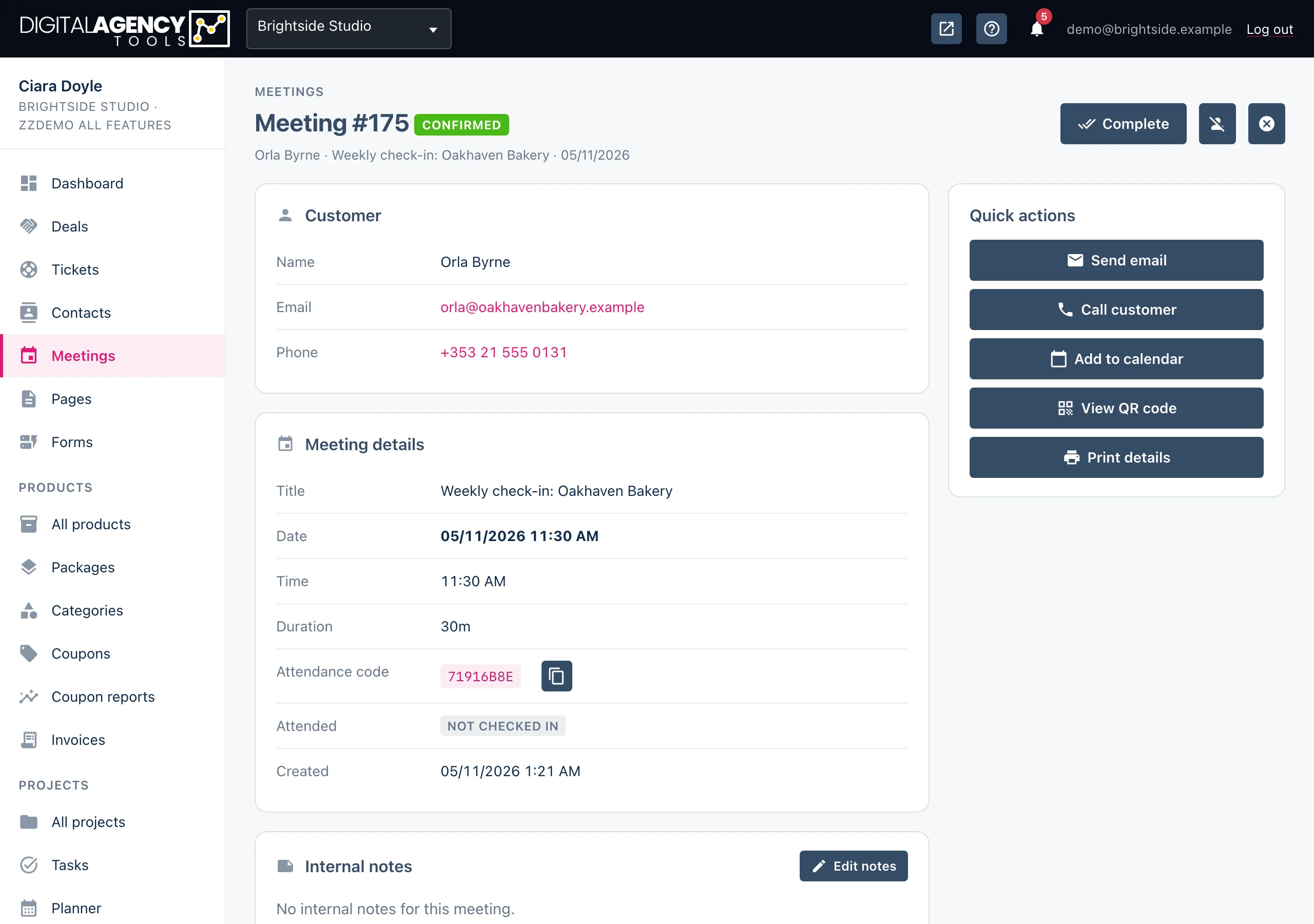
How to close a meeting off
- Open the meeting from Meetings.
- When it has happened, click Complete at the top of the page.
- If the customer did not turn up, click the Mark as no show icon instead. To call it off, click Cancel meeting.
- Confirm. The new status shows next to the meeting number, and the status buttons disappear.
Statuses
The status buttons only appear while a meeting is still open — Scheduled or Confirmed. Once a meeting is Completed, No show or Cancelled, it is closed and the buttons go.
Changing the status does not email the customer or change your Google Calendar event. If you cancel, tell the customer yourself and remove the calendar event if you need to.
Open → closed
Scheduled / Confirmed
   → Completed
   → No show
   → Cancelled
Internal notes
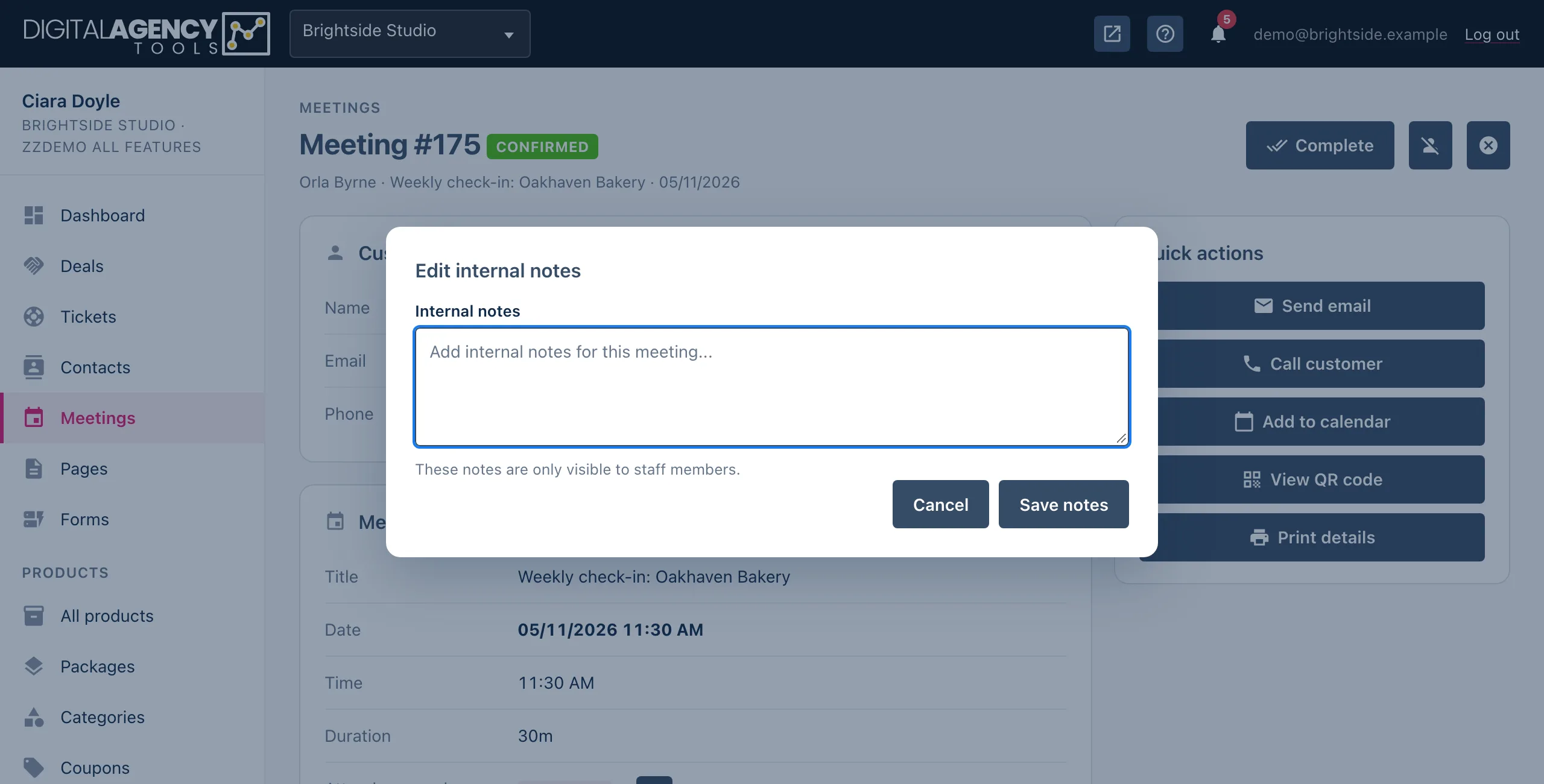
Click Edit notes on the Internal notes card, write or change the notes, and click Save notes. Notes are only visible to your team — never to the customer. You can also edit them from the notes icon on the meetings list.
Quick actions
| Button | What it does |
|---|---|
| Send email | Opens a new message to the customer in your email app. |
| Call customer | Shown when there is a phone number; starts a call on a phone or calling app. |
| Add to calendar | Opens a pre-filled Google Calendar event with the title, time and the customer's details, ready for you to save. |
| View QR code | Shows the meeting's attendance QR code — see Check-in with QR codes. |
| Print details | Prints the page, or saves it as a PDF from your browser. |
What is on the page
Customer shows the name, email and phone. Meeting details shows the title, date, time and duration, the attendance code and whether the customer has checked in, plus when the meeting was created and last updated.
Still stuck?
Can't find what you're looking for? Send us a message and we'll reply by email.