
The meetings list
Meetings shows every meeting on your calendar, with quick filters for today, this week and the past, and the figures for whatever you are looking at.
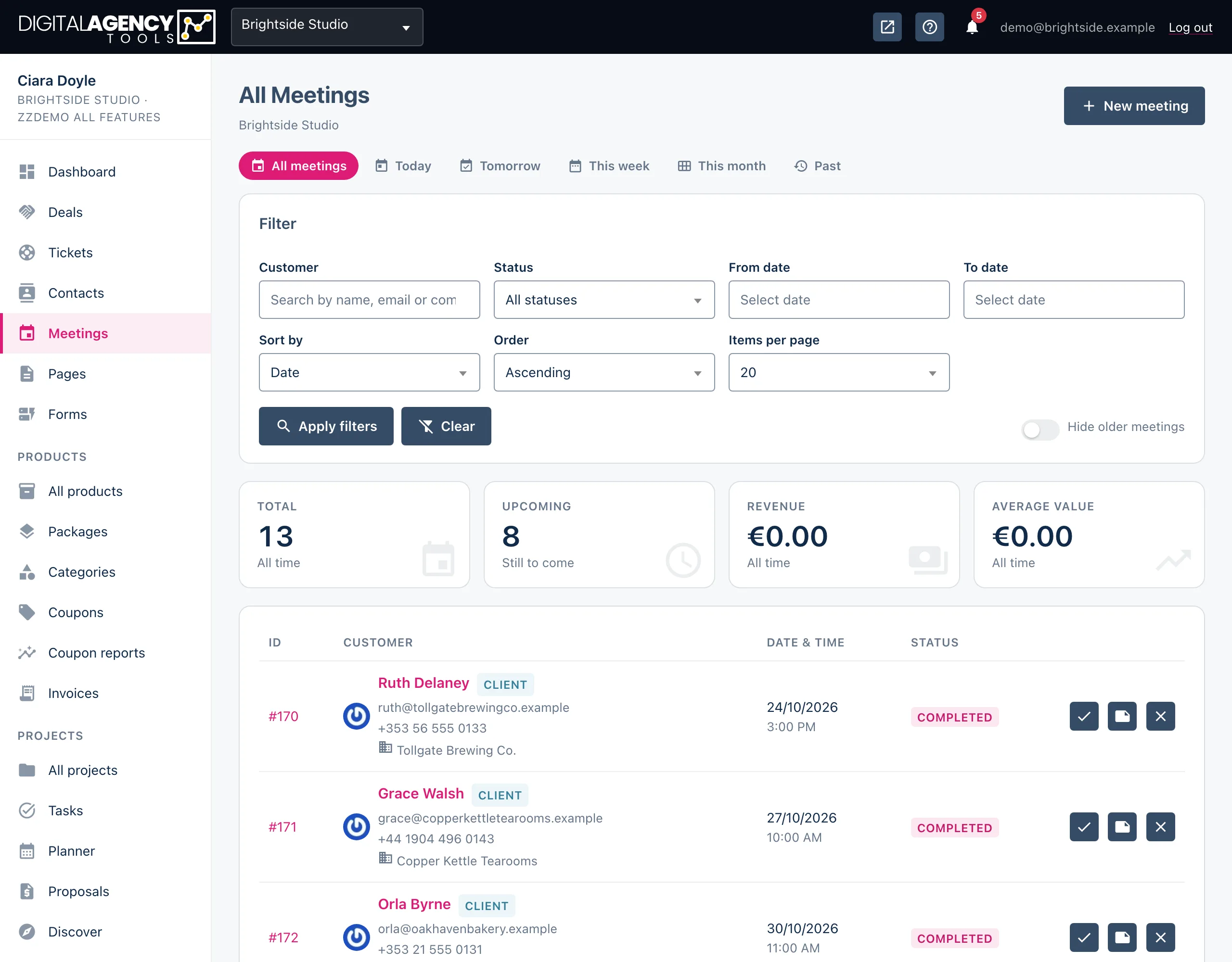
How to find a meeting
- Open Meetings in the sidebar.
- Click a date pill — All meetings, Today, Tomorrow, This week, This month or Past.
- To narrow it further, use the Filter card: search by customer name, email or company, choose a status, or set a From date and To date.
- Click Apply filters. Clear resets everything.
Filters and sorting
A custom date range replaces the date pill you had chosen. Without one, the pill stays in force alongside your other filters.
Sort by Date, ID or Status, ascending or descending, and show 10, 20, 50 or 100 meetings a page. Turn on Hide older meetings to see only what is still to come.
Old links
/bookings      → /meetings
/bookings/123  → that booking's meeting
Bookings from your booking page
Every booking a customer makes on your public booking page is listed here too, beside the meetings you schedule yourself. Its title is the product's name, and it carries the date and time, the customer's details and anything they wrote in Additional Notes. A paid booking appears once its checkout is complete.
Status changes travel both ways. If the customer cancels from their confirmation email, the meeting shows Cancelled; if you mark it Completed, No show or Cancelled here, the booking follows. A booking still awaiting confirmation shows as Draft until you confirm it.
The figures
The four tiles reflect the filters in force, and say so underneath — "Today", "This week", a date range, or "All time".
| Tile | What it counts |
|---|---|
| Total | Meetings matching your filters. |
| Upcoming | Those still to come. |
| Revenue and Average value | Meetings carry no price of their own, so these stay at zero. Bill the work with an invoice instead. |
The columns
ID and Customer open the meeting. The customer column shows their email, phone and company, and a Customer or Client badge when the meeting is linked to a contact — click it to open their profile. Date & time uses your business's date format, and Status shows where the meeting stands.
Three icons sit at the end of each row: Confirm, Internal notes (read and edit notes without leaving the list) and Cancel meeting. Confirming and cancelling both ask you to confirm first.
Statuses
Draft
Scheduled
Confirmed
In progress
Completed
Cancelled
No showStill stuck?
Can't find what you're looking for? Send us a message and we'll reply by email.