
Schedule a meeting
Put a call, workshop or consultation in the diary with an existing contact or someone new. If Google Calendar is connected, the meeting lands there too.
How to
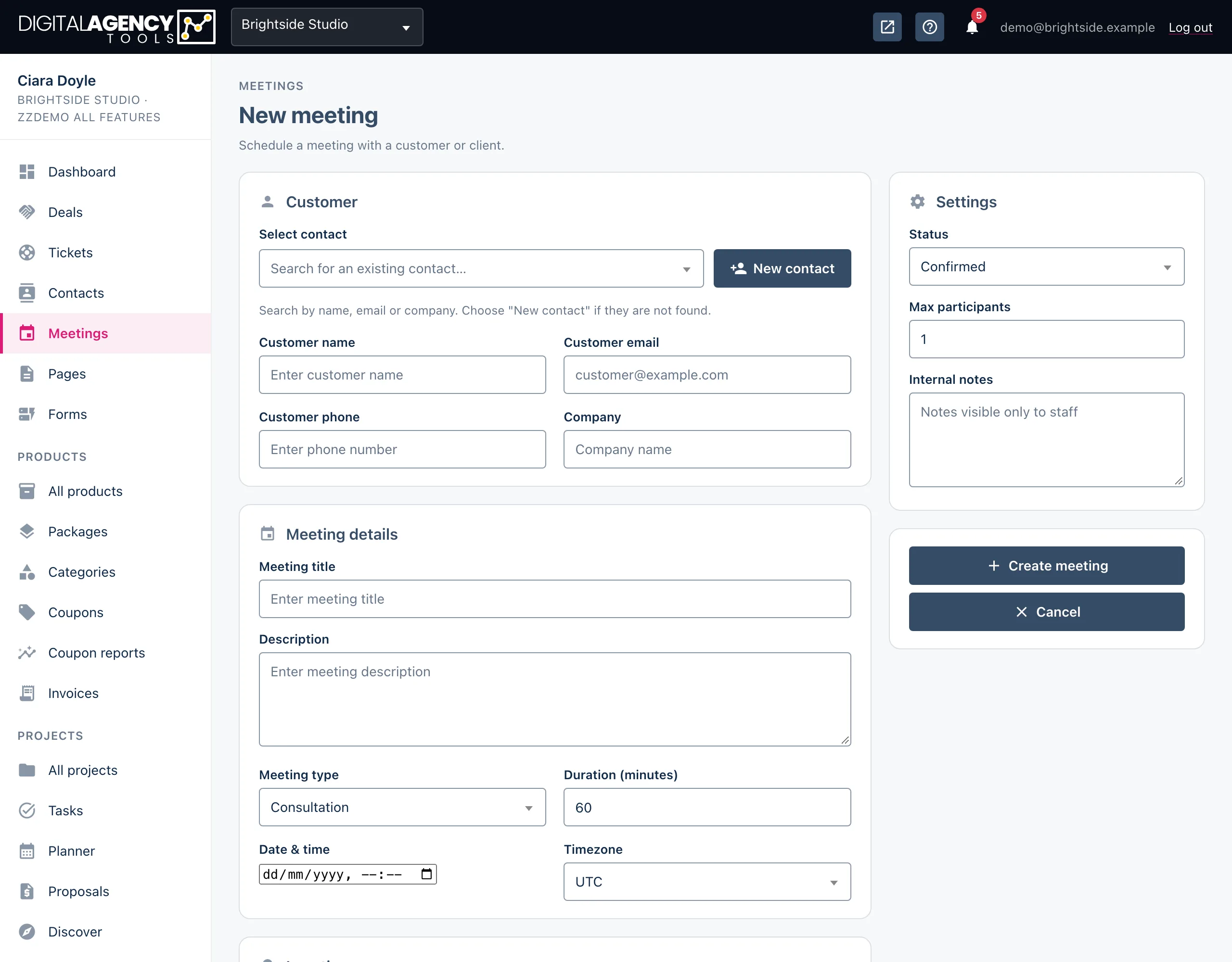
- Open Meetings and click New meeting.
- Under Customer, start typing in Select contact and pick the person. Their name, email, phone and company fill in and lock.
- For someone who is not a contact yet, click New contact instead and type their name and email by hand.
- Under Meeting details, give it a Meeting title, an optional description, a Meeting type, a Duration (minutes) and the Date & time, and choose the Timezone.
- Under Location, choose Online, In person or Phone, add an address if it is in person, and paste the Meeting URL (a Zoom or Meet link) if it is online.
- In Settings, leave the status as Confirmed, set Max participants if more than one person is coming, and add any internal notes. Click Create meeting.
What you must fill in
A Meeting title, a Date & time and the customer's name. The customer's email is optional, but if you enter one it has to be a valid address. Anything missing is listed in a message and the form stays open.
Duration starts at 60 minutes and moves in 15-minute steps.
Required
Meeting title
Date & time
Customer name
What happens when you save
You land on the new meeting's page with a confirmation message. The meeting gets its own attendance code straight away.
If your business has Google Calendar connected, an event is created in your calendar. If it is not, or Google is unavailable, the meeting is still saved. If you sync to Google Sheets, the meeting is added to your sheet as well.
The customer is not emailed. Send them the details yourself — Send email on the meeting page opens a message to them.
Still stuck?
Can't find what you're looking for? Send us a message and we'll reply by email.