
Scope
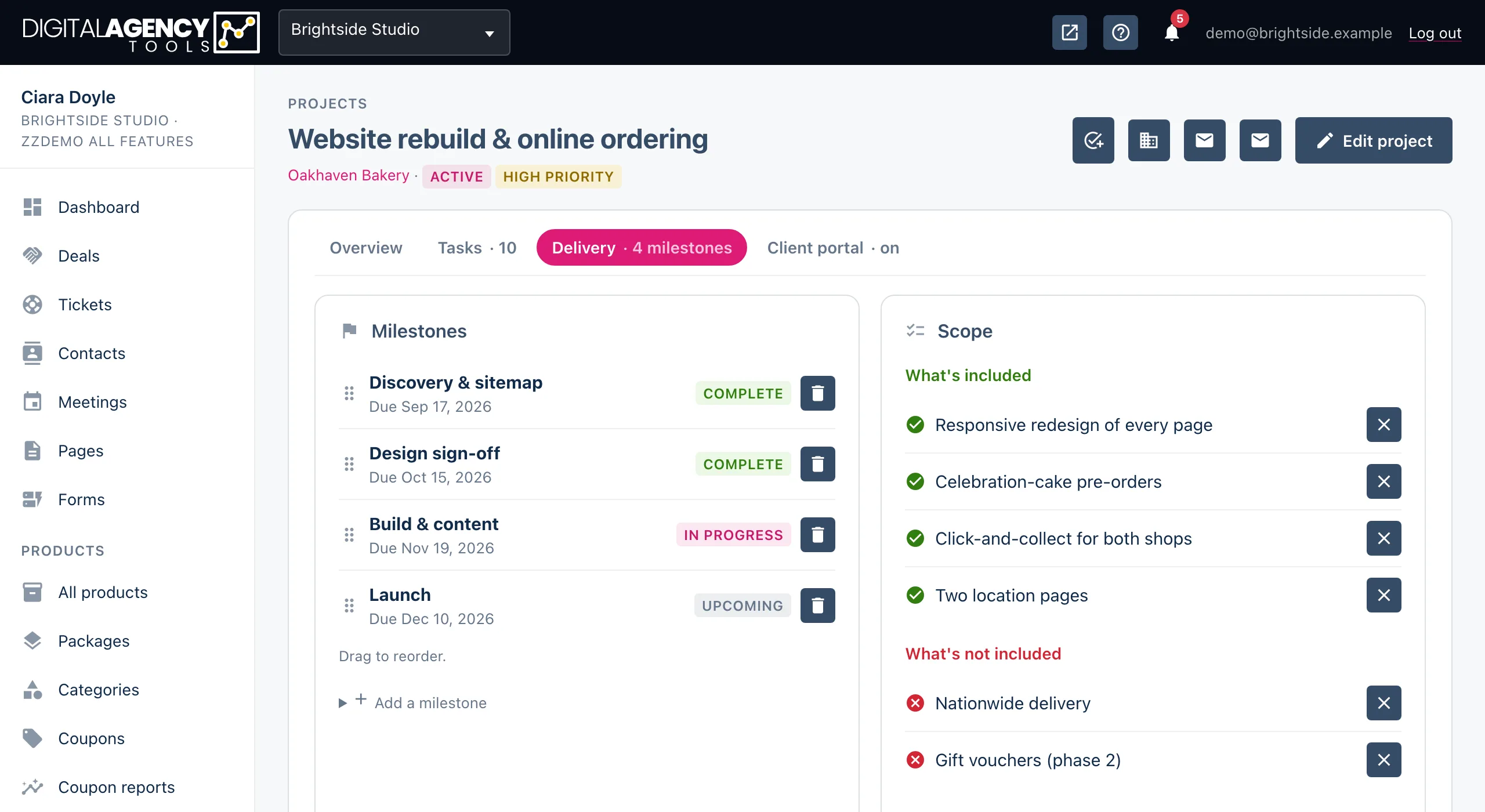
Write down what the project includes, and what it does not. Your client sees both lists in the portal, so you agree on the edges before anyone has to argue about them.
How to
- Open the project and choose the Delivery tab.
- In the Scope card, open Add a scope item.
- Type the item, for example "Five-page website" or "Copywriting".
- Under Included?, choose What's included or What's NOT included.
- Click Add scope item. It appears in the matching list.
Two lists
What's included is the work you have agreed to do. What's not included is the work you have agreed not to do, unless it is quoted separately. Short, plain items work best: one thing per line.
To remove an item, click the cross beside it. It is removed straight away, with no confirmation. To move an item from one list to the other, remove it and add it again with the other choice.
Example
Included
  ✓ Five-page website
  ✓ Two rounds of revisions
  ✓ Basic on-page SEO

Not included
  ✗ Copywriting
  ✗ Hosting and domain
What your client sees
When the project has any scope items, the portal shows a Scope card with the same two lists side by side. The client can read them but cannot change them.
If a project has no scope items at all, the card is left out of the portal.
Scope from a proposal
If the project was created from an accepted proposal, its scope is filled in for you from the proposal's scope section. Each line becomes an item. A line that starts with "- ", or that mentions "not included" or "out of scope", goes into What's not included. Everything else goes into What's included.
Still stuck?
Can't find what you're looking for? Send us a message and we'll reply by email.