
Milestones and deliverables
Milestones are the stages of the work. Deliverables are the things you hand over. Both live on a project's Delivery tab, and both appear in the client's portal.
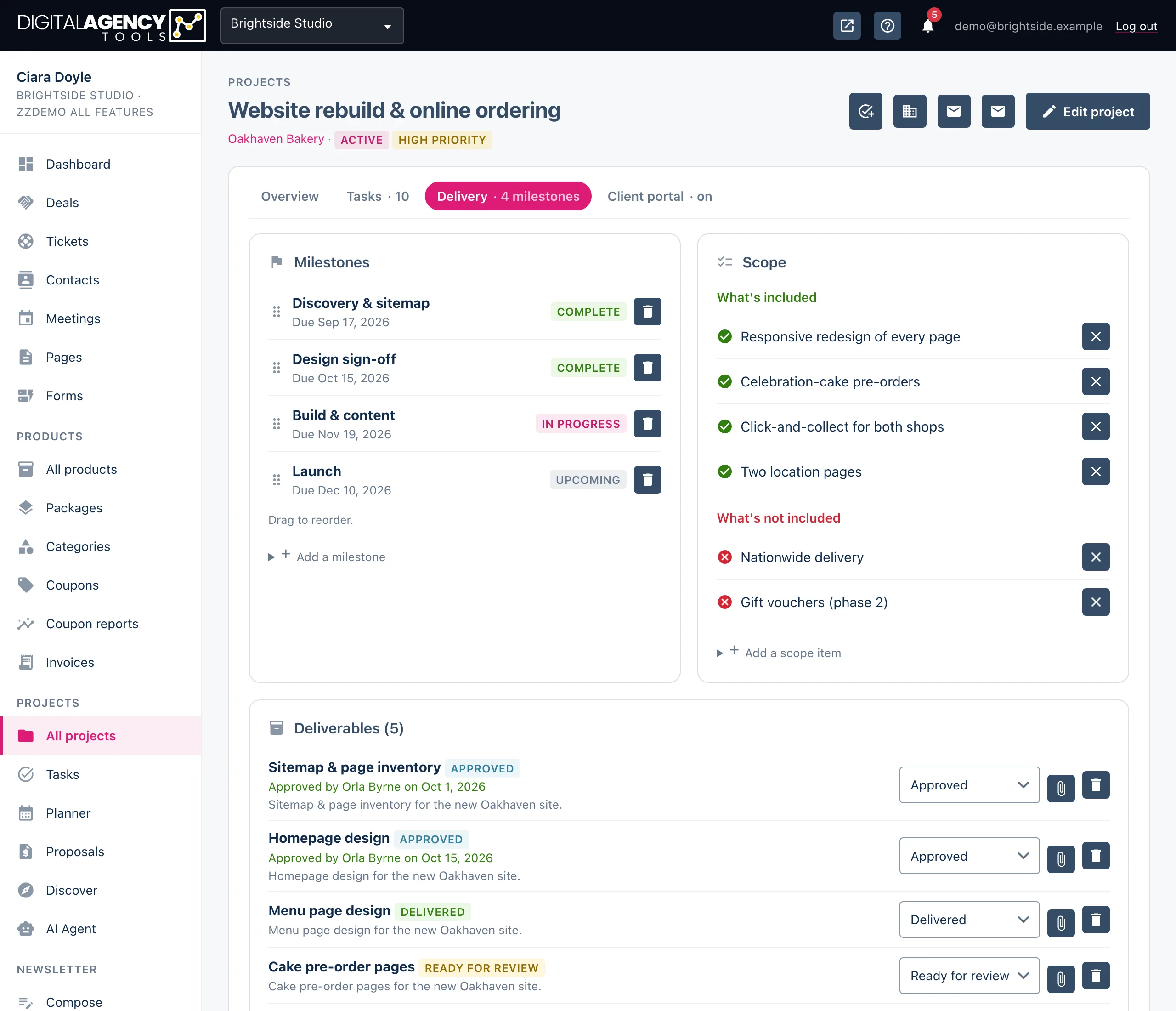
How to add a milestone
- Open the project and choose the Delivery tab.
- In the Milestones card, open Add a milestone.
- Enter a Title, and optionally a Due date and a Status.
- Click Add milestone.
- To change the order, drag a milestone by its handle. The new order is saved as soon as you drop it.
Milestone statuses
A milestone is Upcoming, In progress or Complete. Choose the status when you add it. The portal shows your client each milestone with its due date and status under Timeline, in the order you set here.
To remove a milestone, click its bin icon and confirm.
Milestone
upcoming → in_progress → completeHow to add a deliverable
- On the Delivery tab, open Add a deliverable in the Deliverables card.
- Enter a Title. Optionally link it to a Milestone and add a Description.
- Click Add deliverable. It starts as In progress.
- To attach a file, click the paperclip icon on the deliverable and choose the file. It uploads straight away.
- When it is ready for the client, change its status to Ready for review. The change saves as soon as you pick it.
Deliverable statuses
| Status | What it means | In the portal |
|---|---|---|
| In progress | You are still working on it. | Not shown. |
| Ready for review | You want the client to look at it. | Shown under Needs your attention, with its files and an Approve form. |
| Approved | The client (or you) has signed it off. | Listed under Deliverables with its files. |
| Delivered | Handed over. | Listed under Deliverables with its files. |
You can set any status yourself from the list. When the client approves from the portal, the deliverable shows "Approved by" with their name and the date. See Approvals.
Files
Files are stored privately. They are never public links. Your team downloads them from the project page, and your client downloads them from the portal while the portal is switched on.
Each file can be up to 25 MB. Allowed types are PDF, Word, Excel, PowerPoint, CSV, plain text, ZIP and images (PNG, JPG, GIF, WebP, SVG). Anything else is refused with "File type not allowed".
Where milestones come from
You can add milestones by hand, or let an accepted proposal create them. When a proposal becomes a project, each of its milestones is copied across with its due date, and a "Kick off" task is added for each one. See Turn a proposal into a project.
Still stuck?
Can't find what you're looking for? Send us a message and we'll reply by email.