
Turn a proposal into a project
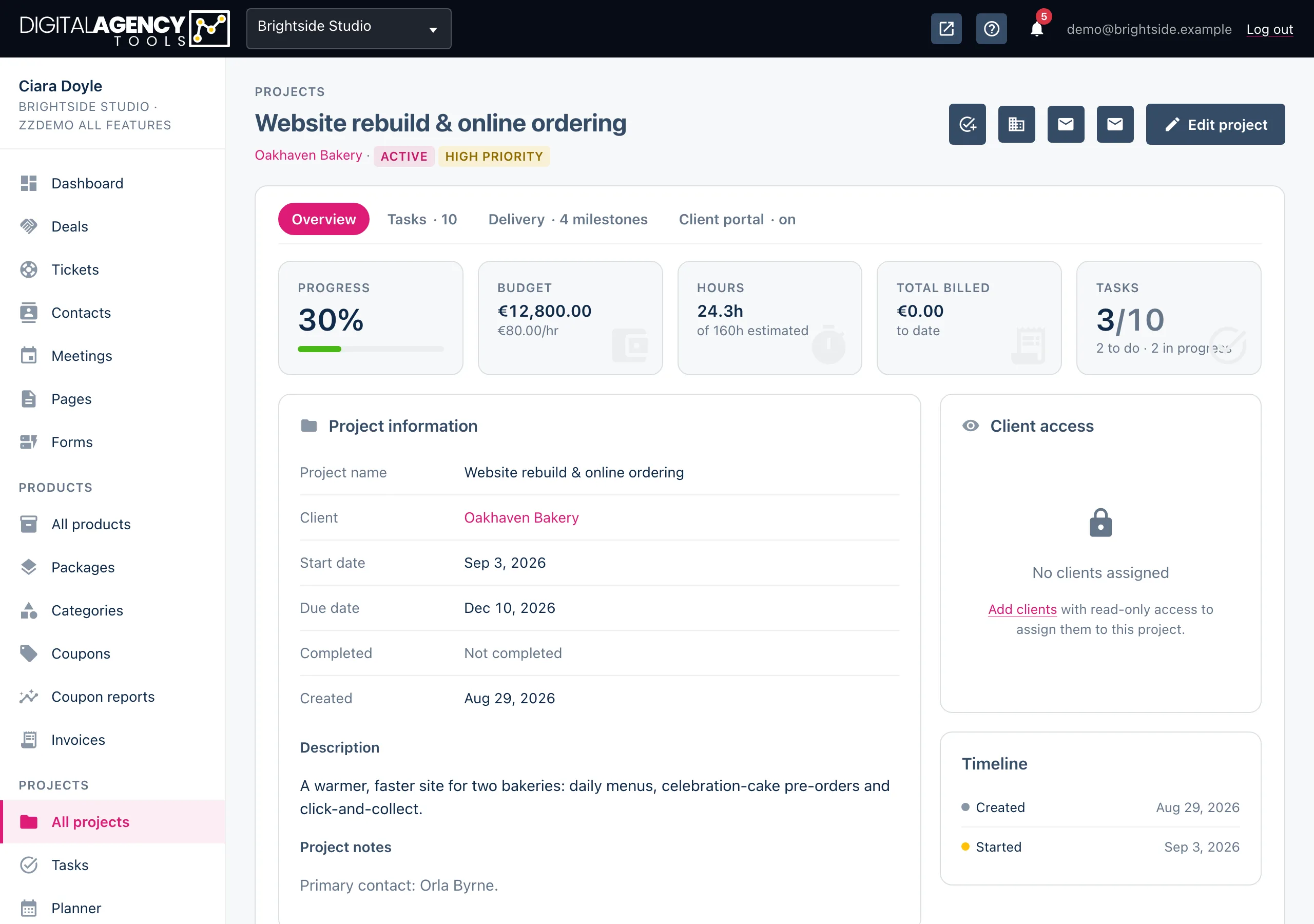
When a client accepts, the project is set up for you. The milestones, scope and tasks come straight from the proposal.
How to
- Send the proposal and wait for the client to accept it. The project is created at that moment. You don't need to do anything.
- Open the proposal. The project icon at the top, View project, takes you to it.
- If the project icon reads Create project instead, the automatic step did not finish. Click it and confirm to create the project now.
- Check the dates, assign the tasks and send the client their portal link.
What carries over
- The project: named after the proposal, for the same client, status active, starting today. Its due date is the latest milestone date.
- Milestones: one per timeline row, with a due date from its day number or fixed date.
- Scope: one item per scope line. Lines starting
-are marked as not included. - Tasks: a Kick off: <milestone> task for each milestone, plus one for every pricing line with Task ticked. New tasks use your default task status.
- Client portal: a portal is set up for the project.
- Deal: if you linked one, the contact is marked Closed Won.
Proposal → project
Title           → project name
Client          → project client
Timeline rows   → milestones
Scope lines     → scope items
"Task" lines    → tasks
Milestones      → "Kick off" tasks
Linked deal     → Closed Won
It only happens once
A proposal makes one project, never two. If the client clicks Accept proposal again, or you click Create project after the project exists, you are taken to the same project.
A declined, expired or draft proposal can't be turned into a project from the client's link. Only an accepted one can.
Pricing does not become an invoice on its own. Raise a deposit invoice from the proposal, or invoice the rest from Invoices when the time comes.
Send the portal link
The portal is created with the project, but its link isn't emailed to the client. Open the project and send them the portal link from there. See Turn on the portal.
Still stuck?
Can't find what you're looking for? Send us a message and we'll reply by email.