
Your profile
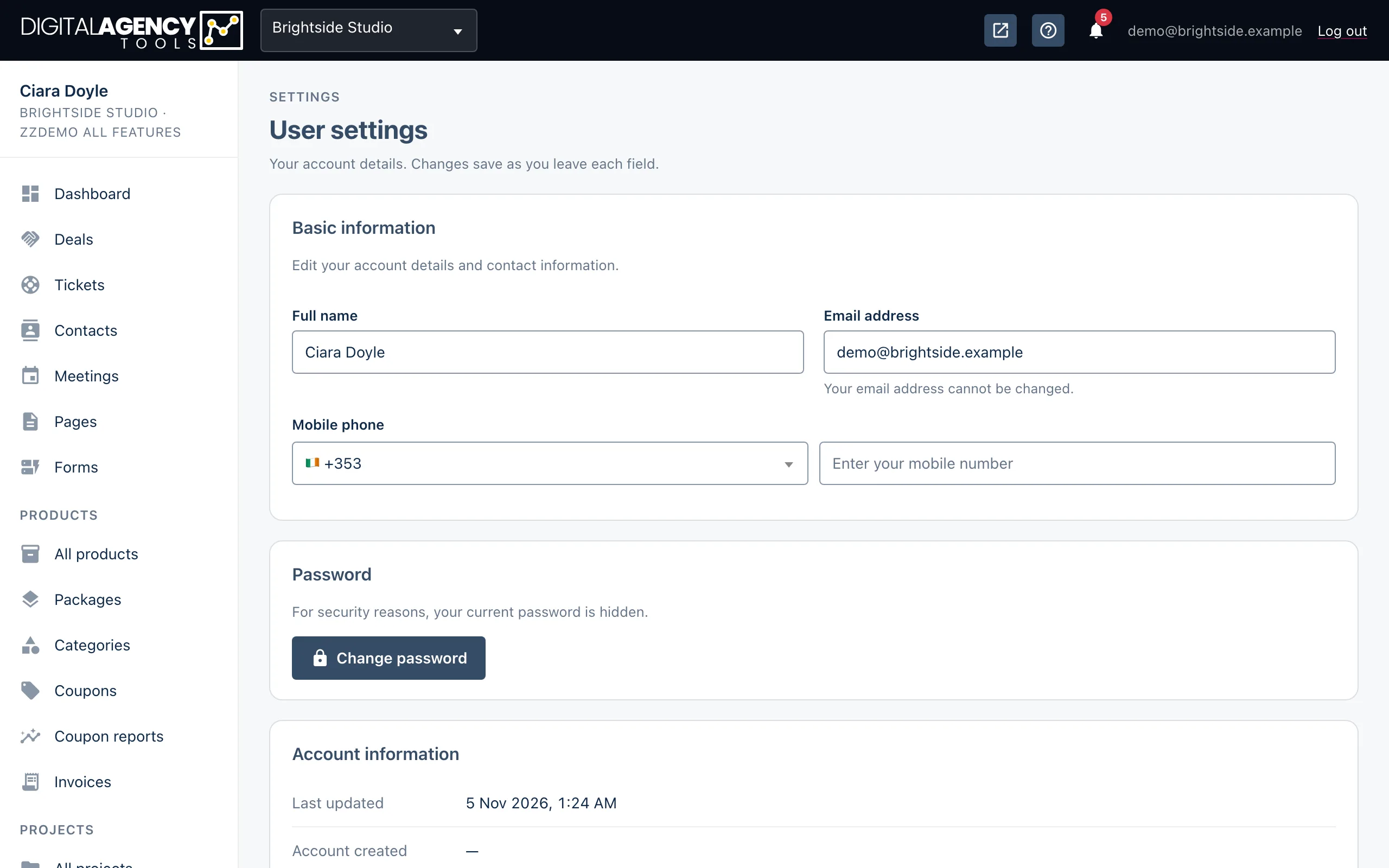
Your name, mobile number and password live on one page. Name and phone save the moment you leave the field.
How to
- In the sidebar, under Settings, open User.
- Change Full name or Mobile phone, then click or tab out of the field. A small message confirms the save.
- To change your password, click Change password, fill in the three fields and click Update password.
Basic information
Full name is how you appear to your team: on the Staff page, in the sidebar and on work assigned to you. Mobile phone is your own number, not the business's.
Email address is shown but cannot be changed here. It is the address you sign in with, and the one sign-in codes and password resets are sent to.
The business's own phone, email and address are on a different page — see Business details.
On this page
Basic information   name, email (read-only), mobile
Password            change it
Account information last updated, created
Changing your password
Enter your Current password, then the New password twice. The new one must be at least 8 characters, and the two copies must match. If anything is wrong you get a message and nothing changes.
Click Cancel to close the form without saving.
If you have forgotten your current password, sign out and use the reset link on the sign-in page instead.
Rules
all three fields filled in
new = confirm
at least 8 characters
Account information
The last card shows when your profile was last updated and when your account was created. The updated date moves on its own whenever you save a change.
Still stuck?
Can't find what you're looking for? Send us a message and we'll reply by email.