
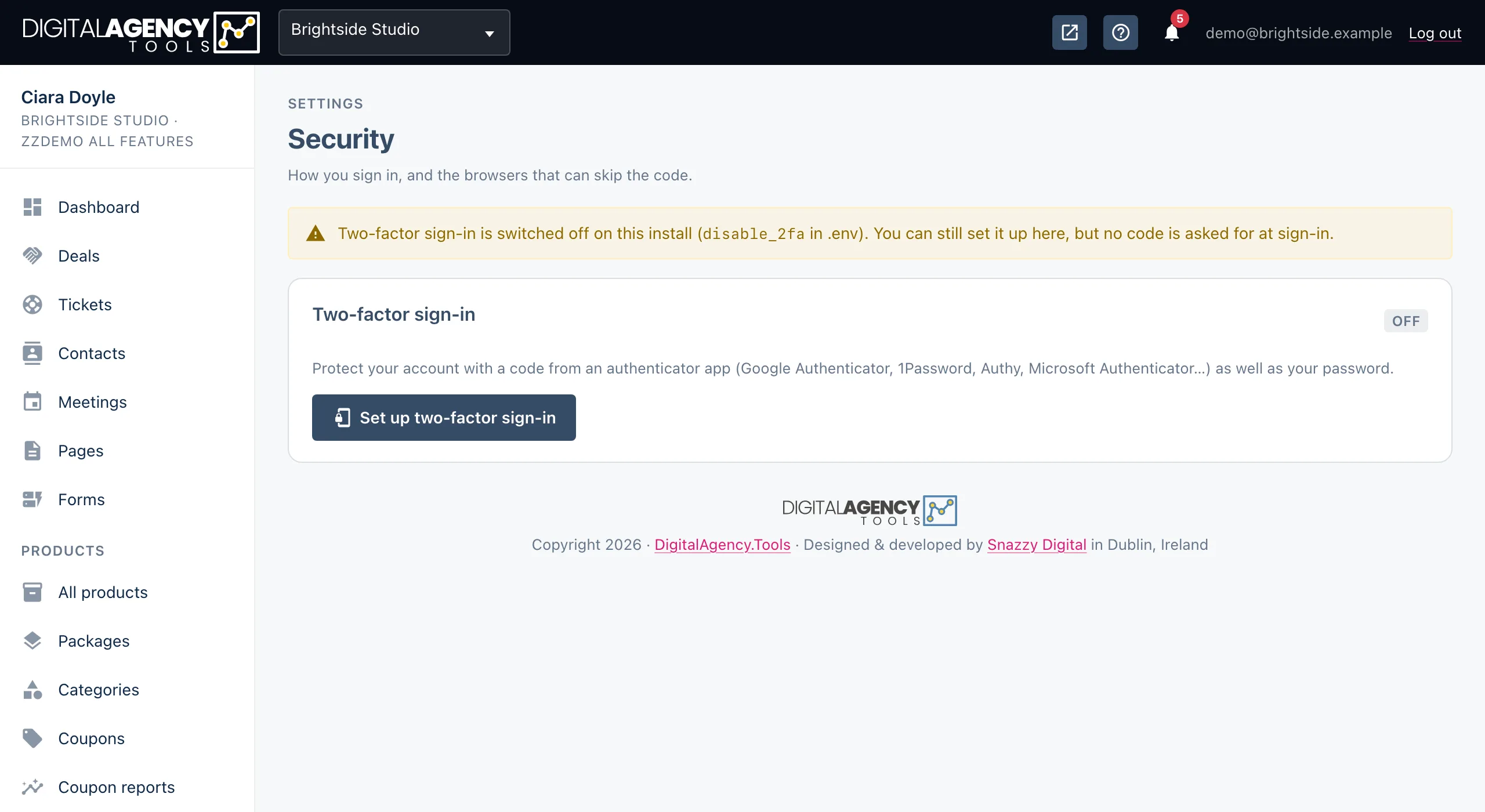
Two-factor sign-in
After your password, enter a six-digit code from an authenticator app. Someone who steals your password still cannot get in.
How to
- Install an authenticator app on your phone: Google Authenticator, Microsoft Authenticator, 1Password or Authy all work.
- In the sidebar, under Settings, open Security and click Set up two-factor sign-in.
- Scan the QR code with the app. If you cannot scan, type in the key shown under it.
- Enter the six-digit code the app shows and click Turn on. You have 15 minutes to finish.
- Your recovery codes appear. Click Copy or Download, store them somewhere safe, then click I have saved them.
Signing in afterwards
You enter your password as usual, then the code from the app. Tick Trust this browser on your own computer and it will skip the code for a number of days (30 unless your platform has changed it). The password is still needed every time.
No phone to hand? On the code screen choose Use a recovery code, or Email me a code to get a six-digit code sent to your sign-in address. An emailed code lasts 10 minutes, and you can ask for a new one once a minute.
Ways past the code screen
Code          from your authenticator app
Recovery code one of your ten, each works once
Email code    six digits, valid 10 minutes
Recovery codes
You get ten. Each one works once, and they are shown only when they are made. The Security page tells you how many you have left and warns you when you are down to two.
Click Make new codes to get a fresh set. You confirm with your password, and every old code stops working.
Keep them
in your password manager
or printed, somewhere safe
never in the same place as your phone
Trusted browsers
Once two-factor sign-in is on, the Trusted browsers card lists every browser that is skipping the code: the browser, its last IP address, when it was last used and when the trust expires. The one you are using is labelled This browser.
Click the delete icon (Forget this browser) to make that browser ask for a code at its next sign-in. Do this for any computer you no longer use or do not recognise.
If the platform has switched trusted browsers off, the card says so and the code is asked for at every sign-in.
When it is required
The platform can make two-factor sign-in mandatory for everyone who runs a business on it. If it has, a yellow notice says Two-factor sign-in is required for your account, and until you set it up the app keeps bringing you back to the Security page. Once it is on, the Turn off button is replaced with a note that it cannot be turned off.
Otherwise you can click Turn off at any time. You confirm with your password, and your recovery codes and trusted browsers are removed.
Still stuck?
Can't find what you're looking for? Send us a message and we'll reply by email.