
Notifications and WhatsApp
Everything shows in the bell. This page decides who also gets an email or a WhatsApp message, event by event.
How to
- In the sidebar, under Settings, open Notifications.
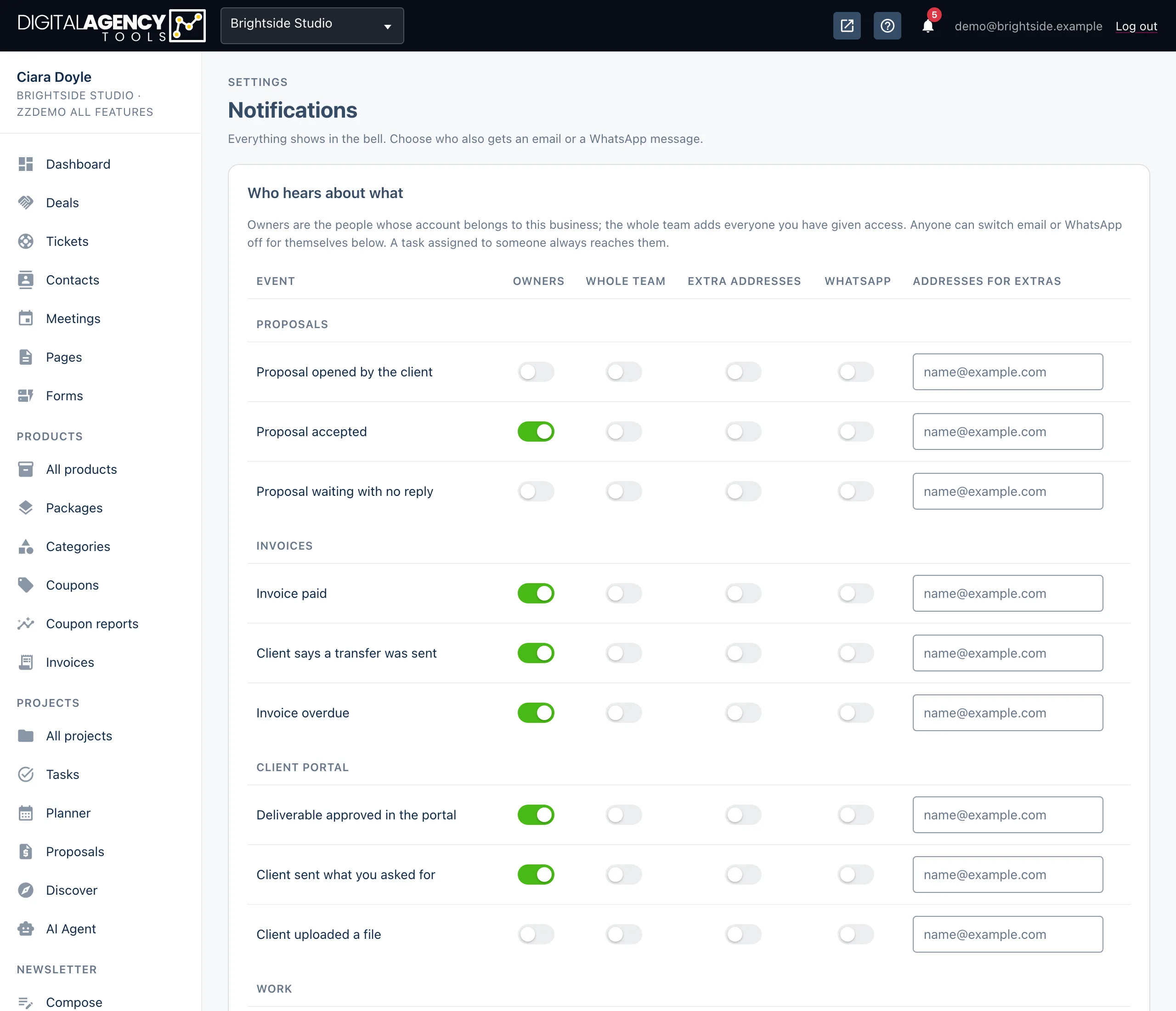
- In Who hears about what, tick the groups that should hear about each event.
- To send an event to people outside your team, tick Extra addresses and type their emails, separated by commas, in that row.
- Click Save.
Who hears about what
Events are grouped: Proposals, Invoices, Client portal, Work, Developers and System. For each one you choose any mix of the groups on the right.
Owners are the people whose account belongs to this business. Whole team adds everyone you have given access on the Staff page. A task assigned to someone always reaches that person, whatever you tick.
A row you have changed shows a Custom badge. The reset icon (Back to the default) puts it back. Only owners can change this table; everyone else sees it read-only.
Some of the events
Proposal opened by the client
Proposal accepted
Invoice paid
Invoice overdue
Deliverable approved in the portal
Client uploaded a file
New support ticket
Task assigned to you
New booking
A webhook endpoint was switched off
WhatsApp phone disconnected
Just me
The last card holds your own switches: Email me, WhatsApp me and My WhatsApp number. They apply in every business you belong to, and they win over the table above. Your number is used for things meant for you alone, like a task assigned to you. Click Save my settings.
Turning a channel off never empties the bell. The history is always kept there.

WhatsApp numbers
Events ticked under WhatsApp go to the numbers in the WhatsApp card. Type them in international format, separated by commas, and click Save numbers.
The badge says Connected when a phone is ready to send. Until then, messages are held, not lost.
Number format
+353 87 123 4567, +44 7700 900123Link your own phone
Out of the box, WhatsApp messages leave from the platform's number. Link your business's phone to send as yourself, and to receive client messages as support tickets.
- Under Your WhatsApp phone, click Link a phone.
- On the phone, open WhatsApp → Linked devices → Link a device and scan the QR code. It refreshes every few seconds; click Refresh if it does not show.
- Cannot scan? Click the dial-pad icon (Use a pairing code instead), enter the phone's number and click Get code. Type that code into WhatsApp → Linked devices → Link with phone number.
- When the badge turns ready, use Send a test to check a message arrives.
Under Incoming messages, click Register inbound so that messages sent to this phone open tickets in Support tickets. The unlink icon disconnects the phone; messages then go out from the platform's number again.
If Link a phone is greyed out, the platform has no WhatsApp gateway yet, or it is not accepting more phones. Your platform administrator sets that up.
Still stuck?
Can't find what you're looking for? Send us a message and we'll reply by email.