
Turn on the portal
Every project can have its own private portal: one link your client opens to see the timeline, approve work and answer your requests. There is no account to create and no password to forget.
How to
- Open the project under Projects → All projects and choose the Client portal tab.
- Click Create portal.
- A green box shows the portal link. Click Copy straight away. The link is shown only this once.
- Send the link to your client yourself, by email or however you usually talk to them. The platform does not email it for you.
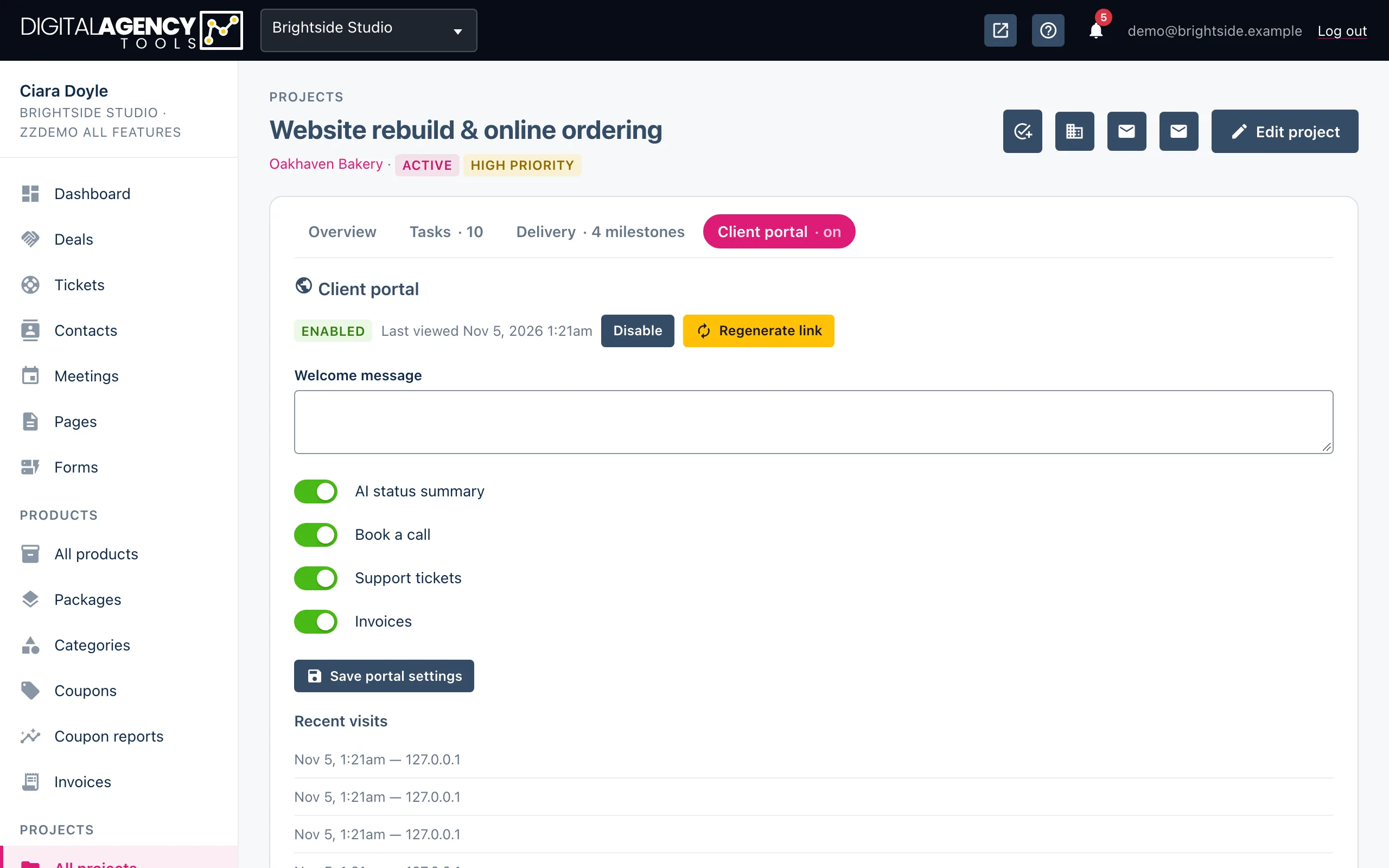
- Optionally add a Welcome message and choose what the portal shows. See Portal settings.
Why the link is shown only once
The link works like a key. For security, only a scrambled fingerprint of it is stored, never the link itself. That means nobody, including you, can look it up again later.
If you lose it, or your client cannot find it, click Regenerate link. You get a new link to copy, and the old one stops working immediately.
The link
https://app.digitalagency.tools/portal/
  3f9c…(48 characters)

no login
not indexed by search engines
anything wrong → "not found"
Disabling and re-enabling
The tab shows whether the portal is Enabled or Disabled. Click Disable to switch it off. The link then shows "This link is invalid or has expired", and files can no longer be downloaded through it.
Click Enable to switch it back on. The same link works again, so you do not need to send a new one.
Knowing when it is used
Beside the status you will see Last viewed with the date and time the portal was last opened. Underneath the settings, Recent visits lists the last 15 visits with the time and the IP address.
Portals from proposals
When an accepted proposal becomes a project, a portal is created for it automatically. Because the link is shown only at the moment it is made, open the project's Client portal tab and click Regenerate link to get one you can copy and send.
Still stuck?
Can't find what you're looking for? Send us a message and we'll reply by email.