
A client link does not open
Your client clicks a portal, proposal or pay link and sees "not found" or "this link is invalid or has expired". The link has almost always been replaced or switched off. The fix is to send a fresh one.
Why links stop working
Client links are private keys. Only a fingerprint of each one is stored, so the platform cannot show you an old link again. When a new link is made, the old one stops working at once. A link that does not match shows a plain "not found" page. It never says whether the project or invoice exists.
So the usual answer is not to dig out the old link but to send a new one.
What the client sees
Portal     This link is invalid or has
           expired.
Proposal   This proposal link is invalid
           or has expired.
Invoice    Nothing to pay here
           This payment link has been
           replaced
Checks, in order
- Ask the client to copy the whole link into the browser. Some email apps break long links over two lines, and half a link never works.
- Ask which email they used. If you have sent the link more than once, only the newest email's link works.
- Check the thing the link is for, using the sections below, and send a fresh link.
Portal links
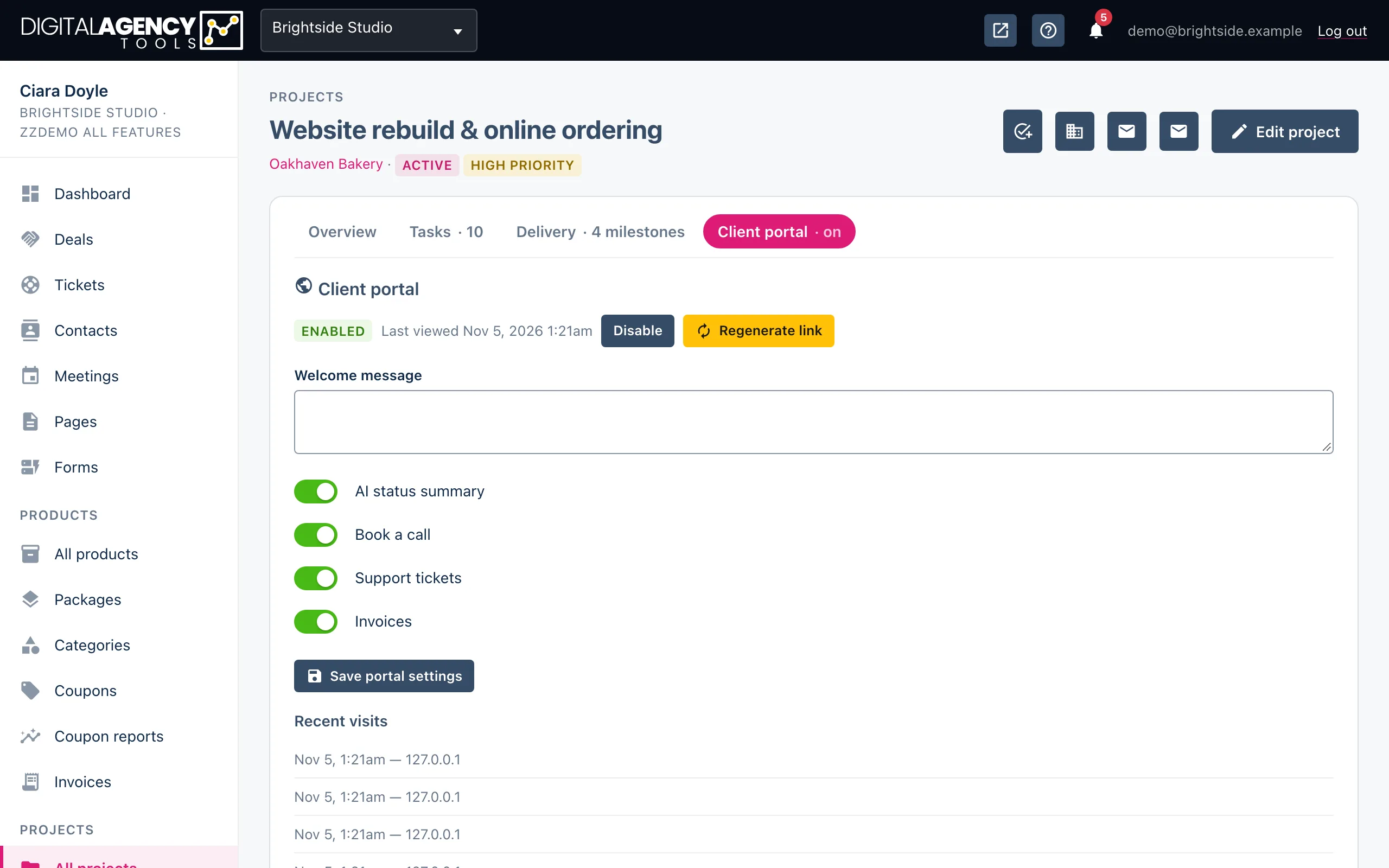
Open the project from Projects → All projects and choose the Client portal tab.
- If the badge says Disabled, click Enable. The existing link works again.
- If it says Enabled, someone may have regenerated the link. Click Regenerate link, confirm, then copy the new link and send it. It is shown once.
"Last viewed" next to the badge tells you whether the client has ever opened it.
Proposal links
Every time you click Send on a proposal, a new public link is made and the previous one stops working. If you sent it twice, the first email's link is dead.
Open the proposal and click Send again. The client gets a new email, and the link is shown once at the top of the page so you can copy it too.
Invoice pay links
A pay link stops working when the invoice is paid, voided or written off. That is what Nothing to pay here means. If the client has just paid, nothing is wrong.
Emailing an invoice again, sending a reminder or reopening it also makes a fresh link and retires the old one. Open the invoice and use Email again, or Make a pay link to copy a new link yourself.
This payment link has been replaced means the client has a link in the old format, from before pay links were made private. Email the invoice again to send a new one.
Still stuck?
Can't find what you're looking for? Send us a message and we'll reply by email.