
Draft updates with AI
The draft is written from what has really happened on the project since your last update — finished tasks, delivered work, milestones and open requests. You review it, refine it in plain words, and send it when it reads right.
How to
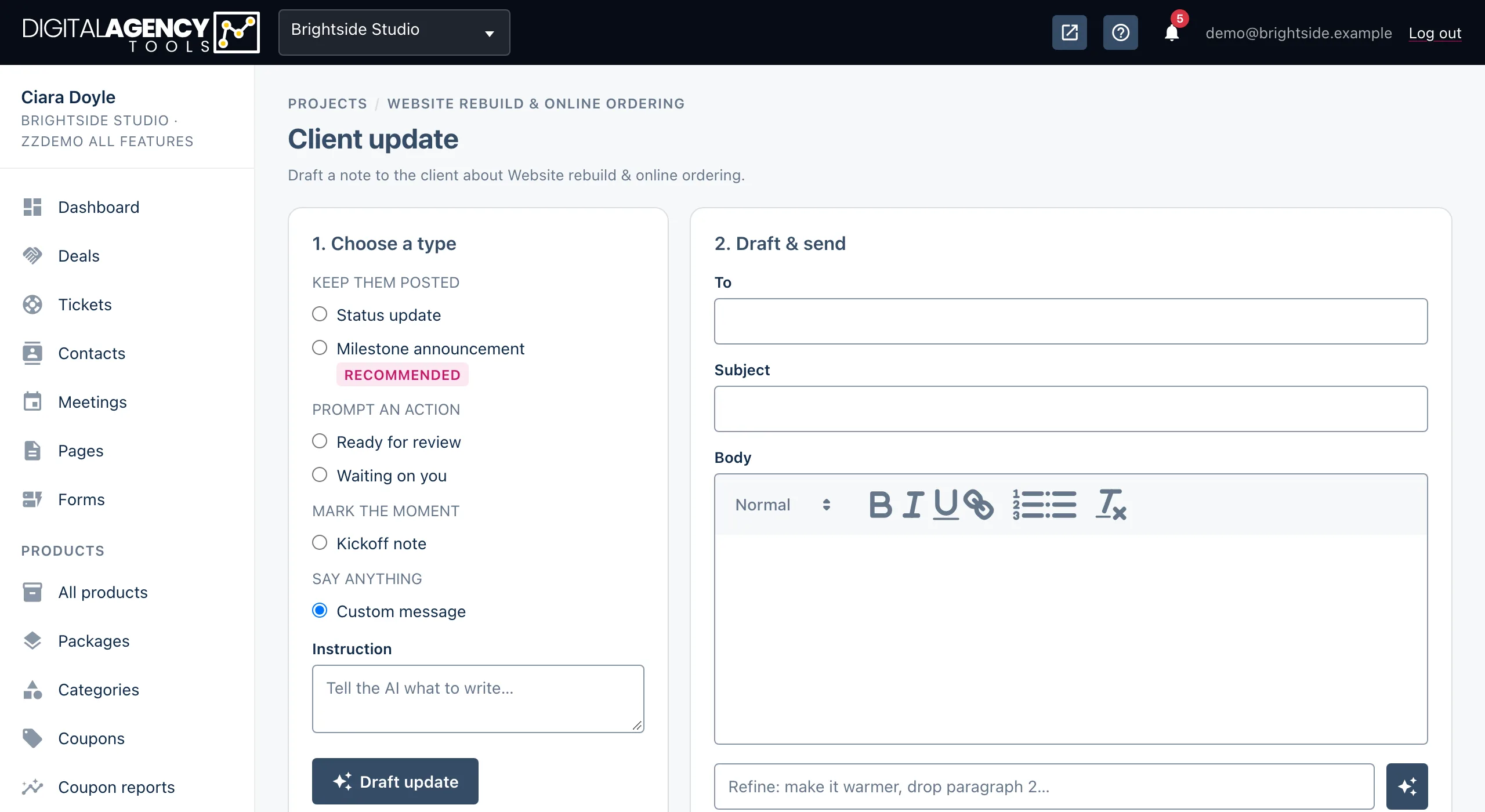
- Open the project and click the Client updates icon in its header.
- Choose a type. For Custom message, write what you want in the Instruction box — for example "Let them know the launch is moving to Friday and why".
- Click Draft with AI. The button reads Drafting… while it works, then the subject and body appear.
- To change the draft, type an instruction in the Refine box ("make it warmer", "drop paragraph 2", "shorter") and click the sparkle icon beside it. The subject and body are rewritten in place.
- Make any final edits by hand in the body, then click Send.
What the AI is given
Only the project's own facts, gathered at the moment you click Draft with AI:
- The project's name, status, start and due dates.
- Tasks finished since your last sent update.
- Deliverables that are approved or delivered.
- Milestones completed, and the ones still to come with their due dates.
- Open client requests and when they are due.
It is told to write a warm, concise email in your business's name and to stick to that information. The What changed card on the page shows the same counts, so you can see what it had to work with.
Since when?
last update sent   → changes since then
never sent one     → since the
                     project started
Always read it before sending
The draft is a starting point. Check names, dates and anything that sounds like a promise. A thin draft usually means thin data: if tasks are not marked finished, or deliverables are still in draft, the AI has little to report. Bring the project up to date and draft again.
Each draft is saved as soon as it is created, and listed in History as draft until you send or copy it. Delete drafts you do not need with the bin icon.
When the button is greyed out
If no AI provider is set up for your business, the page shows AI drafting is off for this business. Write the update below and send it as normal. Draft with AI and the Refine box are disabled (hover for the reason), and you write the update by hand — see Write and send an update. If a draft fails part way, you see AI draft failed; try again in a moment, or write it yourself.
See When AI buttons are switched off for how AI is turned on.
Still stuck?
Can't find what you're looking for? Send us a message and we'll reply by email.