
Write and send an update
Each project has its own update composer. Choose what kind of update it is, write it (or let AI draft it, if AI is on for your business), save it as a draft if you are not finished, and send it to the client by email — or copy it into whatever channel you already use.
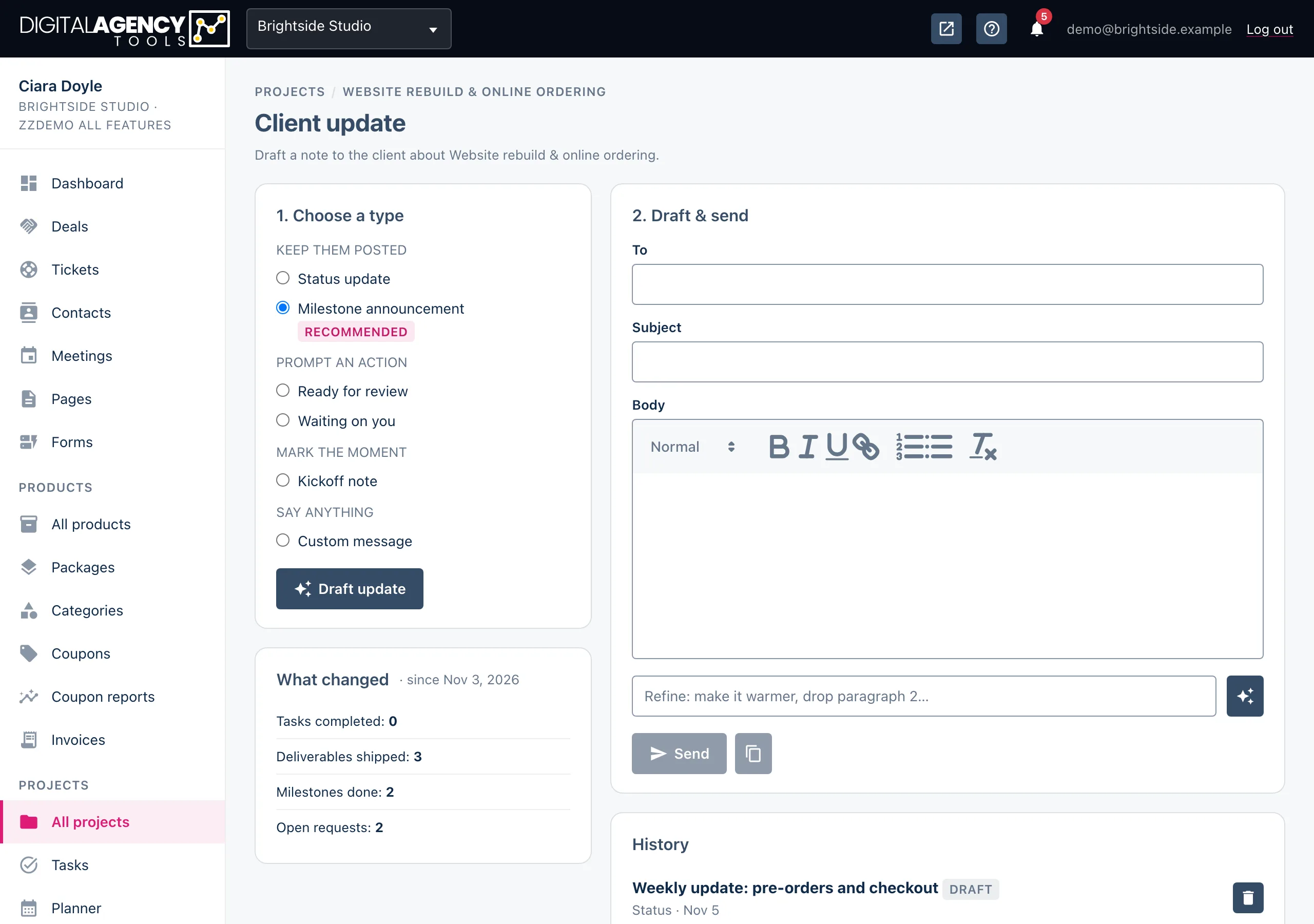
How to
- Open the project under Projects → All projects.
- In the project's header, click the Client updates icon (the envelope, next to Edit project).
- Under 1. Choose a type, pick the kind of update. The type the platform suggests is already selected and marked Recommended.
- Check the To field. It starts with the email of the project's client; change it if the update should go to someone else.
- Type a Subject and write the update in Body. If AI is on for your business you can click Draft with AI first to fill both in, then edit — see Draft updates with AI.
- Not finished? Click the Save draft icon next to Send (pressing Enter in To or Subject does the same). The page reloads with Draft saved.
- Click Send. The page reloads with Update sent. and the update appears in History as sent.
The six types
The types are grouped by what you want the email to do:
| Type | Use it for |
|---|---|
| Status update | A friendly roundup of everything since the last update. |
| Milestone announcement | Celebrating a milestone you have just completed. |
| Ready for review | A gentle nudge to look at deliverables that are waiting. |
| Waiting on you | A polite note that the work is blocked on open client requests. |
| Kickoff note | Welcoming the client and setting expectations. |
| Custom message | Anything else. An Instruction box appears so you can say what to write. |
How "Recommended" is chosen
a client request is overdue  → Waiting on you
a deliverable has sat in
  "ready for review" 2+ days → Ready for review
project under 7 days old,
  nothing sent yet           → Kickoff note
a milestone completed since
  the last update            → Milestone
otherwise                    → Status update
What changed
The What changed card counts what has happened since the last update you sent (or since the project started, if you have never sent one): tasks completed, deliverables shipped, milestones done and open requests. This is the same information the draft is written from, so it is a quick check that there is something worth saying.
Tasks count as completed when they sit in a status marked as finished — see Statuses and categories.
Who it goes to
The To field starts with the email address of the project's client — the contact chosen on the project — and you can change it. If it is empty when you click Send, nothing is sent: the draft is saved and the page asks you to add the client's email address first. Send also asks for a subject and a body.
The email leaves from your business's verified sending domain, the same as your other client emails.
Copying instead of sending
If you would rather send the update yourself — from your own inbox, Slack or WhatsApp — click the Copy text icon next to Send. The text is copied to your clipboard and the update is recorded as sent, so it still shows in History and on the client's portal.
History and the portal
History lists every update for the project, newest first, with its type and a draft or sent badge. Click the pencil icon on a draft to open it in the composer again and carry on; sent updates cannot be edited. Use the bin icon to delete one.
If the project's client portal is on, every sent update — emailed or copied — appears in its Updates section, so the client can read back through them.
If you cannot open the page
Client updates can be switched off for your plan. If the Client updates icon takes you to the upgrade page instead, the feature is not included in your current plan.
Still stuck?
Can't find what you're looking for? Send us a message and we'll reply by email.