
Create a coupon
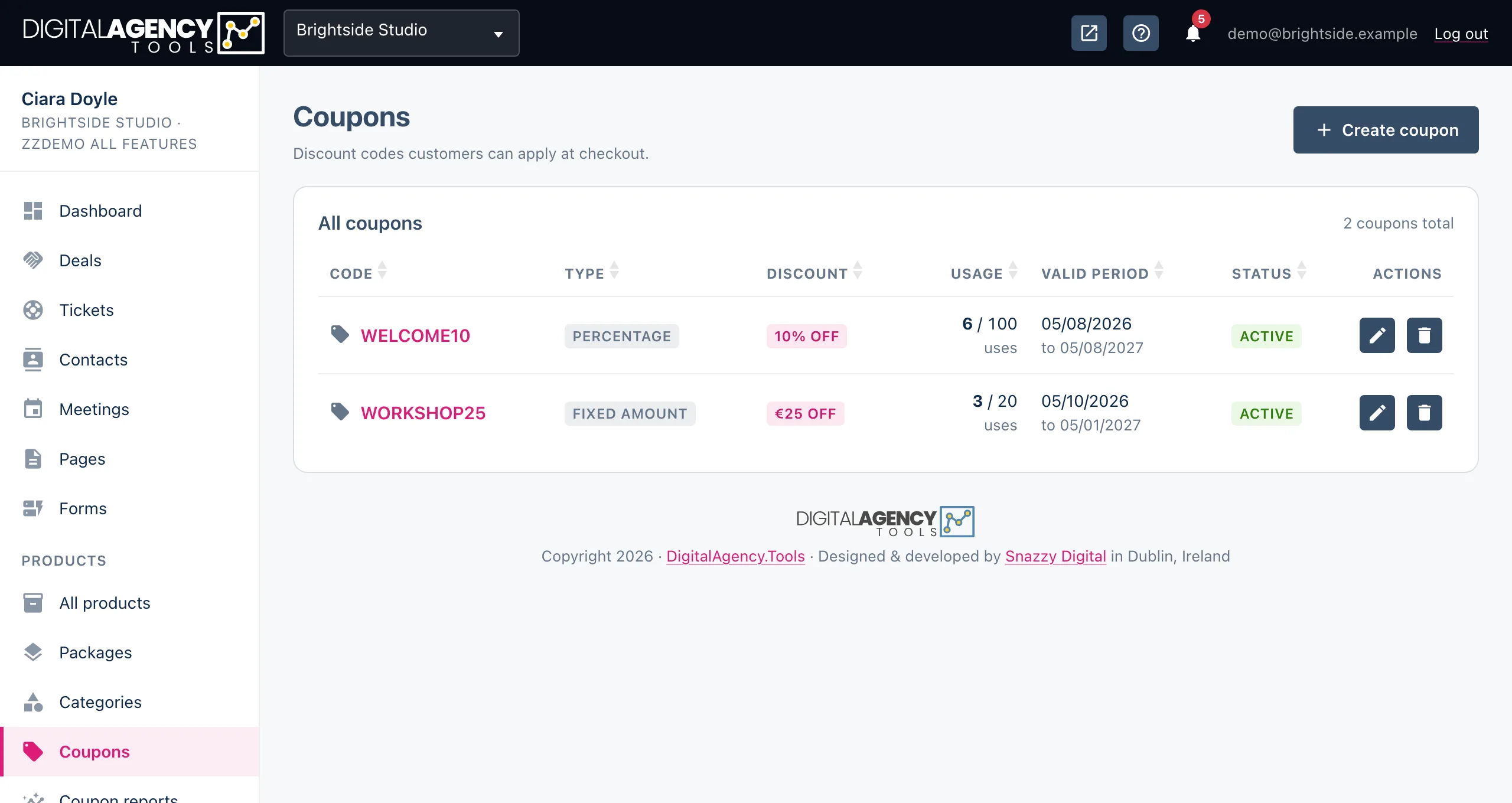
A coupon is a code customers type on your booking page to get money off: a percentage or a fixed amount, for a set period, for everyone or only for the people and products you choose.
How to
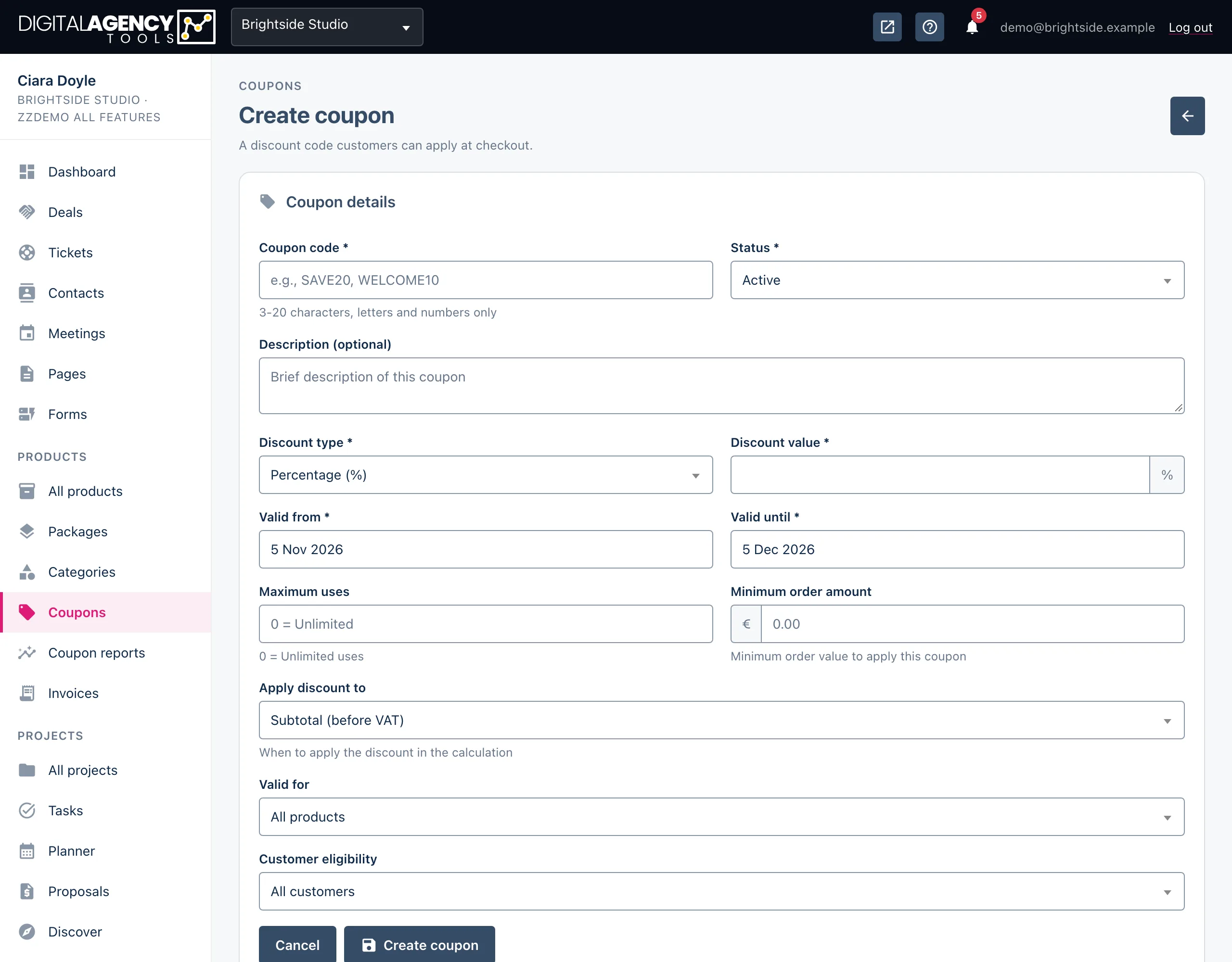
- Open Products → Coupons and click Create coupon.
- Enter the Coupon code: 3 to 20 letters and
numbers, such as
WELCOME10. It is saved in capitals. - Choose the Discount type, Percentage (%) or Fixed amount, and enter the discount value.
- Set Valid from and Valid until. They default to today and 30 days from now.
- Optionally set Maximum uses (0 or blank means unlimited) and narrow who and what it applies to.
- Leave Status on Active and click Create coupon.
The options
| Field | What it does |
|---|---|
| Apply discount to | Subtotal (before VAT) or Total (after VAT). Matters only when VAT is on. |
| Valid for | All products, or Specific products only and then pick them. |
| Customer eligibility | All customers, or Specific customers only and list their email addresses, one per line. |
| Maximum uses | How many times the code can be used in total. 0 is unlimited. |
| Description | A note for you. It shows under the code in the list. |
Statuses in the list
Active      live now
Scheduled   starts later
Inactive    switched off
Expired     past "valid until"
Used Up     hit its maximum uses
How customers use it
Paid products show a Promotional Code box on their booking page. The customer enters the code and clicks Apply; the discount appears in the price summary straight away, and is checked again when they book.
A code is refused with a reason when it is unknown, not yet valid, expired, used up, not valid for this customer's email, not valid for this product, or already used by someone on a once-per-customer code. If the customer changes their email after applying a code, the code is cleared and they apply it again.
Editing a coupon
Click the code or the edit icon. You can change the status, discount, dates and maximum uses, tick the Applicable products (leave them all unticked for every product), and switch on Once per customer. The code itself cannot be changed: create a new coupon instead.
Plans and payments
Coupons are part of online payments. If your plan does not include them, Coupons shows in the sidebar with an Upgrade chip. Codes only apply to paid products, so Stripe needs to be connected.
Still stuck?
Can't find what you're looking for? Send us a message and we'll reply by email.