
What your customers see
From your booking page to a confirmation in their inbox, here is the journey a customer takes, and what you can change at each step.
The journey
- They land on your booking page,
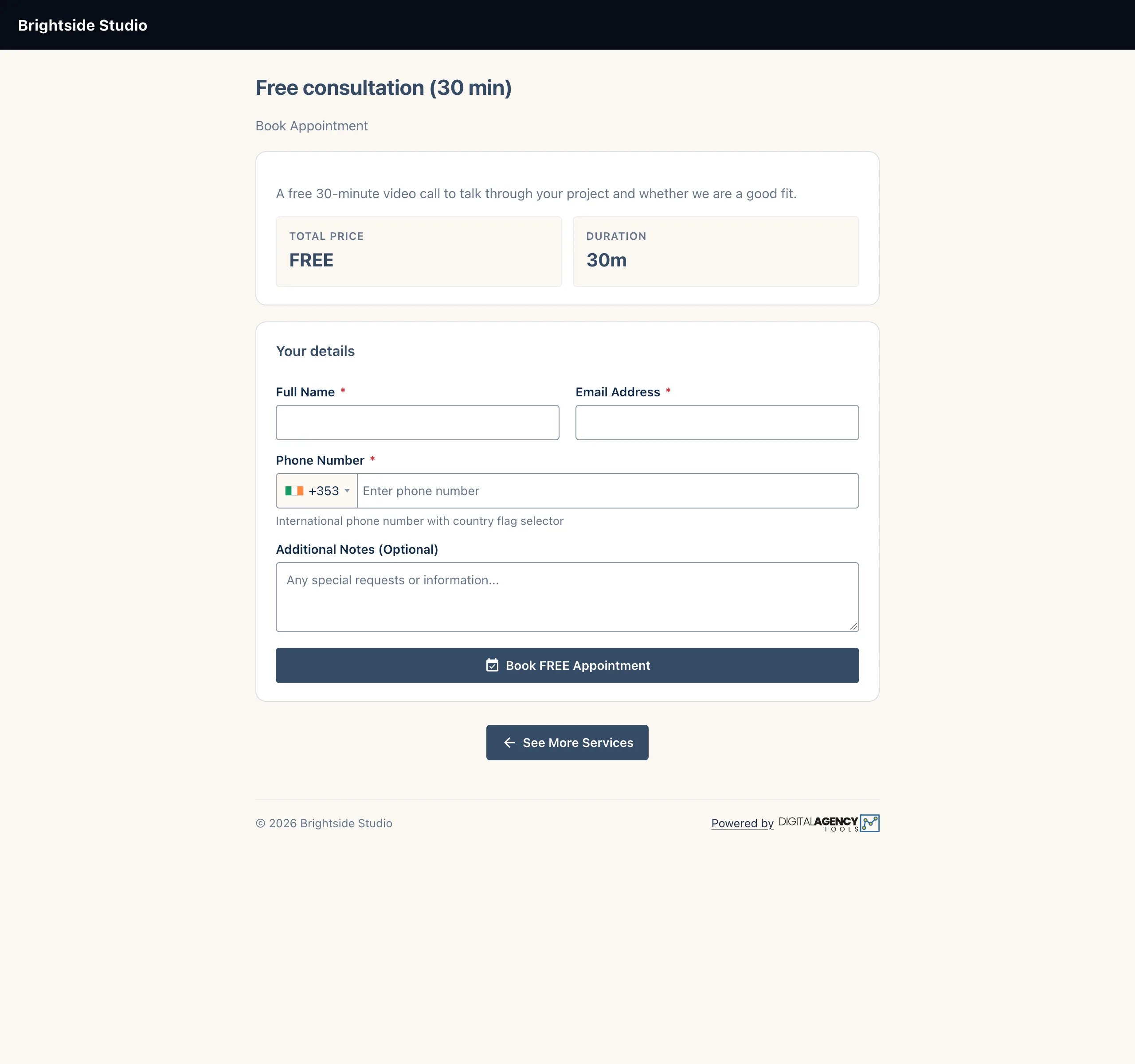
yourdomain/your-username, and choose a product under Services or Events. Or they arrive straight on a product from a link you shared. - The product page shows its name, cover photo, description, the Total Price and the Duration.
- Under Choose a date & time they pick a day on the calendar, then one of the available times for it. Past days and times that are already taken are not offered, and the book button asks them to choose a time if they skip this step.
- Under Your details they enter their full name, email address and phone number, plus any notes.
- They add a Promotional Code if they have one, and check the Price Summary.
- They click Book FREE Appointment, or Pay & Book Appointment with the amount for a paid product.
- A free booking is confirmed on the spot. A paid one goes to Stripe's secure checkout first, then back to a Booking Confirmed! page.
What the form asks for
Name, email and phone are always required. The phone field has a country selector. The rest depends on the product and your settings:
- Country/Region and an optional VAT Number with a Validate button, when VAT is on and the product is not free.
- Number of Participants, and a name, email and phone for each, on group events.
- Additional Notes (Optional), unless you have switched the notes field off on the product.
- Promotional Code, on paid products only.
The button reads
free product   Book FREE Appointment
paid product   Pay & Book Appointment
               - €60.00
Before they can book
If you have published Terms or Privacy pages, the customer must tick to accept them. The book button stays greyed out until they do. They must also accept the cookie notice; without it the button stays disabled and says why when they hover over it.
Times are shown in your business timezone. The customer can switch the display to their own timezone.
After they book
The confirmation page shows the booking details, a payment summary for paid bookings, and an Add to Calendar button.
They are emailed a booking confirmation with Add to Calendar and Cancel Booking buttons. If the product has Send booking confirmation on, your own confirmation message is sent too, and reminders follow if you switched them on. The booking appears in your Meetings list, with the product's name as its title.
If they stop at payment
A customer who backs out of Stripe's checkout sees Payment Cancelled: nothing was charged, and a Try Booking Again button takes them back.
Still stuck?
Can't find what you're looking for? Send us a message and we'll reply by email.