
API keys
An API key lets another system, such as Zapier, your website or an accounting sync, read and change your business's data through the REST API. You create it, choose how much it may do, copy it once, and revoke it when it is no longer needed.
How to
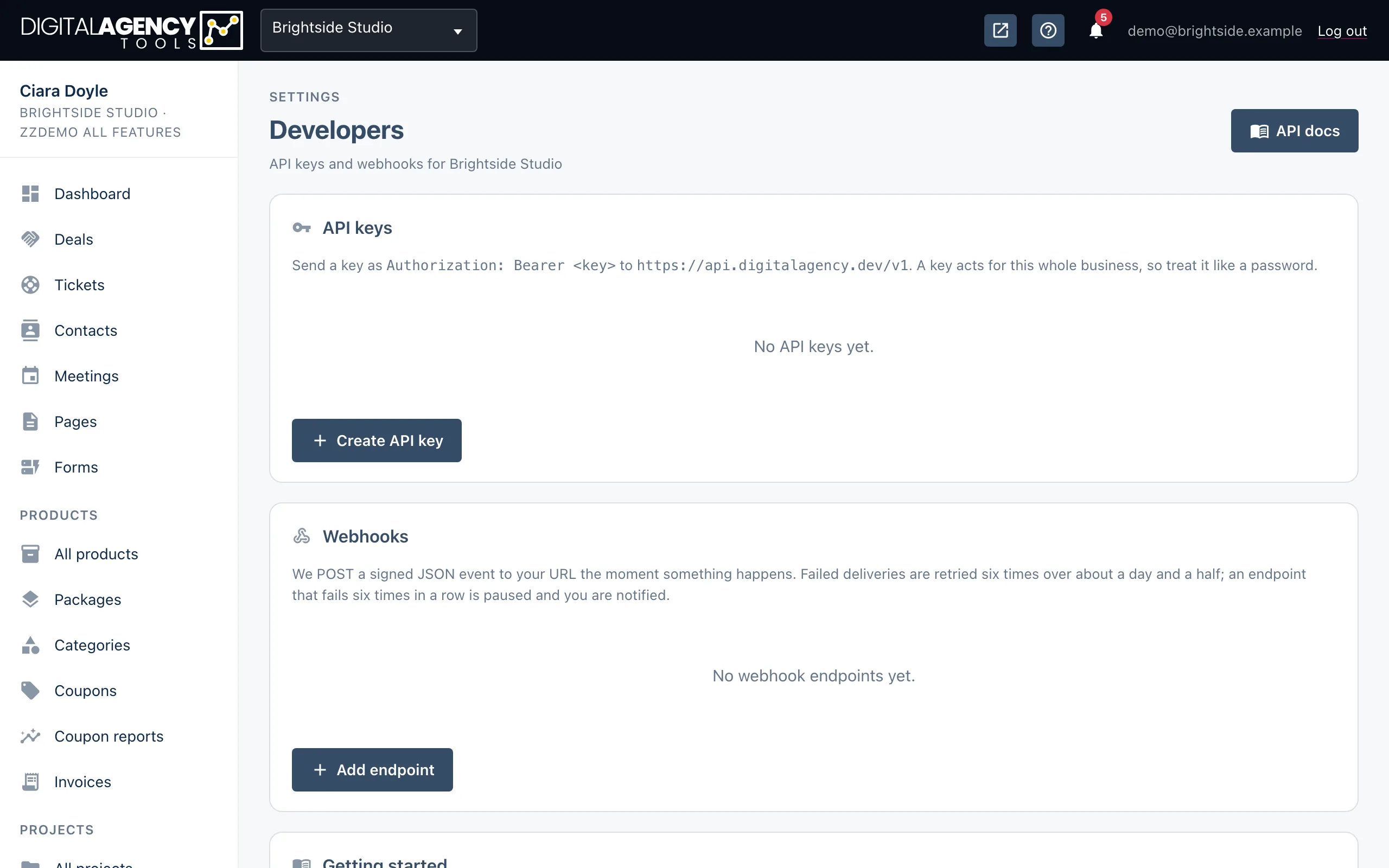
- Open Settings → Integrations and click Open Developers,
or go straight to
/settings/developers. - In the API keys card, click Create API key.
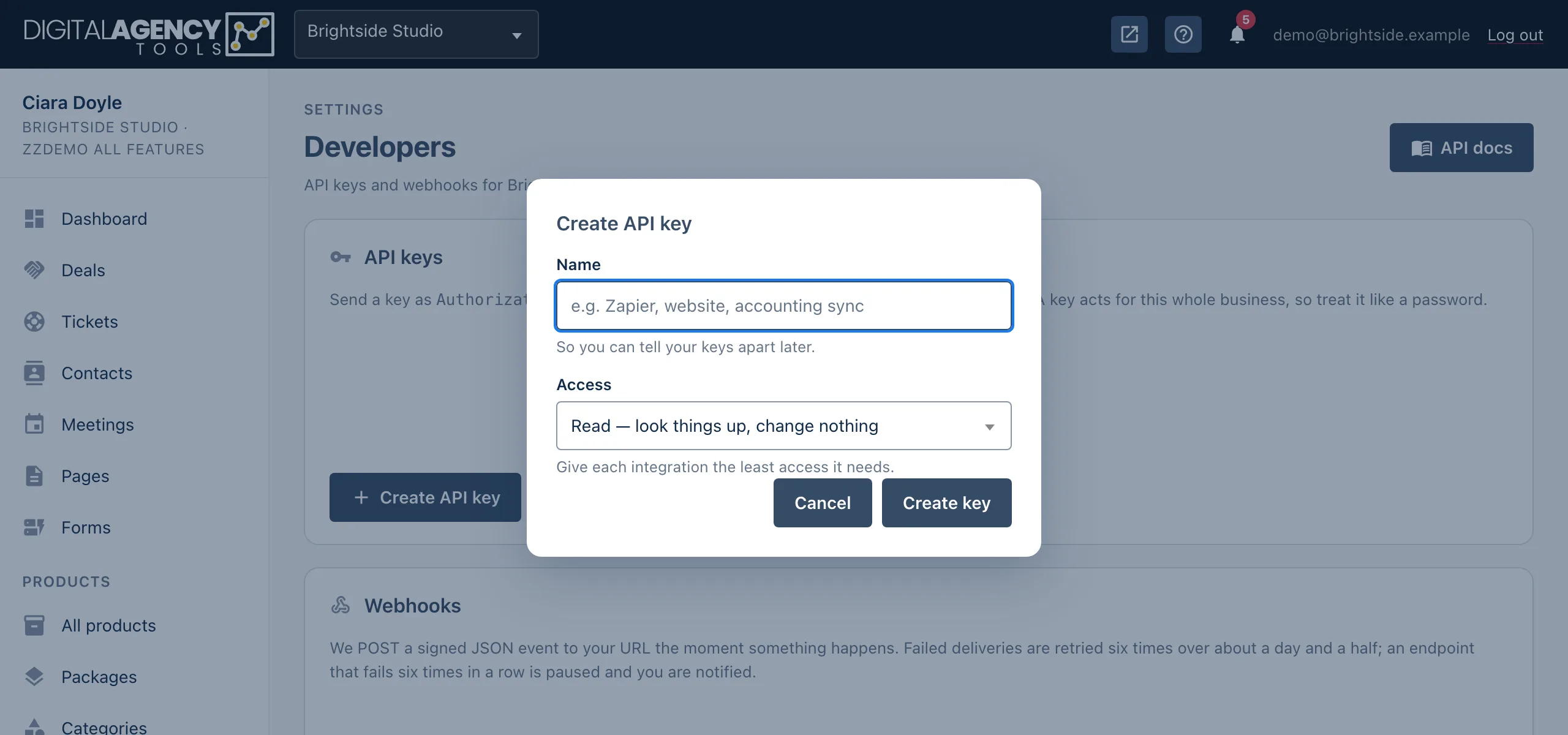
- Give it a Name that says what will use it, such as Zapier or website.
- Choose its Access: Read, Write or Admin.
- Click Create key. The new key appears at the top of the page.
- Click the key to copy it, and paste it straight into the system that will use it.
Choose the smallest scope
Each level includes the one before it. Give every integration only what it needs: a dashboard that only reads numbers should never hold a key that can delete things.
- Read: look things up, change nothing.
- Write: read, create and update.
- Admin: everything, including managing keys and webhooks.
A request that needs more than the key allows is refused with an error saying which scope is missing.
Scopes nest
read ⊂ write ⊂ adminIt is shown once
The full key appears once, straight after you create it, with a warning to copy it now. Only a fingerprint of the secret part is stored, so nobody can show it to you again, not even support.
If you lose it, revoke it and create a new one.
A key acts for the whole business, so treat it like a password. Send it in the
Authorization header, never in a web address.
Using a key
dak1.<8 characters>.<40 characters>

curl -H "Authorization: Bearer $DA_KEY" \
  https://api.digitalagency.tools/v1/…
Last used, and revoking
The table shows each key's Name, the start of the key, its Scope, when it was Last used and when it was Created. A key that says Never under Last used has not made a request yet. Last used updates at most once a minute.
To revoke a key, click the delete icon on its row and confirm. Anything using it stops working on its very next request. Revoking cannot be undone.
The table
Name     Key              Scope  Last used
Zapier   dak1.3f9a01c2.•••• Write  Today 09:14
Website  dak1.77b2e0aa.•••• Read   Never
Who can do this, and plans
Only owners and admins can create or revoke keys. Other staff see the page but not the buttons.
The API needs the api_access plan feature. Without it, the card says
the API is not included in your plan and offers Upgrade for API access.
The plan is checked on every request, so if it lapses, existing keys stop working
until it is back.
Still stuck?
Can't find what you're looking for? Send us a message and we'll reply by email.