
Staff and roles
Give your team access to the business, and choose a role for each person: Admin, Member or a read-only Client.
How to
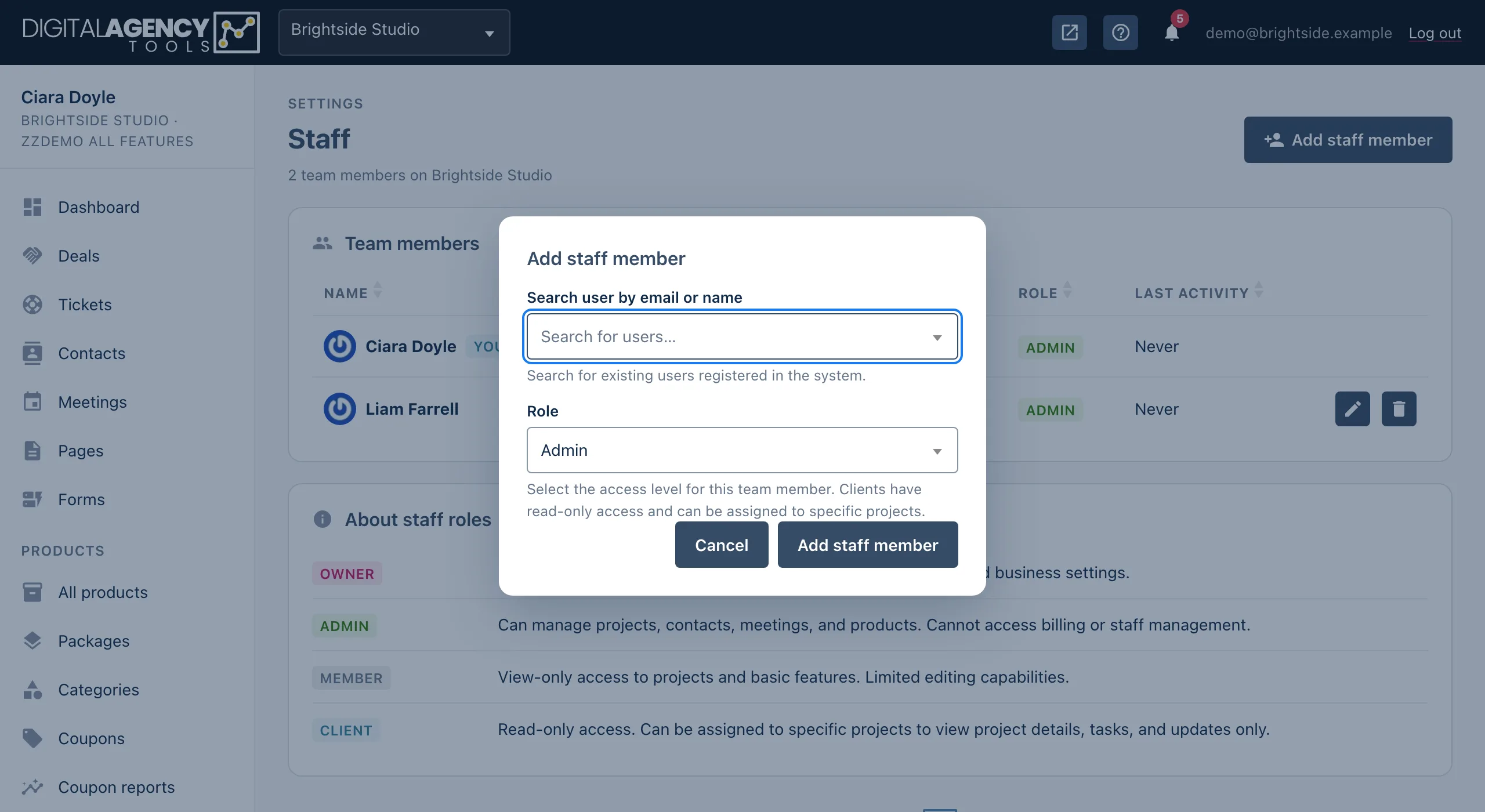
- Ask the person to create their own account first, if they do not have one. You can only add people who are already registered.
- In the sidebar, under Settings, open Staff.
- Click Add staff member.
- In Search user by email or name, start typing and pick the person.
- Choose a Role and click Add staff member.
The roles
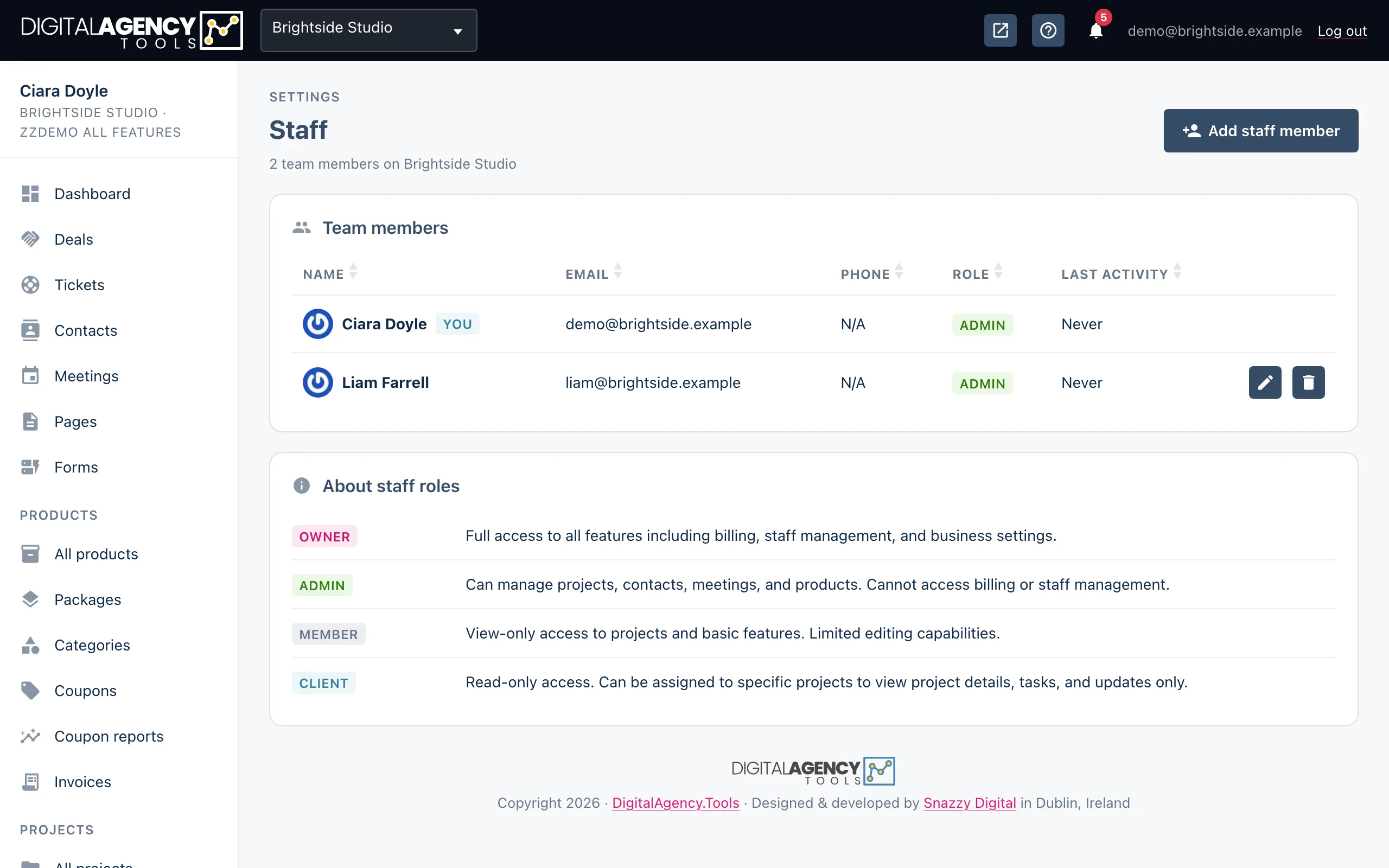
The About staff roles card on the page sums them up.
Owner is the account the business belongs to. It is not a role you hand out: the owner has full access, including billing and staff.
Admin is for people who run the work with you: projects, contacts, meetings and products. Member is for people who mostly look and do a little editing. Client (Read-only) is for a client you want to let in, who can then be given access to specific projects only.
Roles
Owner   the business's own account
Admin   runs the work
Member  limited editing
Client  read-only, chosen projects
Changing or removing someone
On a team member's row, click the edit icon (Change role), choose the New role and click Update role.
Click the delete icon (Remove from team) to take someone off. You are asked to confirm; they lose access to the business's data and projects straight away. Their account itself is not deleted, and anything they created stays.
Your own row is marked You and has no actions: you cannot change your own role or remove yourself.
A few things depend on being an owner
Only owners can change Who hears about what on the Notifications page. API keys and webhooks on Settings → Developers are for owners and admins only. If someone in your team cannot change one of these, check their role here first.
Still stuck?
Can't find what you're looking for? Send us a message and we'll reply by email.