
The form builder
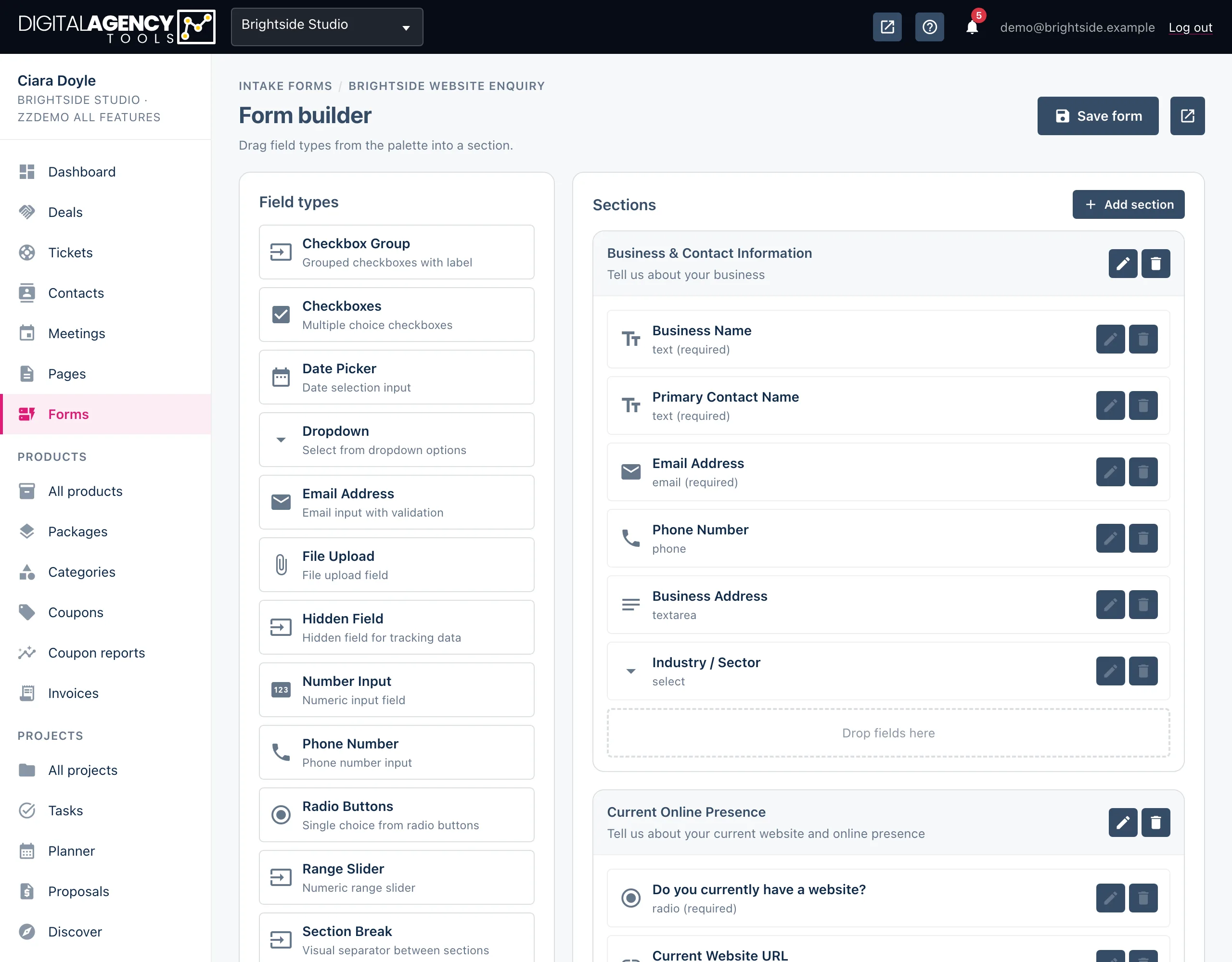
Field types on the left, your form on the right. Add a section, drag fields into it, and save.
How to
- Open Forms and click the form's name.
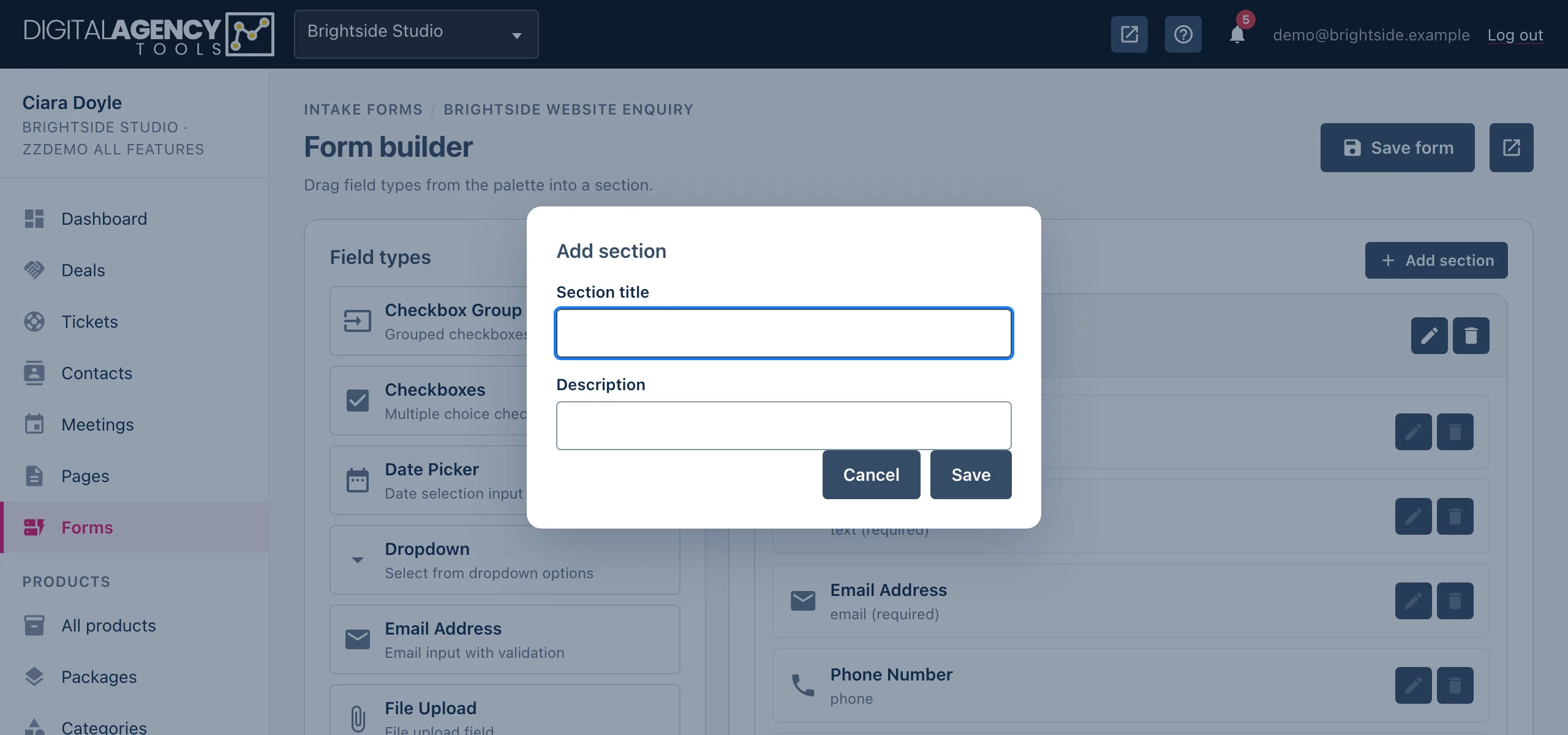
- Click Add section, give it a title (and a description if it helps), and click Save.
- Drag a field type from Field types onto the section's Drop fields here area.
- In the window that opens, enter a Field name and a Label, tick Required if it must be answered, and click Save.
- Click Save form at the top when you are done.
Sections
A section is a group of related questions: About you, Your project, Budget. On the public form, each section is a step. With more than one section, clients see a progress bar and Next and Previous buttons, and the Submit form button appears on the last step.
Each section has an edit and a delete icon. Deleting a section deletes every field in it, so you are asked to confirm.
A form
Section: About you
  Full name        text      required
  Email            email     required
Section: Your project
  Current website  url
  What you need    textarea  required
Field name and label
The label is the question the client reads. The field name is the key the answer is stored under, using letters, numbers and underscores (spaces become underscores).
Name the email field email. When a submission has an email
address, it is used to match the person to one of your contacts. Use
name or contact_name for their name, so it shows
in the submissions list.
After a field is added you can change its label and whether it is required, but not its name.
Names that help
email          matches a contact
name           shown on submissions
contact_name   shown on submissions
company        saved on a new contact
phone          saved on a new contact
website        saved on a new contact
Field types
| Type | Use it for |
|---|---|
| Text Input | A short answer on one line. |
| Text Area | A longer answer over several lines. |
| Email Address | An email, checked to be valid. |
| Phone Number | A phone number, checked to look like one. |
| Website URL | A web address, checked to be valid. |
| Number Input | A number only. |
| Date Picker | A date. |
| Dropdown, Radio Buttons, Checkboxes, Checkbox Group | A choice from a list. |
Check it before you share it
The open-in-new-window icon next to Save form opens the public form so you can see it as a client will. Save first, because the preview shows the last saved version.
Related
Still stuck?
Can't find what you're looking for? Send us a message and we'll reply by email.