
Share a form
Every form has its own public web address. Copy it, send it to a client, and their answers come back to you.
How to
- Open Forms.
- On the form's row, click the link icon, Copy link. The address is now on your clipboard.
- Paste it into an email, a message, your website or your email signature.
- To see the form as a client will, click the open-in-new-window icon, Preview form.
The address
The address is /intake/ followed by the form's slug, which
is made from the form name when you create it. You can see both on the
form's settings page, under Form details, with a
View form link.
Renaming a form later does not change its address, so links you have already sent keep working.
A form's address
https://app.digitalagency.tools/intake/website-enquiryWhat the client sees
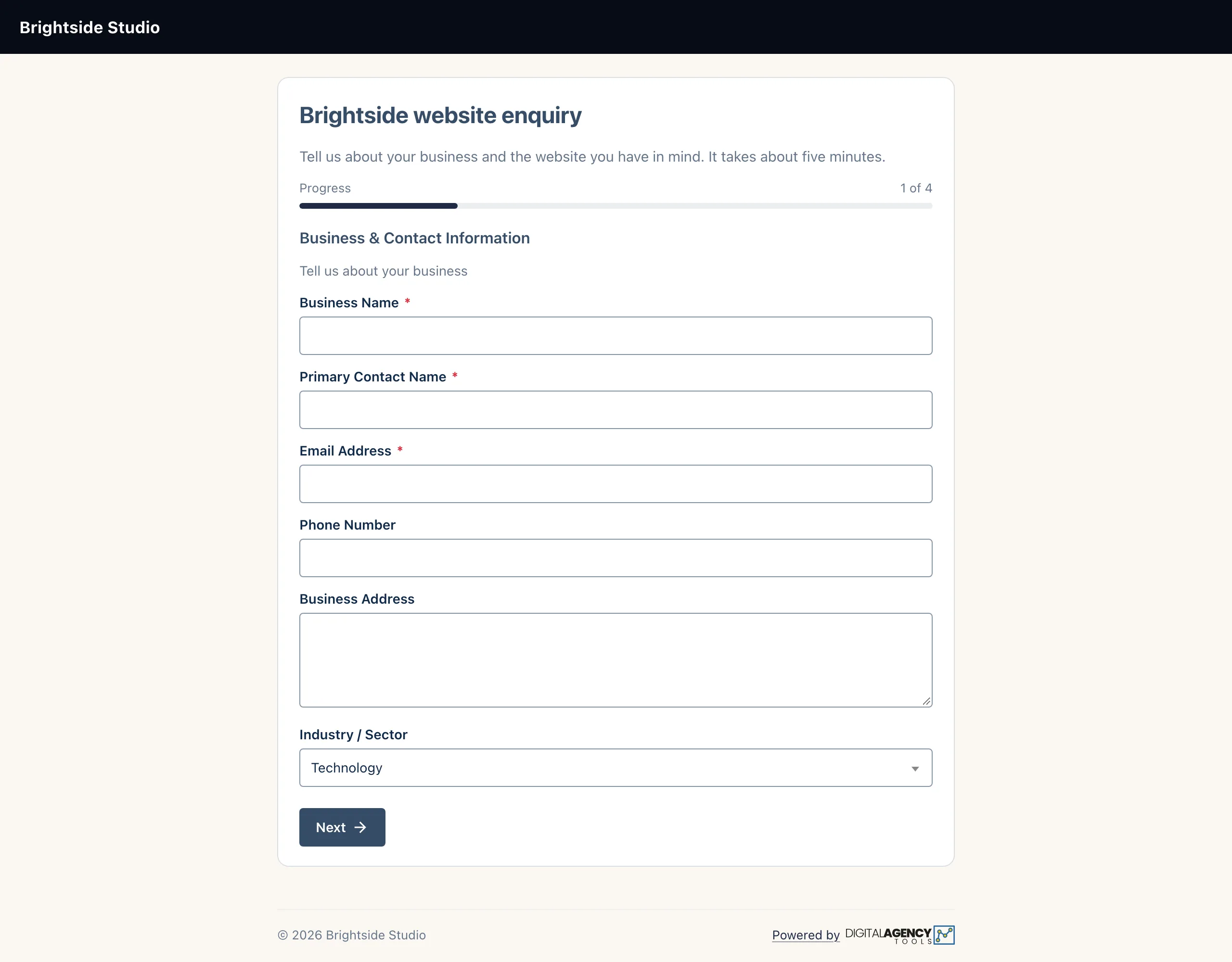
The form carries your business's logo and booking page colours. It shows the form name as the heading and your description under it.
Each section is a step, with Next and Previous buttons and a progress count. Required fields must be filled before they can move on. On the last step they click Submit form.
After they submit
redirect URL set?  → sent there
otherwise          → a thank-you page
One form per client, or one for everyone
For a general enquiry form on your website, leave Pre-select client on Any client. Each submission is matched to a contact by email address, or creates a new one.
For a project brief you send to one client, clone your brief form and set
Pre-select client to that client. Every answer is then
filed against them. Fields named name,
contact_name and email are filled in for them.
Still stuck?
Can't find what you're looking for? Send us a message and we'll reply by email.