
Create a form
Intake forms collect what you need from a client before work starts. Start from a template or a blank form, then shape it in the builder.
How to
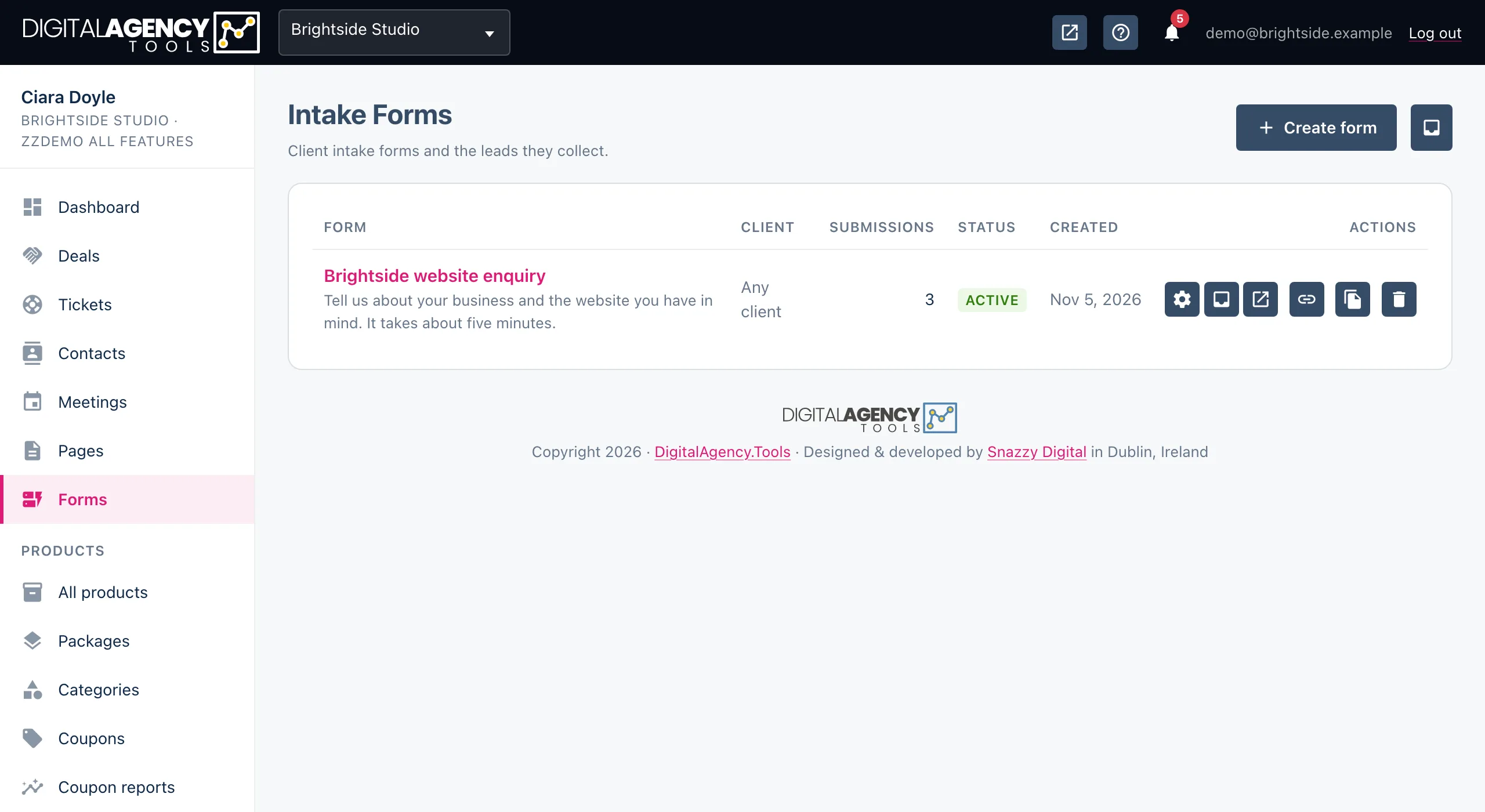
- Open Forms in the sidebar and click Create form.
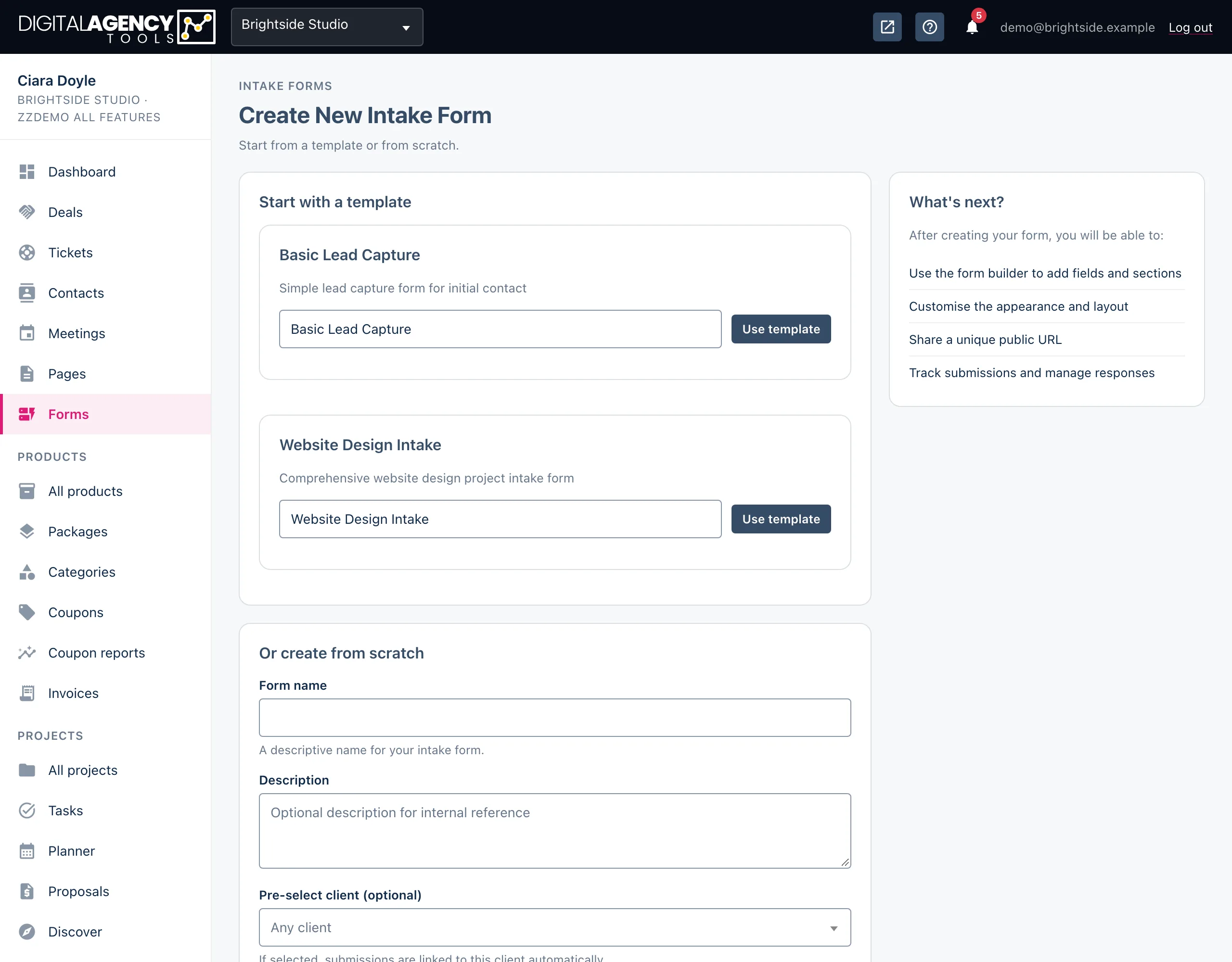
- To start from a template, change the name if you like and click Use template. The form opens in the builder with its fields already in place.
- To start blank, fill in Or create from scratch: a form name, an optional description and the settings below, then click Create form.
- Open the form from the list to add sections and fields in the builder.
Templates
Two templates come ready to use. Website Design Intake is a full brief for a website project. Basic Lead Capture is a short form for a first enquiry.
A form made from a template has email notifications switched on, sent to your own address, and drafts allowed. Change either in the form's settings.
Templates
Website Design Intake   full project brief
Basic Lead Capture      first enquiry
The settings
| Setting | What it does |
|---|---|
| Form name | Required. Shown as the heading on the public form, and used to make its web address. |
| Description | For your own reference. It also shows under the heading on the form. |
| Pre-select client | Optional. Every submission is linked to this client. Leave it on Any client for a form many people will fill in. |
| Send email notifications on submission | A switch, with a Notification email address underneath. |
| Success redirect URL | Optional. Where people go after they submit, such as a thank-you page on your website. |
| Allow draft submissions | A switch for saving progress part-way through. |
You can change these at any time from the gear icon on the form's row, Edit settings. Save with Update form.
Working with the list
Click a form's name to open the builder. The icons on each row edit its settings, open its submissions, preview it, copy its link, clone it and delete it.
Clone form makes a copy named (Copy) with the same fields and settings, and opens its settings so you can rename it. It is the quickest way to make a variation for another service.
Related
Still stuck?
Can't find what you're looking for? Send us a message and we'll reply by email.