
Set up your business
Your business name, logo and contact details appear on your booking page, proposals, invoices and the client portal. Fill them in once, before you send anything to a client.
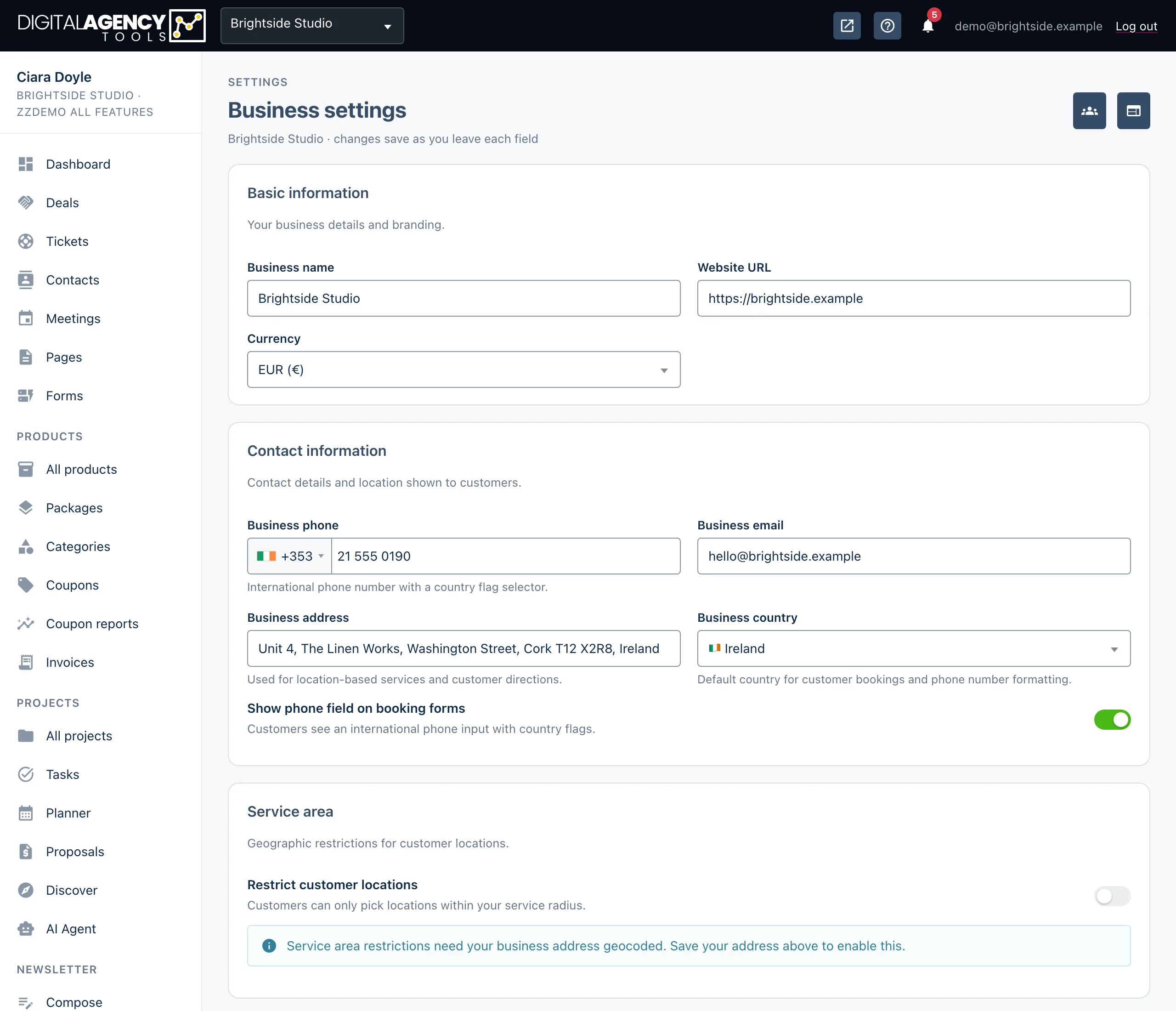
How to
- Open Settings → Business.
- Check the Business name and Website URL, and pick your Currency.
- Under Contact information, add your Business phone, Business email, Business address and Business country.
- Under Business logo, choose an image and click Upload logo.
- Open Settings → Calendar and set your Default timezone and Date format for calendar.
Saving
There is no Save button for the details. Each field saves when you click or tab out of it, and a short message confirms it. The logo is the exception: it uploads when you click Upload logo. Use a square image, around 500×500 pixels and no larger than 5MB.
When you save your address, it is looked up on the map. That location is what the Service area card uses.
Where it is set
Name, logo, currency,
contact details    Settings → Business
Time zone,
date format        Settings → Calendar
Booking page look  Settings → Booking page
A business you have just bought
A business made from Create business starts on the plan you paid for, named from the checkout (the business name you gave Stripe, or your own name followed by "'s business") and with no website. After checkout you are already working in it: fix the name and add the website here first. See Running more than one business.
The other cards
Show phone field on booking forms adds an international phone input, with country flags, to the forms customers fill in when they book.
Service area: switch on Restrict customer locations to make customers pick a location within a radius of your address. Set the radius between 5 and 200 km. It only works once your address has been saved and found on the map.
Business description holds About your business and Sidebar content, both shown on your booking page.
Still stuck?
Can't find what you're looking for? Send us a message and we'll reply by email.