
Finding your way around
The sidebar takes you to every area of the business. The bar across the top holds the business switcher, a link to your booking page, help for the page you are on, and the notification bell.
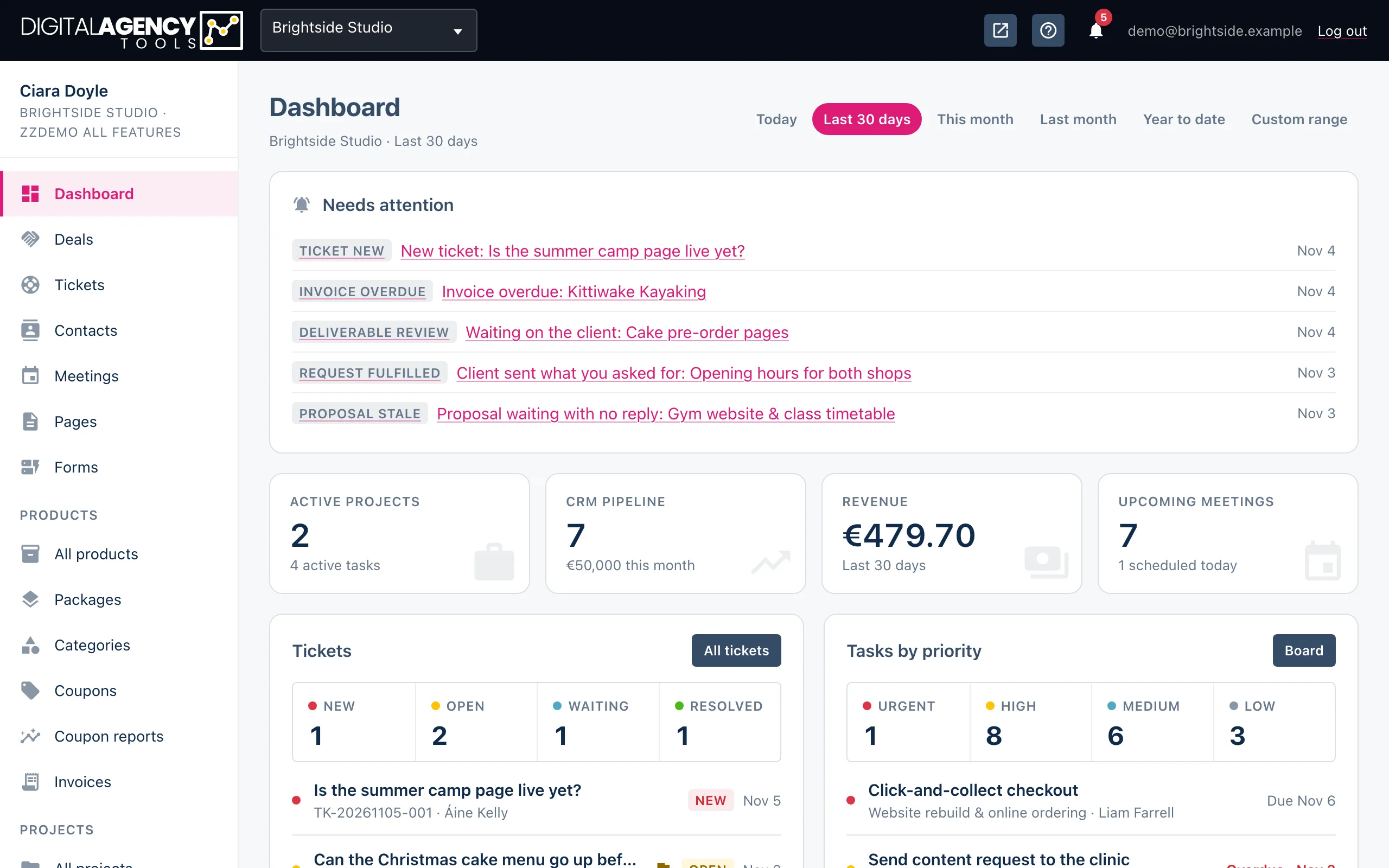
The sidebar
At the top of the sidebar is your name, the business you are working in and your plan. Below it, the pages are grouped:
- Dashboard, Deals, Tickets, Contacts, Meetings, Pages and Forms.
- Products: All products, Packages, Categories, Coupons, Coupon reports and Invoices.
- Projects: All projects, Tasks, Planner, Proposals, Discover and AI Agent.
- Newsletter: Compose, Campaigns, Subscribers and Email history.
- Settings: User, Security, Notifications, Business, Staff, Booking page, Calendar, Integrations, Payments and more.
The page you are on is highlighted. A page your plan does not include shows an Upgrade chip and opens the upgrade page instead.
Top bar, left to right
logo            → Dashboard
business name   (a switcher if you
                 have more than one)
open_in_new     your booking page
?               help for this page
bell            notifications
your email · Log out
The top bar
View your booking page (the arrow-out-of-a-box icon) opens your public booking page in a new tab, so you can see what customers see.
Help for this page (the question mark) opens the help article for the page you are on, or the help centre home if there is no specific one.
The bell shows a count of unread notifications. Click it for the latest ten, Mark all read, or View all for the full list.
If you belong to more than one business, the business name is a drop-down: pick another business to switch to it.
Finding things on a page
There is no search box across the whole panel. Instead, most lists (contacts, projects, tasks, invoices and so on) have their own search box and sortable columns, and several have filters or tabs at the top. Deals, for example, has list, board and forecast views as tabs on the page rather than separate sidebar rows.
Where a row has several actions, the main one is a worded button and the rest are icons. Hover over an icon to see what it does.
Still stuck?
Can't find what you're looking for? Send us a message and we'll reply by email.