
Calendar and availability
Your time zone and date format, the rules every booking follows, and the hours in the week customers can book.
How to
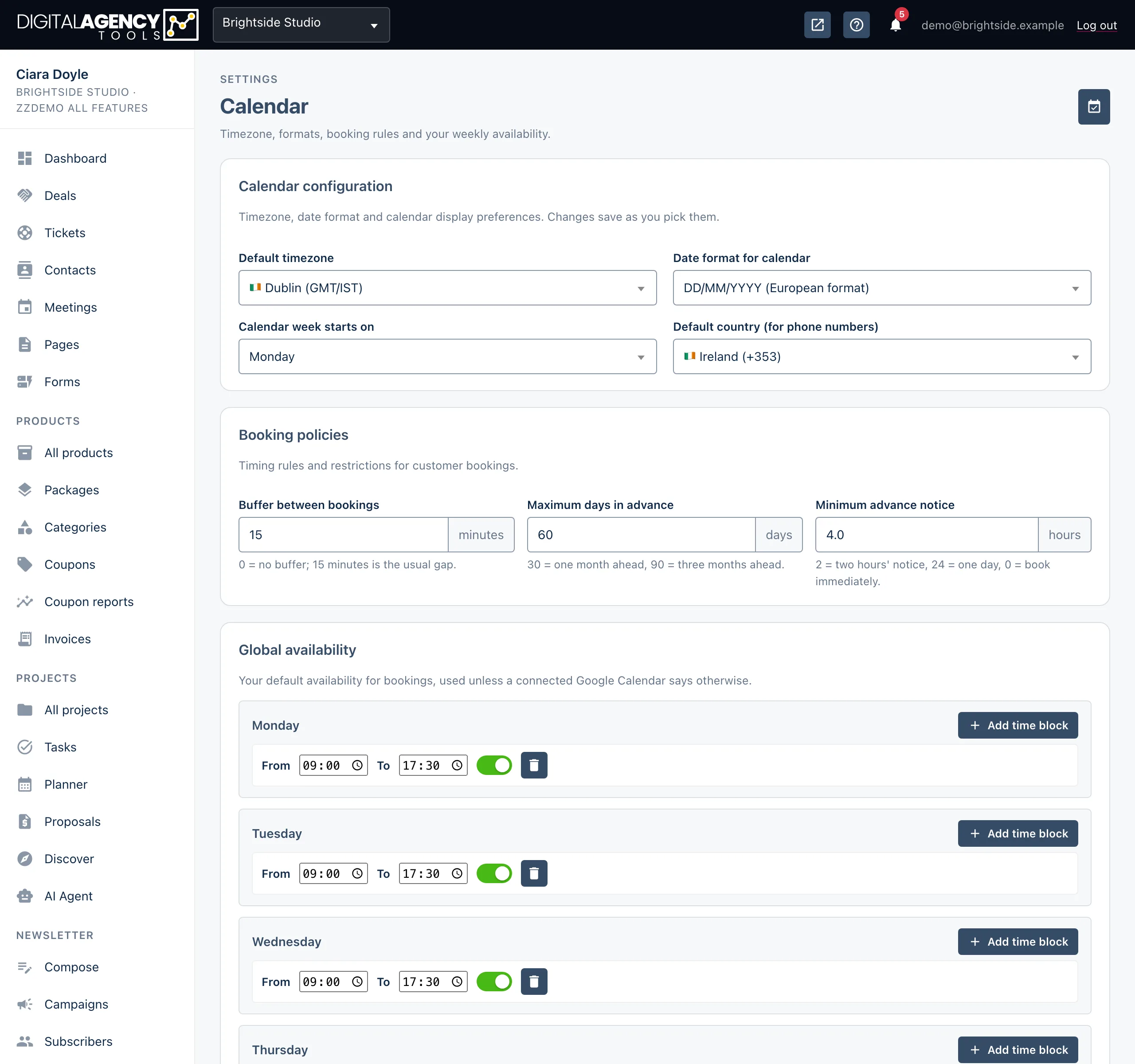
- In the sidebar, under Settings, open Calendar.
- Pick your Default timezone and Date format for calendar. They save straight away.
- Set the three Booking policies.
- Under Global availability, set the hours for each day, or click Quick set: Mon–Fri, 9–5 to start from office hours.
- Click Save availability.
Calendar configuration
Default timezone is the time zone your bookings and availability are in. Get this right first: everything else is measured in it.
Date format for calendar is how dates are written across the panel. Calendar week starts on is Sunday or Monday. Default country (for phone numbers) is the same setting as Business country on the Business page.
Date formats
MM/DD/YYYY  US
DD/MM/YYYY  European
YYYY-MM-DD  ISO
Booking policies
Buffer between bookings keeps a gap after each booking, so you are never booked back to back. Maximum days in advance is how far ahead customers can book. Minimum advance notice stops last-minute bookings.
These apply to your whole booking page. Individual products can have their own schedules on top.
Typical values
Buffer          15 minutes (0 = none)
Days in advance 30 = a month, 90 = three
Advance notice  2 hours, 24 = a day,
                0 = book immediately
Global availability
Each day of the week has its own time blocks. Click Add time block on a day to add another — for example 9:00–12:00 and 14:00–17:00 to keep lunch free. Each block has From and To times, an Available switch, and a delete icon. A day with no blocks cannot be booked.
Changes here are not saved until you click Save availability.
Customers can only book inside these hours. If you connect Google Calendar, events in your calendar also block the time they cover.
Still stuck?
Can't find what you're looking for? Send us a message and we'll reply by email.