
The booking chatbot
Switch on an AI assistant for your public booking pages. It answers customers' questions, checks availability and walks them through booking, day and night.
How to
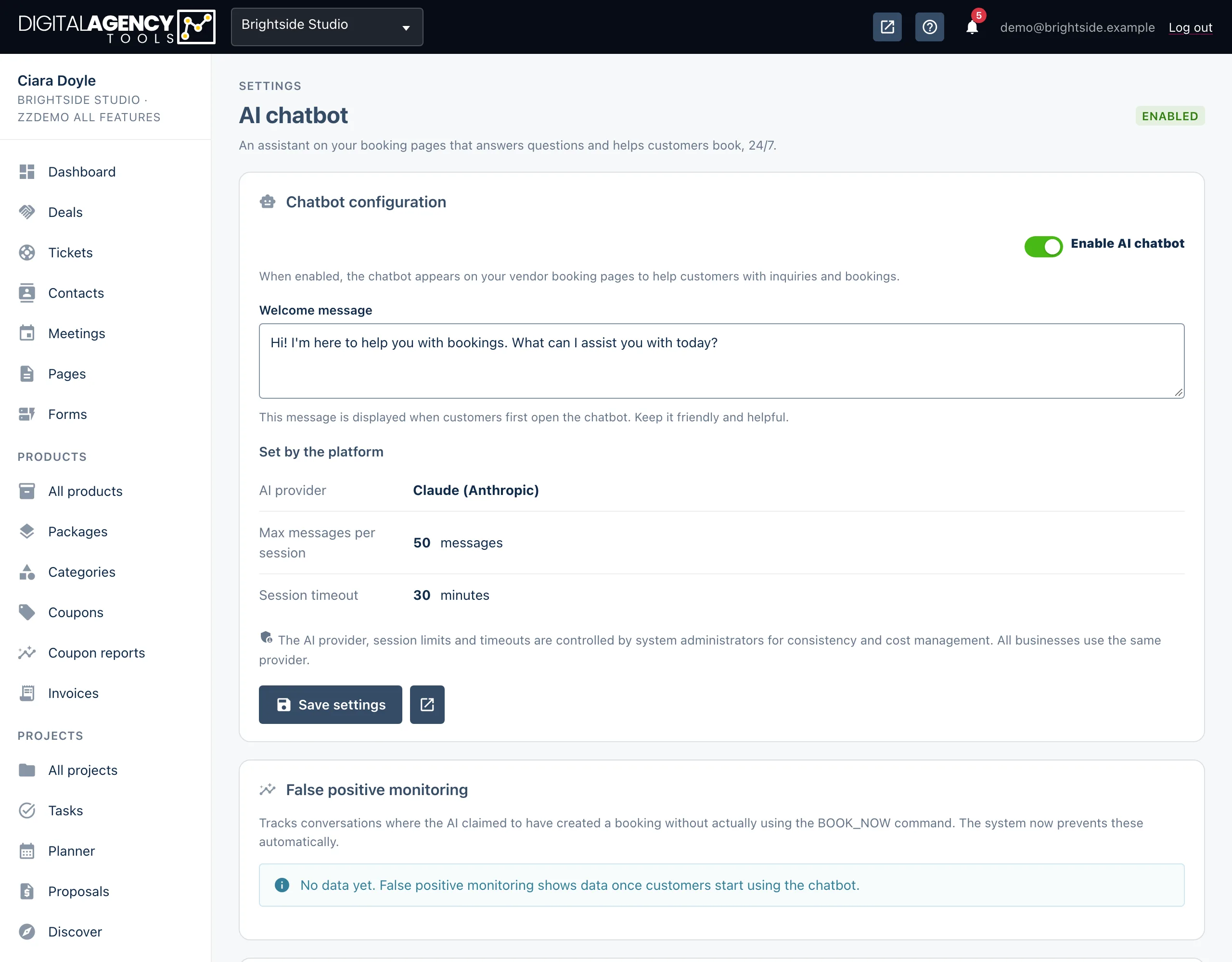
- Open Settings → AI chatbot.
- Turn on Enable AI chatbot.
- Write a Welcome message: the first thing customers see when they open the chat. Up to 500 characters. Leave it empty and a friendly default is used.
- Click Save settings.
- Click the Test the chatbot on your booking page icon next to Save. Your booking page opens in a new tab, with the chat ready to try.
What it can and cannot do
The chatbot knows the products and times on your booking page. It can answer questions, check what is free and guide a customer to a booking.
It cannot see financial data or other customers' details. It is rate limited to stop abuse, and every conversation is logged.
For it to be useful you need at least one bookable product.
Set by the platform
AI provider
Max messages per session
Session timeout (minutes)
Set by the platform
The AI provider, the number of messages per conversation and the session timeout are the same for every business. They are shown on the page under Set by the platform for your information, but you cannot change them.
That is also why there is no API key to enter here: the platform supplies it.
False positive monitoring
Once the chatbot is on, a False positive monitoring card appears. A false positive is a conversation where the AI told a customer it had made a booking without actually making one. The platform now blocks this, and the card shows how often it was caught.
- Conversations and False positives: the totals.
- False positive rate: badged none, low, or high above 5%.
- Booking success: the share of conversations that ended in a booking.
Below the tiles you see the last ten incidents, with the conversation number and its last message.
chatbot plan feature. Without it, the AI chatbot
link in Settings takes you to the upgrade page.
Still stuck?
Can't find what you're looking for? Send us a message and we'll reply by email.