
Payment links and reminders
Customers who book a priced product on your booking page pay as they book. For anything else — a meeting you scheduled yourself, a balance still owing, extra work — you ask for payment with an invoice, which carries its own secure pay link and reminder button.
Two ways money comes in
At booking. When a product has a price (and, optionally, a deposit), customers pay by card on your booking page before the booking is confirmed. Card payments need Stripe connected and a plan that includes online payments.
By invoice. A meeting page has no payment buttons, and meetings carry no price of their own. To charge for a meeting, create an invoice for the customer and send it. The invoice email includes a pay link the client can use to pay by card.
Where to go
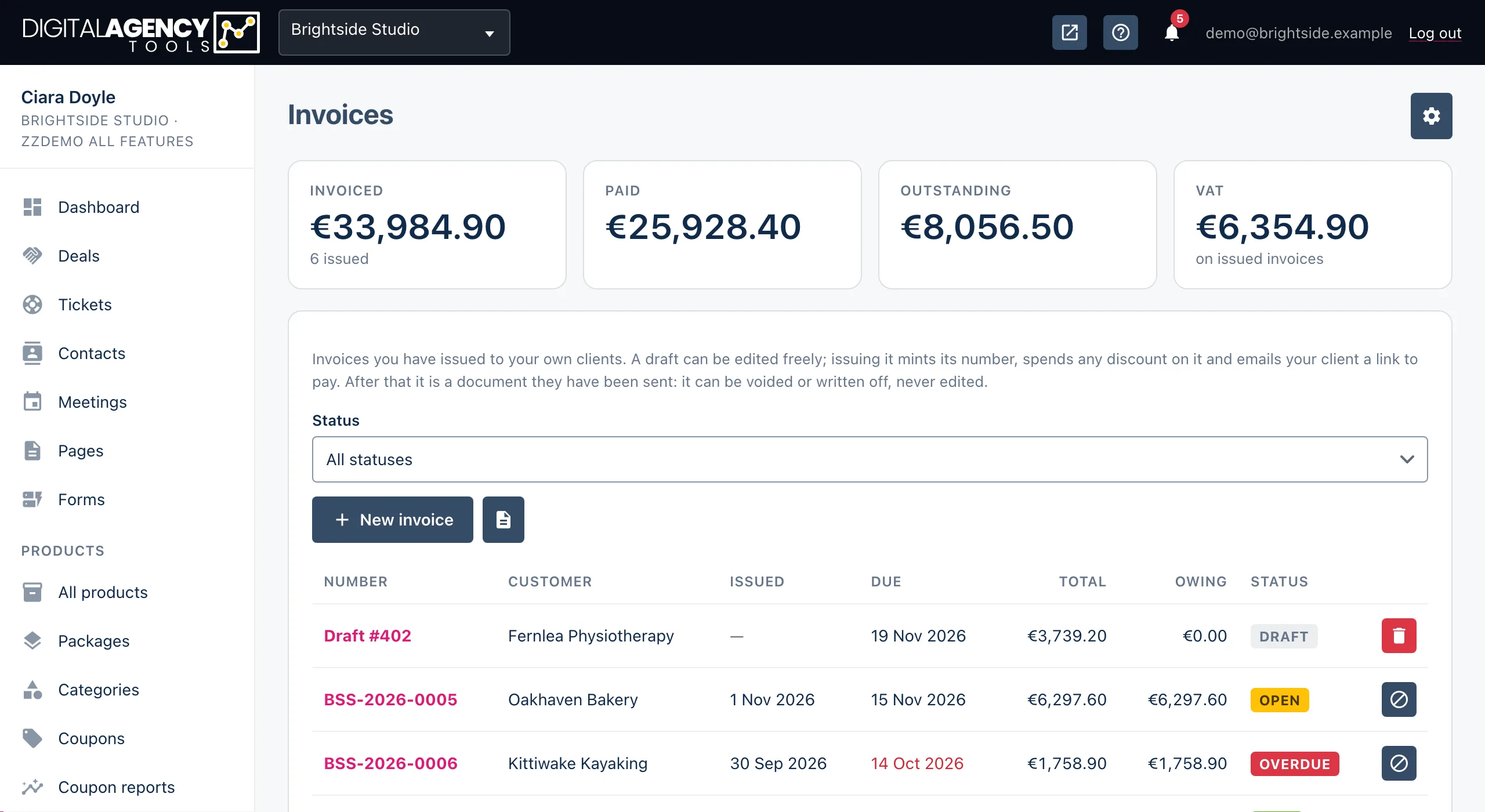
Products → Invoices
  → new invoice for the contact
  → Issue and email
How to ask for payment on a meeting
- Make sure the customer is a contact. If you scheduled the meeting with New contact, add them under Contacts first.
- Open Products → Invoices and start a new invoice for them.
- Add a line for the meeting — for example "Strategy session, 90 minutes" — with its price.
- Click Issue and email. The client receives the invoice with a secure pay link.
Full detail: Create an invoice and Issue and send.
Sharing the pay link yourself
On an open invoice, the link icon copies the pay link, so you can paste it into a WhatsApp message or your own email. If the invoice has no link yet, the same spot offers Make a pay link.
Making a new link stops any link you sent before from working — so send the new one.
Chasing payment
On an open invoice, click Send a reminder (the clock icon) and confirm. The client gets a reminder email with a fresh pay link. Email it again resends the invoice itself, also with a fresh link.
See Pay links for how the link works on the client's side.
Still stuck?
Can't find what you're looking for? Send us a message and we'll reply by email.