
Products
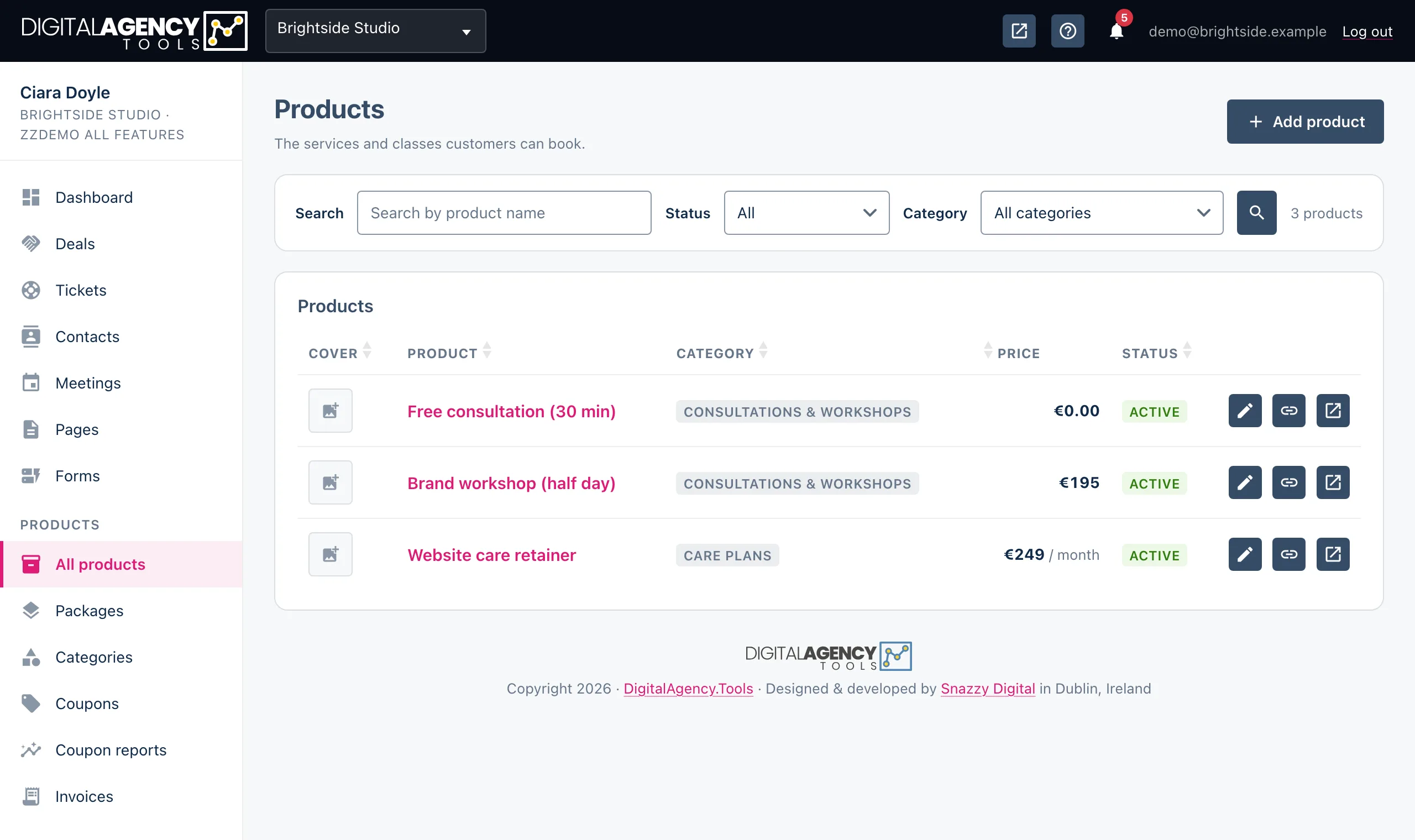
A product is anything a customer can book with you: a consultation, a session, a class. Each one gets its own booking link, its own price and its own confirmation and reminder messages.
How to
- Open Products → All products and click Add product.
- Give it a Product name (required) and a Description. Pick a Category if you use them.
- Under Pricing, choose a pricing type and enter the price.
- In the side column, choose whether to show the customer notes field and whether to send a confirmation and a reminder.
- Click Create product. The editor reopens on your new product, where you can add images.
Pricing
Every product has one of three pricing types:
- One-time payment — a single price.
- Recurring subscription — a recurring price billed per week, month or year, plus an optional setup price.
- Both options available — a one-time price and a recurring price side by side.
If VAT is switched on for your business, prices are entered excluding VAT and the editor shows the price including VAT underneath as you type.
Pricing types
One-time payment     price
Recurring            setup price (optional)
                     + price per week|month|year
Both                 one-time price
                     or recurring price
Confirmations and reminders
Every booking gets a standard confirmation email with calendar and cancellation links. Send booking confirmation adds your own message, sent straight after the booking. It is ticked for new products and comes with ready-made wording you can edit.
Send booking reminder goes out a set number of hours before the booking (1 to 168; 24 by default). Reminders are sent by email. The SMS options are listed but marked as not yet available.
Both messages take variables such as {{customer_name}},
{{product_name}}, {{booking_date}} and
{{booking_time}}. The refresh icon beside each template puts
the default wording back.
Confirmation variables
{{customer_name}}
{{product_name}}
{{booking_date}}
{{booking_time}}
{{duration}}
{{total_amount}}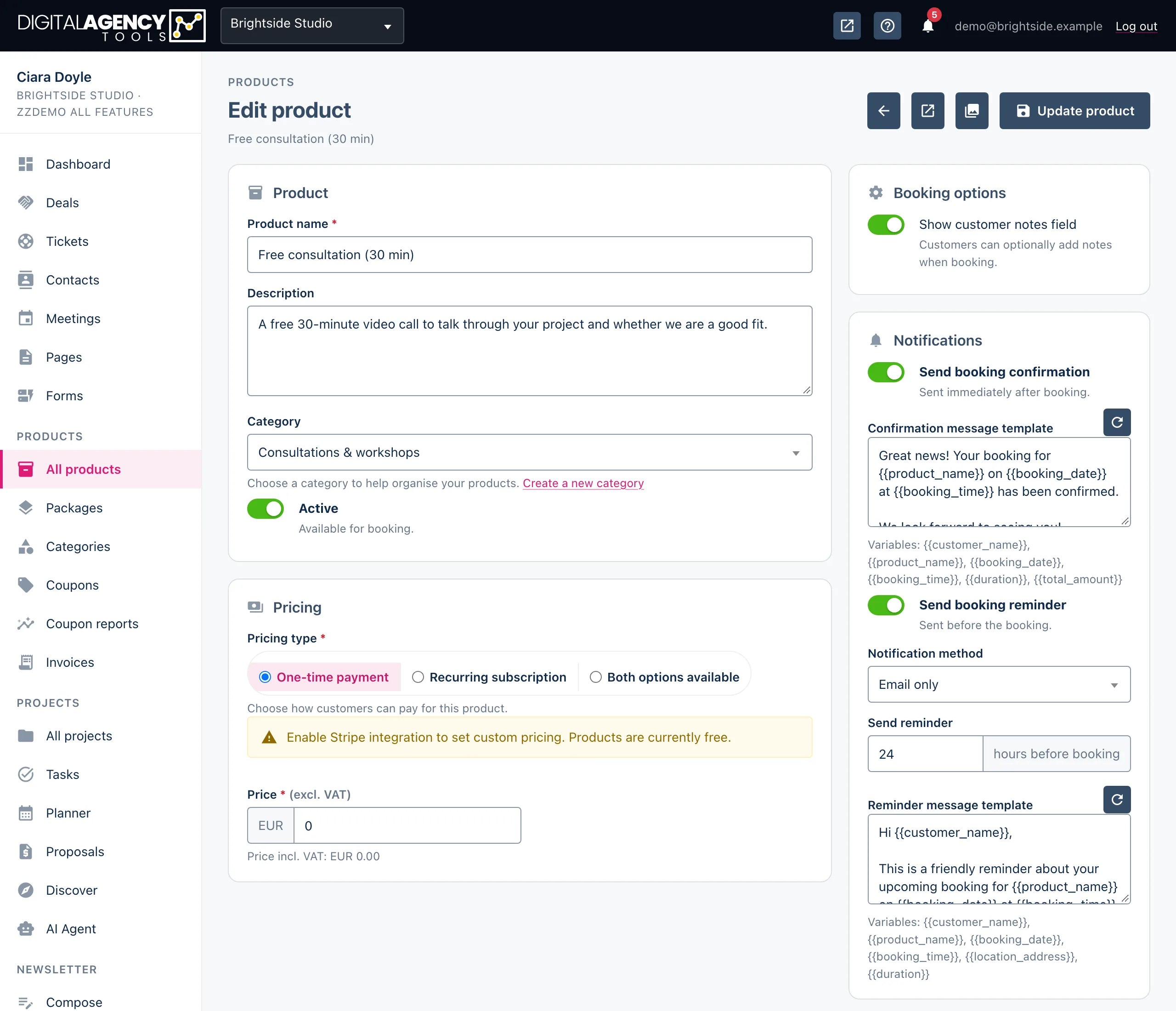
Images
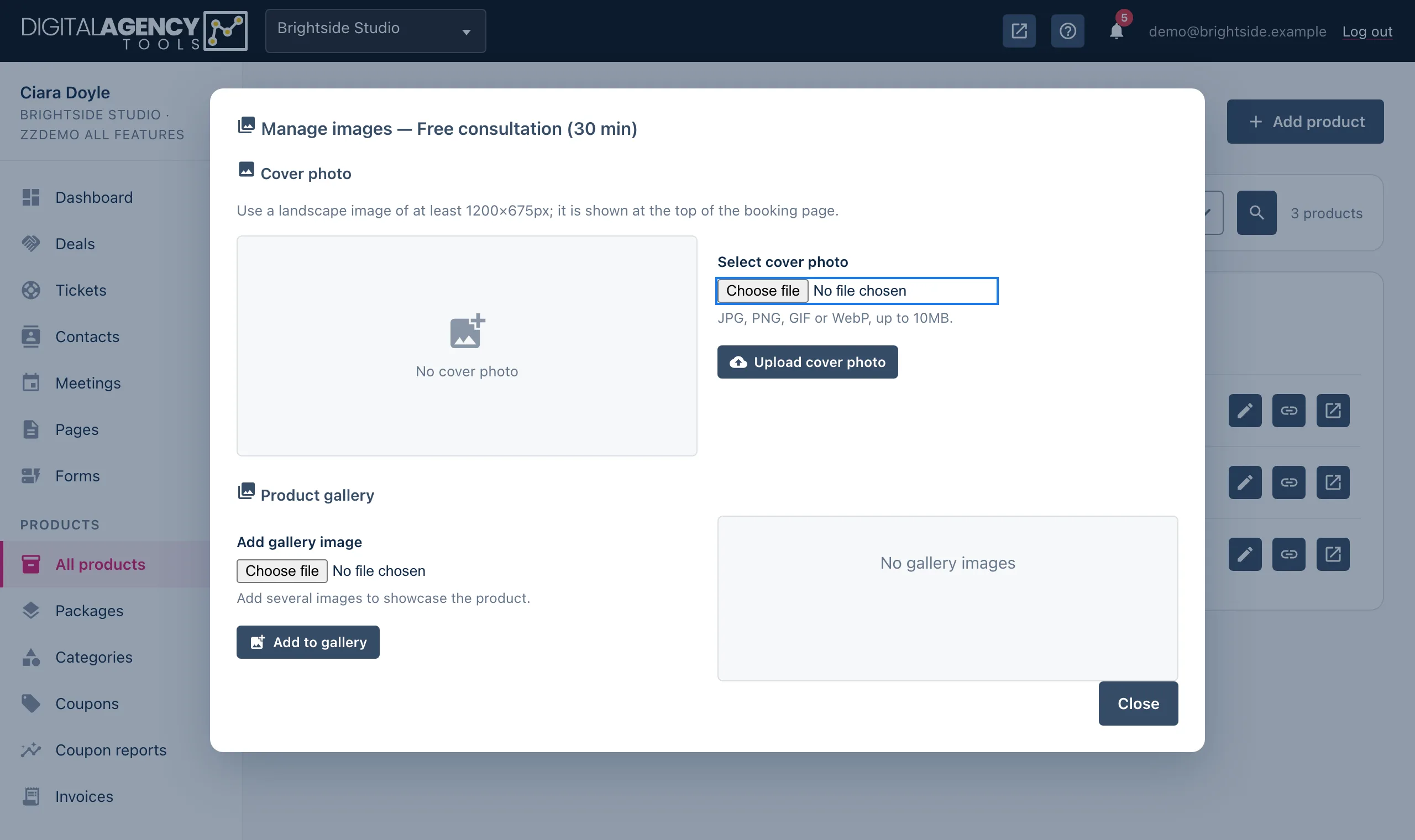
Click a product's cover thumbnail in the list, or Manage images in the editor, to open the image manager. Upload one Cover photo (JPG, PNG, GIF or WebP, up to 10MB), which shows at the top of the product's booking page, and add as many Product gallery images as you like.
Booking links
Every product has its own link. The link icon on a row copies it; the
open icon previews it in a new tab. Once your booking page has a
username, links read yourdomain/your-username/product-name.
See Your booking
page.
Hiding or deleting a product
Untick Active to take a product off sale. Its booking link stops working, but nothing is lost.
Delete product is in the editor's danger zone. A product that already has bookings is not deleted: it is made inactive instead, so your booking history stays intact.
Still stuck?
Can't find what you're looking for? Send us a message and we'll reply by email.