
Campaigns
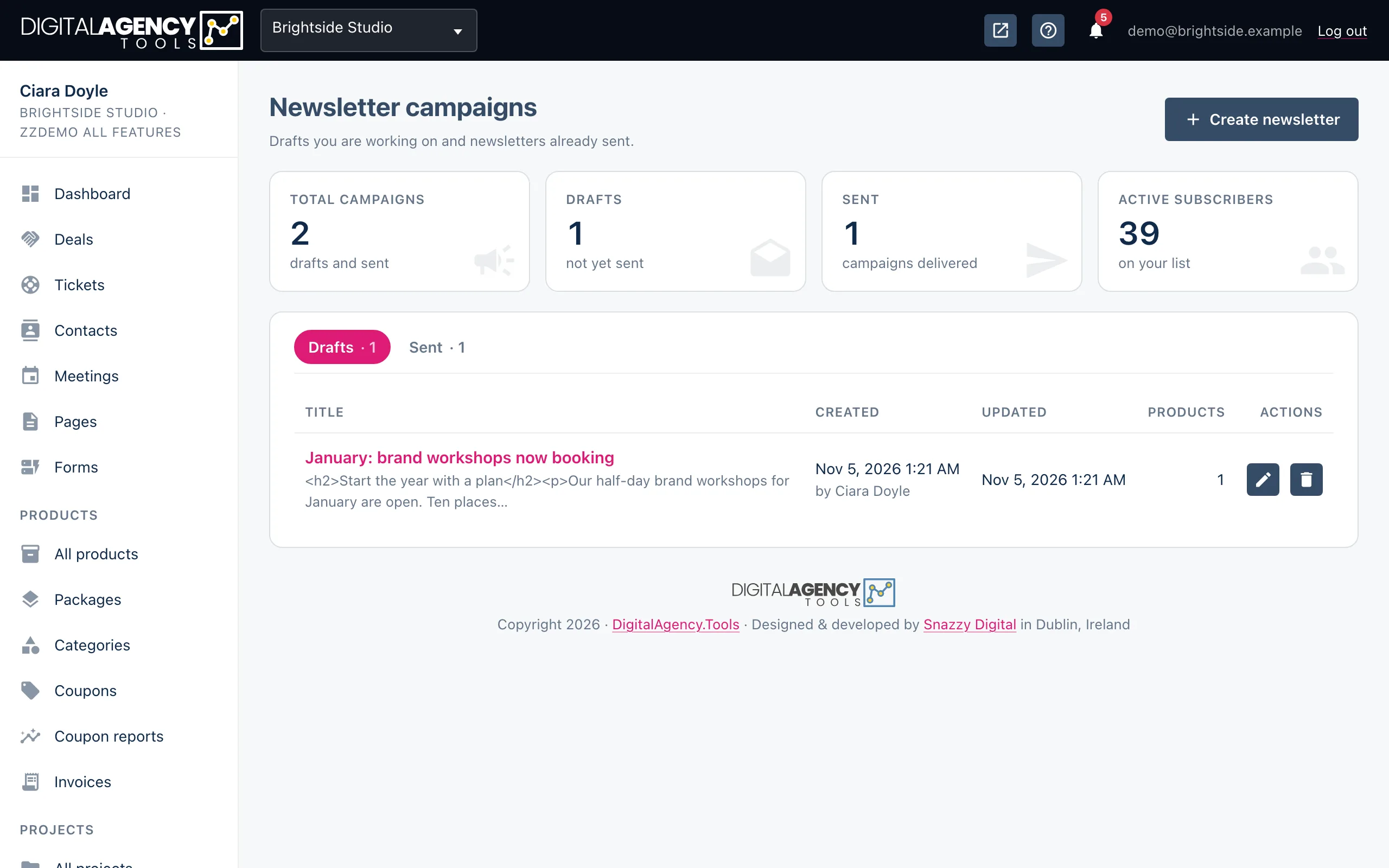
Every newsletter you save or send is a campaign. Drafts are the ones you are still working on; Sent is the record of what went out.
How to
- Open Newsletter → Campaigns in the sidebar.
- Use the Drafts and Sent tabs to switch lists. Each tab shows how many it holds.
- To delete a draft, click its bin icon and confirm.
- To see who a sent newsletter reached, click its eye icon, View delivery history.
The tiles
Total campaigns, Drafts, Sent and Active subscribers. The last is how many people your next send will reach.
A campaign's life
Compose → save icon   → Drafts
Compose → Send now    → Sent
Drafts
Each draft shows its title with the start of its content, when it was created and by whom, when it was last updated, and how many products it features.
Deleting a draft cannot be undone.
Drafts columns
Title · Created · Updated
Products · Actions
Sent
Every newsletter you send to your list is saved here when it goes out, with the date and time it was sent, how many subscribers it reached and how many products it featured.
Test sends are not campaigns and do not appear here.
Sent columns
Title · Sent · Recipients
Products · Actions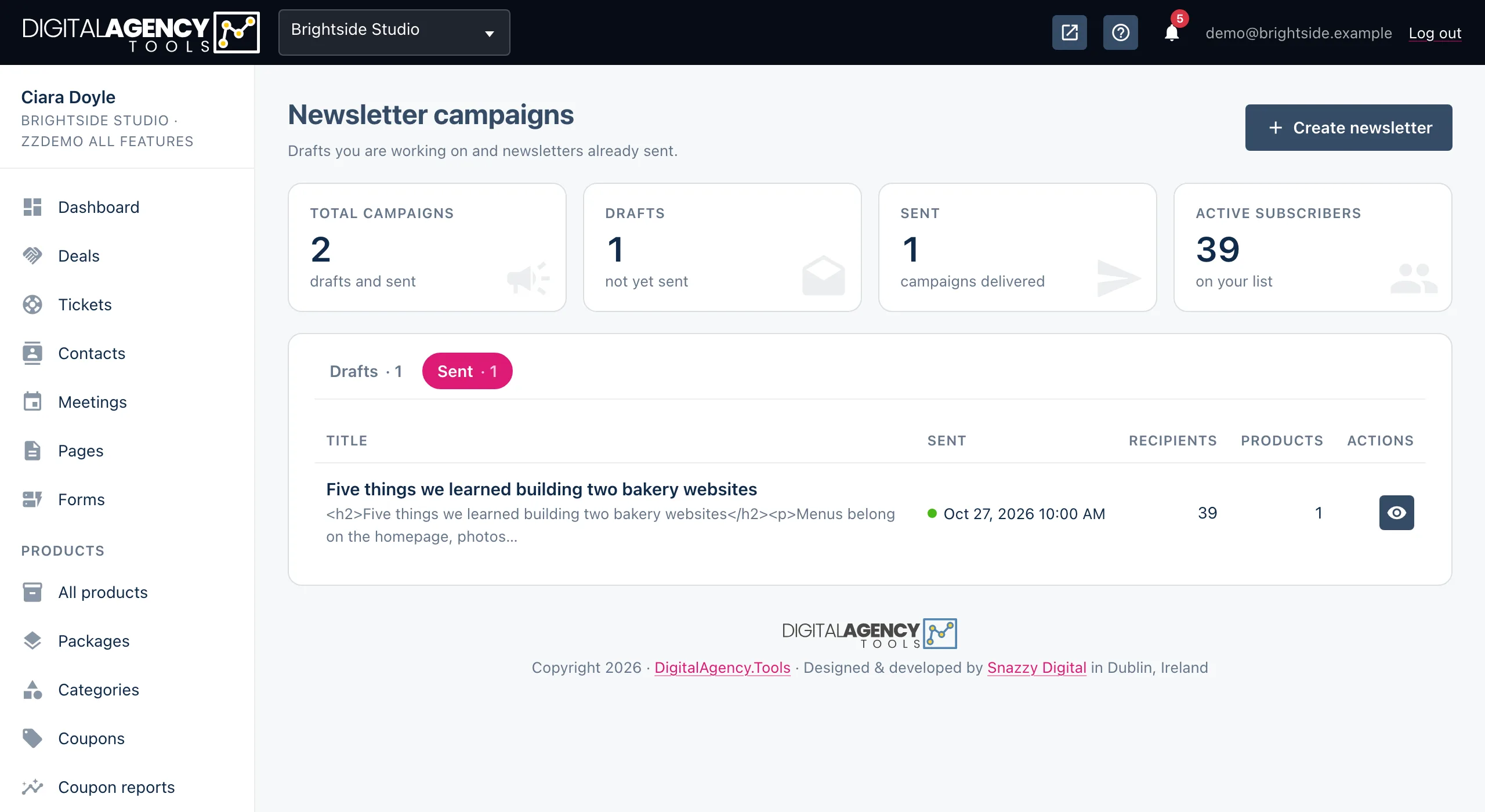
Recipients and failures
The Recipients number counts the emails that were accepted for delivery. If some failed, the count is lower than your active subscribers at the time. To see which addresses failed, open Email history and filter by Failed.
Related
Still stuck?
Can't find what you're looking for? Send us a message and we'll reply by email.