
Subscribers
The people who get your newsletter. Add someone by hand, remove them, or download the whole list.
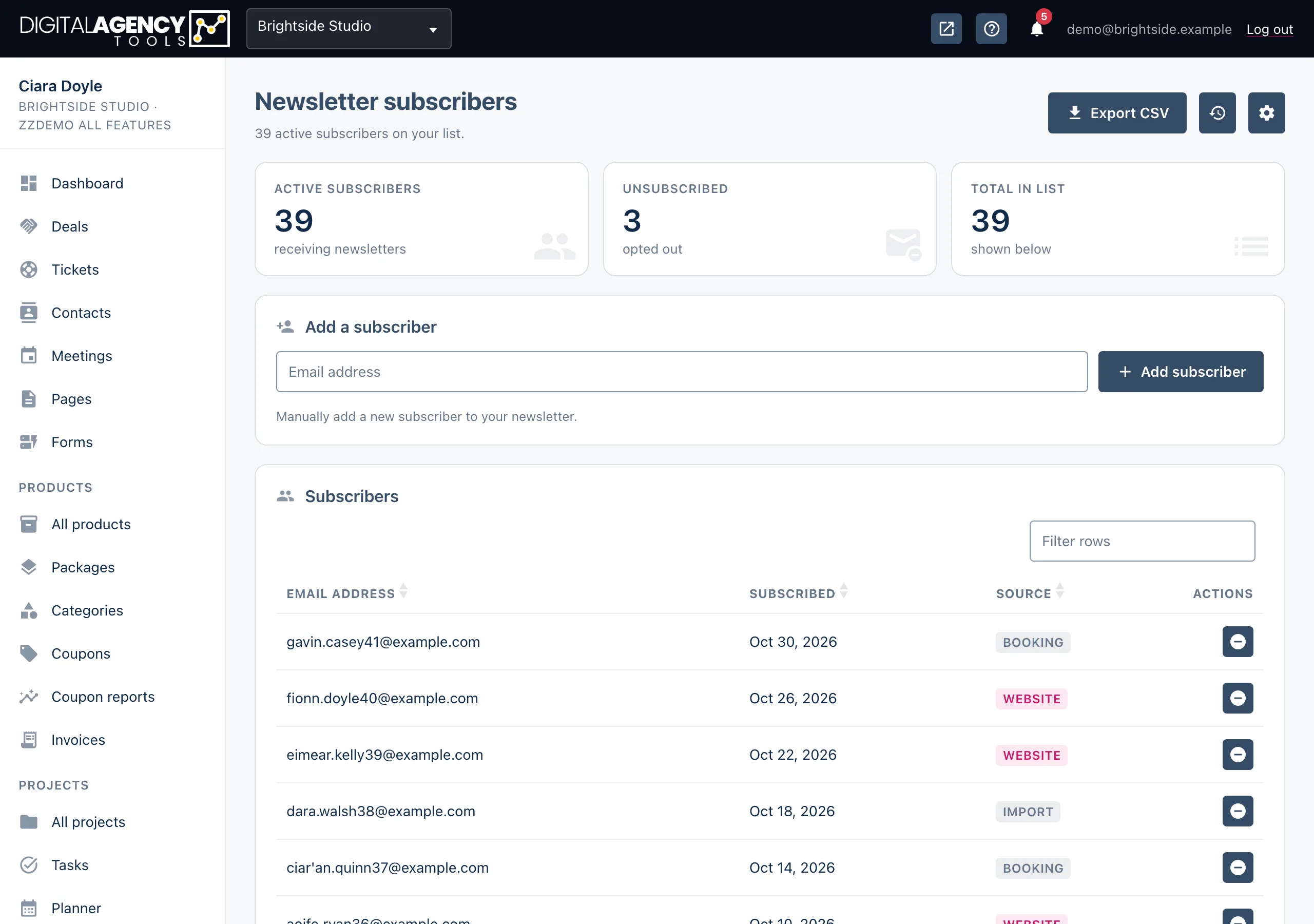
How to
- Open Newsletter → Subscribers in the sidebar.
- To add someone, type their email under Add a subscriber and click Add subscriber.
- To remove someone, click the remove icon on their row and confirm.
- To download the list, click Export CSV at the top.
The tiles
Active subscribers receive your newsletters. Unsubscribed counts people who have left or been removed. Total in list is both together.
The list underneath shows active subscribers only, with the date they joined and where they came from.
Sources
Website   signed up on your booking page
Manual    added by you or your team
Adding someone
The address must be a valid email. If it is already subscribed you are told so. If the person had unsubscribed before, adding them again reactivates them.
Either way, they are sent your welcome email. Newsletter must be switched on in Settings → Newsletter for this to work.
Add an address
new        → added, welcome email
inactive   → reactivated, welcome email
active     → "already subscribed"
Consent
Only add people who have asked to hear from you, such as a client who ticked a box on a paper form or asked in person. Adding a list bought or copied from elsewhere breaks data protection law and harms your email reputation, which affects every email you send, booking confirmations included.
Removing and exporting
Removing a subscriber marks them inactive. They stop getting newsletters and move to the Unsubscribed count; their record is kept.
Export CSV downloads every active subscriber with their subscription date and source. The button is greyed out while the list is empty.
The CSV
Email,Subscription Date,Source
jane@example.com,2026-10-02 …,websiteStill stuck?
Can't find what you're looking for? Send us a message and we'll reply by email.