
Email history
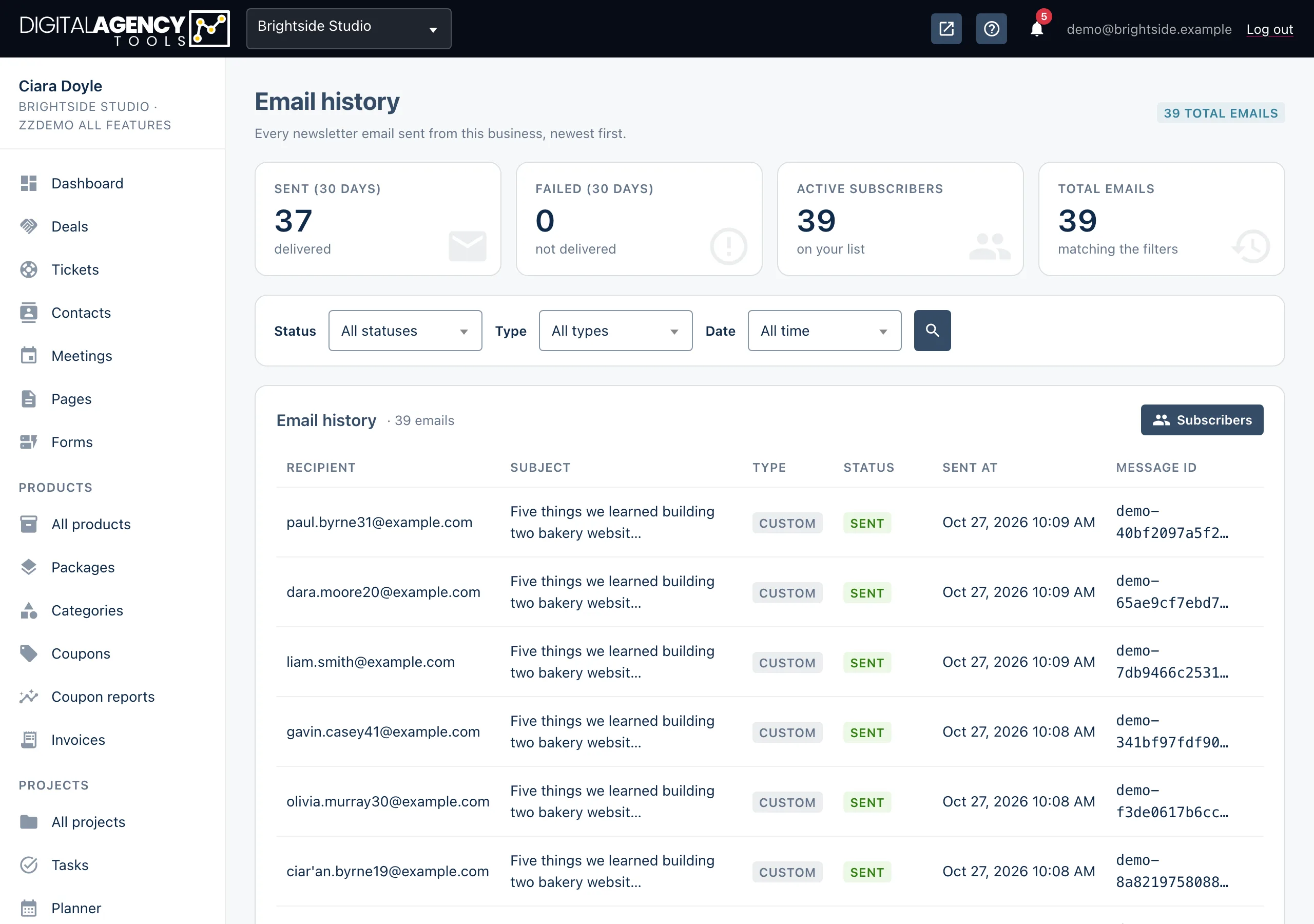
A line for every newsletter email your business has sent: who it went to, what it was, and whether it was accepted.
How to
- Open Newsletter → Email history in the sidebar.
- Choose a Status, Type and Date and click the search icon to apply.
- Click the clear icon to go back to everything.
- Use the page numbers at the bottom to go back further.
The tiles
Sent (30 days) and Failed (30 days) cover the last month. Active subscribers is your list today. Total emails is everything ever logged. The badge at the top of the page shows the total for your current filters.
Filters
Status  All · Sent · Failed · Bounced
Type    All · Event notifications
        · Welcome emails · Custom
Date    All time · Today
        · Last 7 days · Last 30 days
The columns
| Column | What it shows |
|---|---|
| Recipient | The subscriber's email address. |
| Subject | The newsletter title it was sent with. |
| Type | Custom for newsletters you write in Compose. The other types are emails the system sends for you. |
| Status | Sent means the email service accepted it. Failed means it did not. |
| Sent at | When it was sent. |
| Message ID | The email service's reference, when one was returned. Useful if you ask support to trace a single email. |
Sent is not the same as read
Sent means the email left the platform and was accepted for delivery. It does not tell you it reached the inbox rather than the spam folder, or that anyone opened it.
If lots of emails show as Failed, or subscribers say nothing arrives, check your sending domain first.
Test sends from Compose are not logged here.
Still stuck?
Can't find what you're looking for? Send us a message and we'll reply by email.