
Cancellations
Customers can cancel a booking themselves from the link in their confirmation email, up to 24 hours before it starts. Here is what they see, the rules, and what happens on your side.
How a customer cancels
- They open their booking confirmation email and click Cancel Booking.
- A Cancel booking page opens, branded with your colours, showing the booking details.
- They can give a Reason for cancellation. It is optional.
- They tick the box confirming they want to cancel, and click Cancel this booking.
- The booking is cancelled and they see a confirmation.
When a booking can be cancelled
The cancel page checks the booking first. It refuses, and tells the customer why, when:
- the booking is already cancelled, completed or marked as a no show;
- the booking time has passed; or
- the booking starts within the next 24 hours.
The 24-hour cut-off is fixed. If the customer needs to cancel later than that, they have to contact you, and you cancel it from the meeting in the panel.
Self-service window
booked ──────────────┬───── 24h ──── start
   customer can cancel │  contact you
                       └─ cut-off
What happens when they cancel
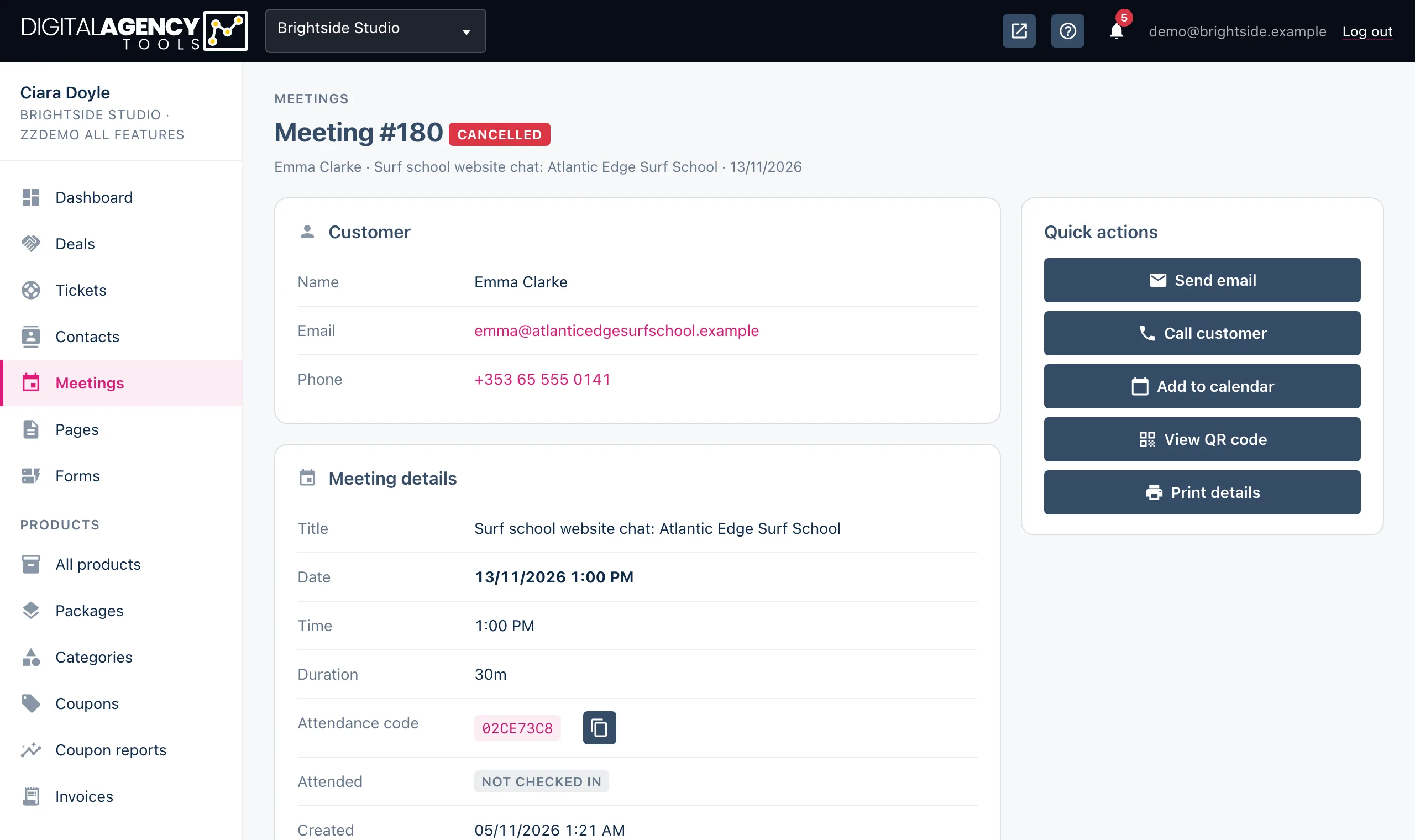
- The booking's status changes to cancelled, and the customer's reason is added to its notes.
- If the booking was added to your Google Calendar, that event is removed.
- The customer is emailed a cancellation confirmation. Where your business has a notification address on file, a notice is emailed to you as well.
The link is personal
Each cancellation link is tied to one booking and its customer. A link that has been altered or does not match shows "invalid or has expired" and asks the customer to contact you directly.
Refunds are separate
Cancelling does not refund the customer. If they paid, decide whether to refund and do it from the meeting: see Refunds and cash payments.
Still stuck?
Can't find what you're looking for? Send us a message and we'll reply by email.