
Emails are not arriving
A client says they never got a confirmation, an invoice or a proposal. Almost every case comes down to one of four things. Work through them in order.
The symptom
You sent something from the panel and it showed as sent, but the person says nothing arrived. Or emails arrive from an address they do not recognise and go to spam.
Likely causes:
- the email went to spam or a promotions tab;
- the address on the contact or booking is wrong;
- your email domain is not fully verified, so mail goes from the platform's address;
- that kind of email is switched off, for example the confirmation on a product.
Check in this order
1. spam / promotions folder
2. the recipient's address
3. Settings → Email domain
4. the product's email settings
5. Newsletter → Email history
1. Spam, and the address itself
Ask the person to search their spam, junk and promotions folders for your business name. Then open the contact or booking and check the email address letter by letter. A typo is the most common cause, and nothing will ever arrive.
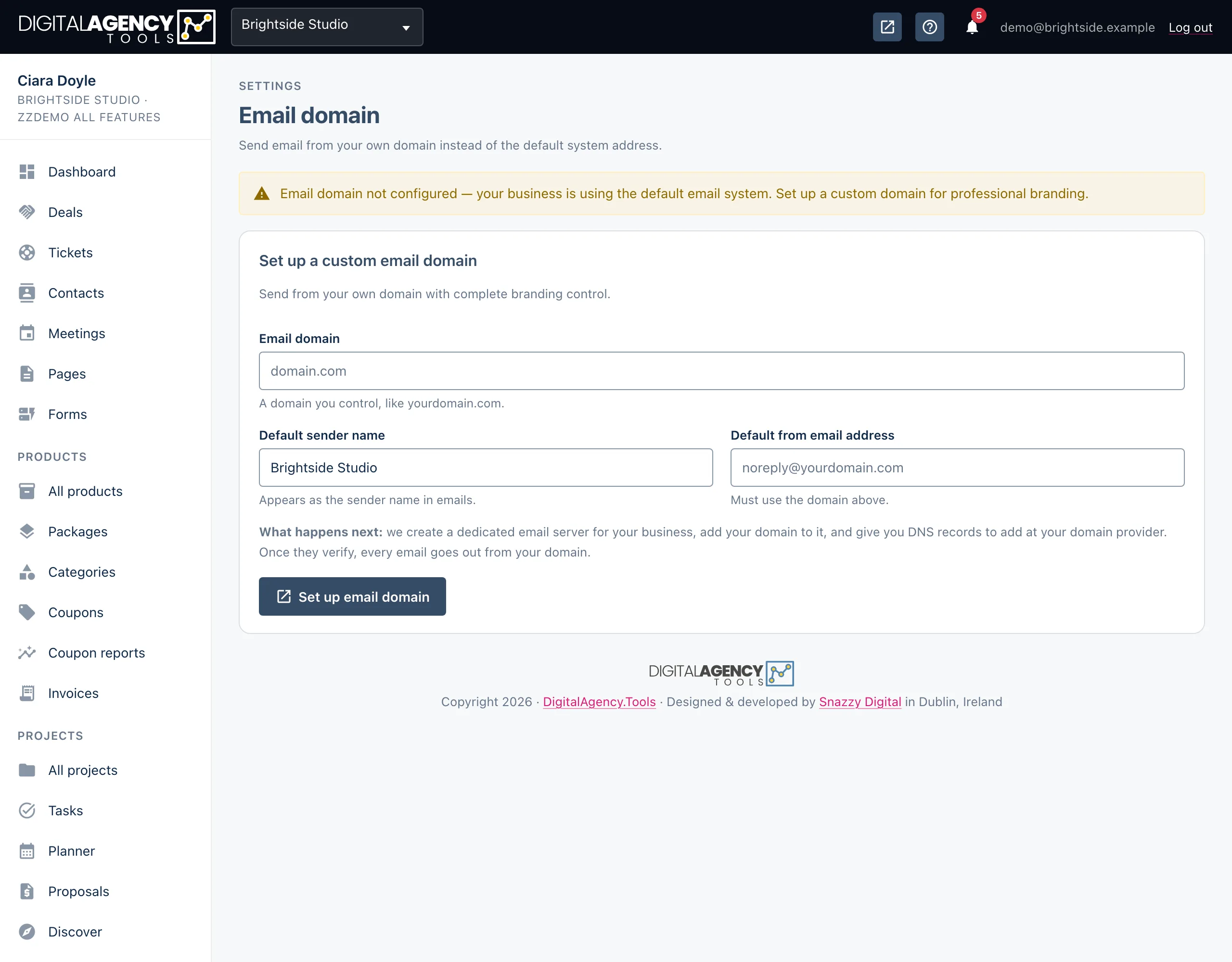
2. Is your domain verified?
Open Settings → Email domain. Your emails only go out from your own address when both records, the DKIM authentication record and the Return path record, say Verified. Until then, mail is sent from the platform's own no-reply address, which some clients overlook or filter.
If a record says Pending or Not set up, copy the values shown into your DNS provider, wait a little, then click Check DNS records. DNS changes can take a few hours to be seen.
Record badges
Verified      in use
Pending       added, not seen yet
Not set up missingOnce both records are verified, use Send test email on the same page to send yourself a test. If the test arrives, sending works, and the problem is with one particular recipient or email type.
The Email domain page needs the custom_domain plan feature. Without it,
all mail goes from the platform's address and you cannot change that.
3. Is that email switched on?
Booking confirmations and reminders are set per product. Open the product and check Send booking confirmation and Send booking reminder are ticked.
Proposals are only emailed when you click Send. Invoices go when you issue and send them, or choose to email them again.
4. Newsletters: the email history
For newsletters, open Newsletter → Email history. Every newsletter email is listed with its status: Sent, Failed or Bounced. Filter by status to find problems. A bounce means the recipient's mail server refused it, usually because the address no longer exists.
Still stuck?
Can't find what you're looking for? Send us a message and we'll reply by email.