
Create a proposal
Pick the client, give the proposal a title, then write the introduction and scope in the builder.
How to
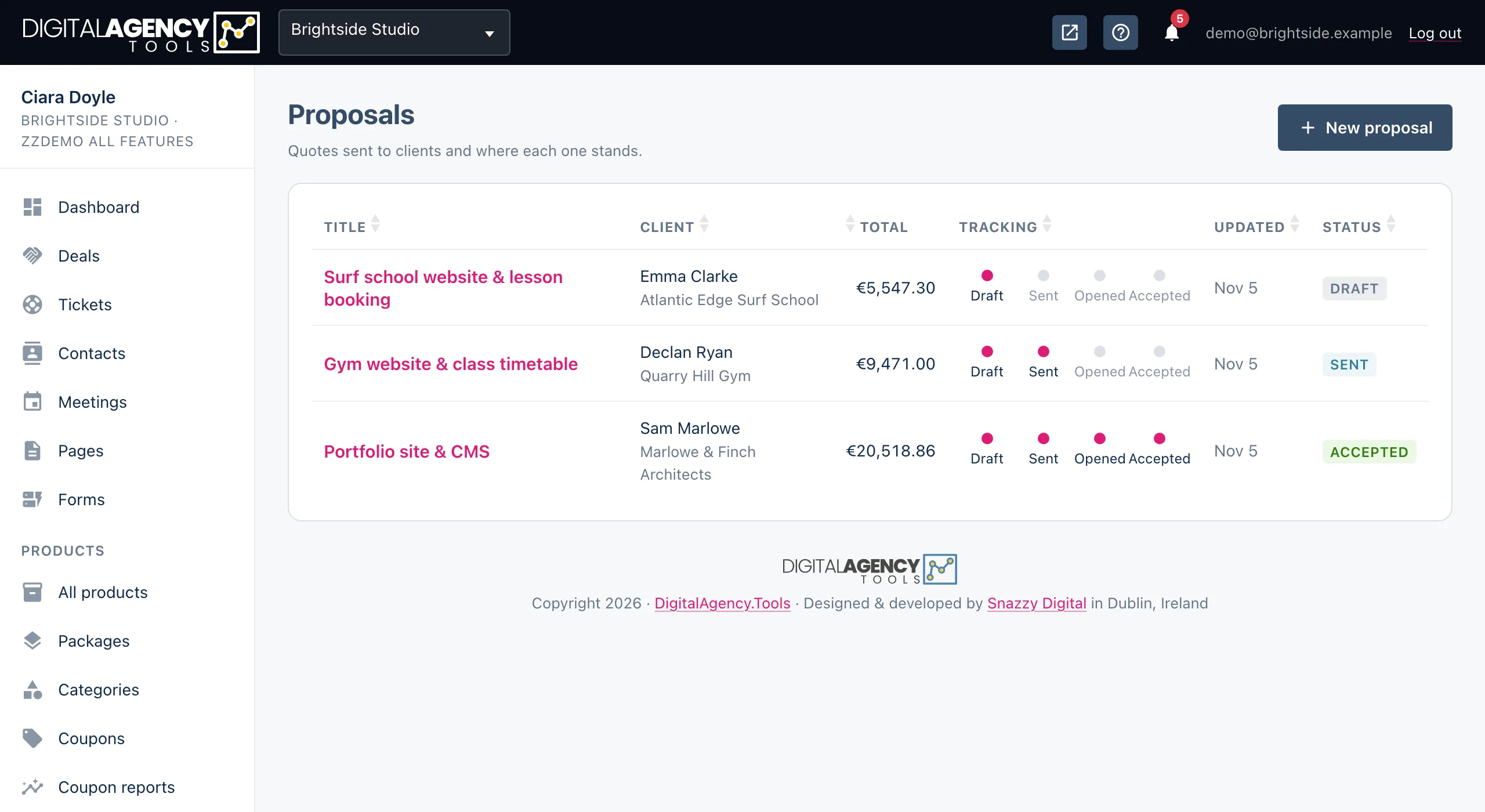
- In the sidebar, under Projects, open Proposals.
- Click New proposal.
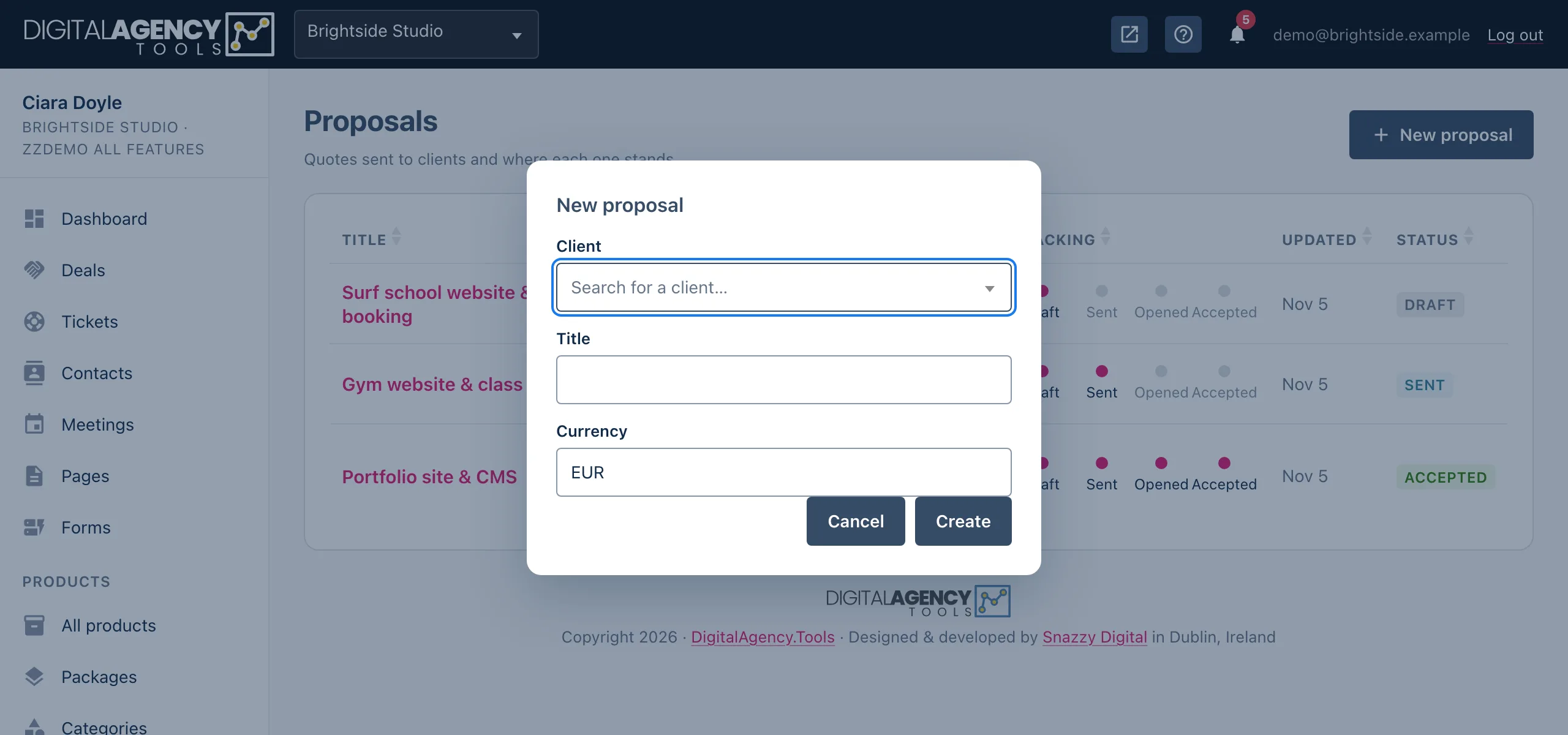
- Search for the Client, type a Title and check the Currency. It defaults to your business currency.
- Click Create. The proposal builder opens.
- Write the Introduction and the Scope, then click Save proposal at the bottom.
The client comes first
Every proposal belongs to a contact. The client picker searches your contacts, so add the person there first if they are new.
The client's email address is where the proposal is sent, so make sure the contact has one before you send.
The New proposal dialog
Client     search your contacts
Title      e.g. "Website rebuild"
Currency   defaults to your business's
The builder
The builder is one long page of cards, with a live preview beside it. The preview updates each time you save.
- Details: title, currency, Valid until and an optional linked deal.
- AI draft: fills the content from pasted notes, when AI is on.
- Content: the introduction and the scope.
- Timeline, Pricing and Terms.
Nothing is saved until you click Save proposal.
Cards, top to bottom
Details
AI draft
Content
Timeline
Pricing
Terms
[Save proposal]
Writing the scope
Put one item on each line of the Scope box. Start a line with
- (a dash and a space) to mark it as not included. The client
sees two lists, Included and Not included.
Being explicit about what is out of scope saves arguments later. These lines also become the project's scope items when the proposal is accepted.
Homepage and five inner pages
Contact form
Basic on-page SEO
- Copywriting
- Photography
Statuses
A new proposal is a draft. It becomes sent when you send it, and opened when the client first views it. It ends as accepted, declined or expired.
| Status | What it means |
|---|---|
| Draft | Only you can see it. The client has no link yet. |
| Sent | A link exists and has been emailed to the client. |
| Opened | The client has viewed the link at least once. |
| Accepted | The client accepted it. A project has been created. |
| Declined | The client declined it, with an optional reason. |
| Expired | The Valid until date passed before the client replied. |
Still stuck?
Can't find what you're looking for? Send us a message and we'll reply by email.