
Send it and get it accepted
Sending creates a private link and emails it to the client. They read the proposal in their browser and accept or decline it there.
How to
- Open the proposal and click Save proposal so the latest version is stored.
- Click Send at the top of the page, then confirm.
- The client is emailed Your proposal: <title> with a link to it.
- A green box shows the Public link. Copy it now if you want to send it another way. It is shown only once.
- Watch the status change to opened and then accepted or declined.
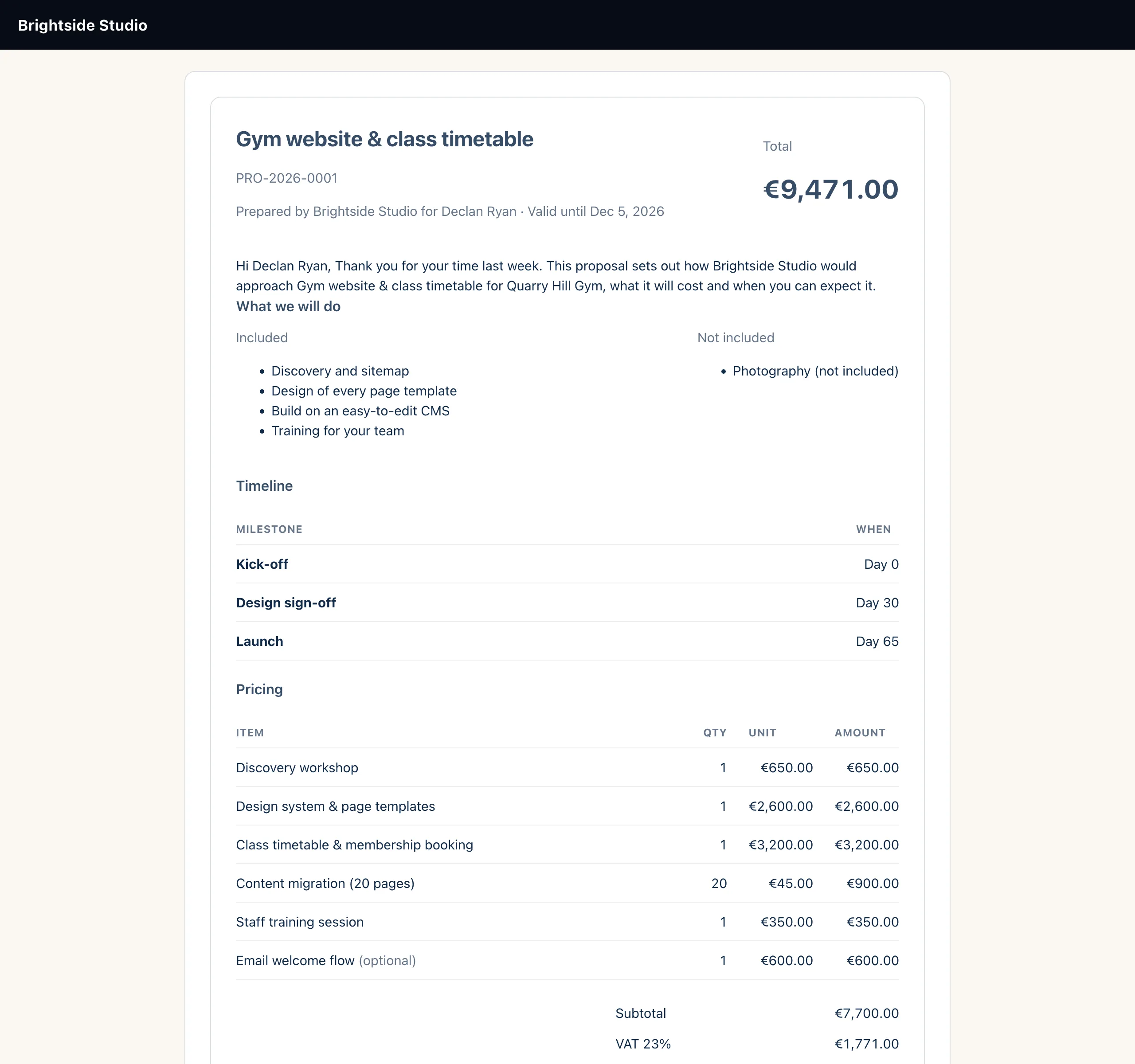
What the client sees
The link opens a page in your brand colours with your logo. It shows the title, proposal number, the introduction, the scope as Included and Not included, the timeline, the pricing table and your terms.
The client does not need an account. Search engines are told not to index the page.
Numbering
PRO-2026-0001
PRO-2026-0002
…
assigned the first time
a proposal is sent
Opened
The first time the client opens the link, the status changes from sent to opened. You get a Proposal opened notification in the bell.
If a proposal stays opened for more than five days without a reply, you get a Proposal opened but not accepted notification as a nudge to follow up.
Notifications
Proposal opened by the client
Proposal accepted
Proposal waiting with no reply
Accepting
Under Ready to proceed? the client types their full name, checks their email and clicks Accept proposal. Their name and email are recorded with the acceptance.
Accepting does several things at once:
- The status becomes accepted and the page thanks the client.
- A project is created for the client, with the proposal's milestones, scope and tasks. See Turn a proposal into a project.
- If you linked a deal, that contact is marked Closed Won.
- Owners are notified that the proposal was accepted.
Next, you can ask for a deposit.
Declining
Under Not quite right? the client can add a reason, tick Yes, decline this proposal and click Decline. The status becomes declined. You see it in the list. Declining does not send you a notification, so check your proposals list.
Once a proposal is accepted, declined or expired, the buttons are gone and the client sees a short message instead.
Resending and the link
Only a fingerprint of the link is stored, so the panel can't show it to you again. Clicking Send again creates a new link and emails it. The old link stops working straight away.
The PDF icon next to Send downloads the proposal as a PDF, if you would rather attach it to your own email.
If the client gets a "this proposal link is invalid or has expired" page, see A client link does not open.
Still stuck?
Can't find what you're looking for? Send us a message and we'll reply by email.