
Statuses and categories
Statuses are the stages a task moves through, and the board's columns. Categories are coloured labels — Design, Development, Social media — that you can filter by.
How to
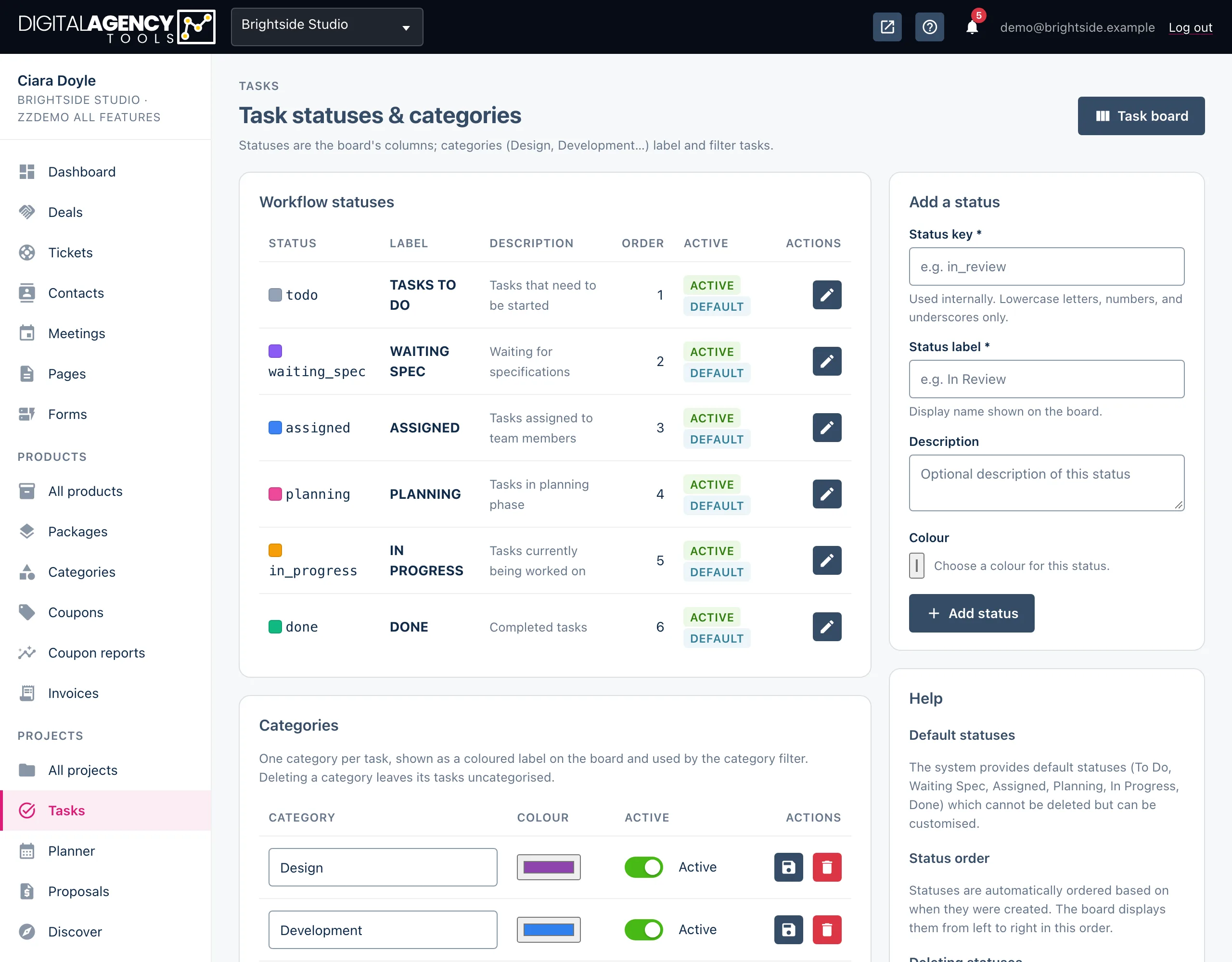
- Open Projects → Tasks and click the Statuses & categories icon (the cog) at the top right.
- To add a status, fill in Add a status: a
Status key (for example
in_review), a Status label (for example "In Review"), an optional description and a colour. Click Add status. - To change one, click its pencil icon. The form switches to Edit status; change the label, description or colour and click Update status.
- To add a category, type its name in the box under Categories, pick a colour and click Add category.
Statuses
Every business starts with six statuses: TASKS TO DO, WAITING SPEC, ASSIGNED, PLANNING, IN PROGRESS and DONE. You can rename and recolour them, but you cannot delete them.
Statuses appear on the board from left to right in the order they were created; the Order column shows that position. New statuses are added to the end.
The key is fixed once a status is created. It must start with a lowercase letter and use only lowercase letters, numbers and underscores. The label is what everyone sees, and you can change it at any time.
The starting set
key           label
todo          TASKS TO DO
waiting_spec  WAITING SPEC
assigned      ASSIGNED
planning      PLANNING
in_progress   IN PROGRESS
done          DONE  (finished)
What counts as finished
DONE is the status the platform treats as finished. Finished tasks drop out of the planner's backlog, never show as overdue on the board, and are what client updates report as completed work.
A status you add yourself is not treated as finished, so move tasks to DONE when the work is complete.
Categories
A task can have one category. It shows as a coloured label on the list and on board cards, and the All categories filter uses it. Edit a category's name, colour or Active tick in its row, then click the save icon. Deleting a category leaves its tasks in place, just uncategorised.
Still stuck?
Can't find what you're looking for? Send us a message and we'll reply by email.