
Tasks: list and board
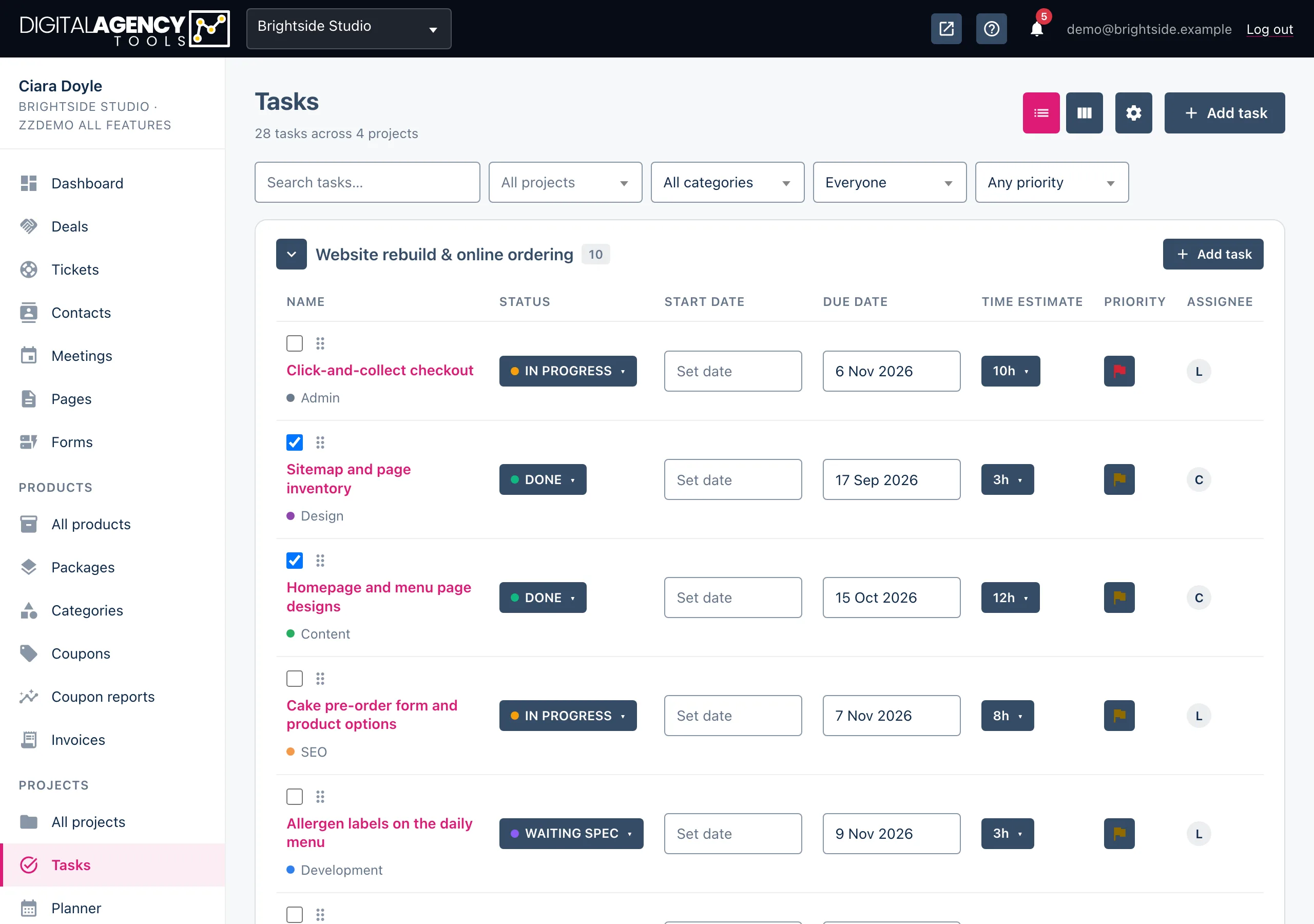
Every task belongs to a project. See them as a list grouped by project, where you can change things in place, or as a board where you drag cards between columns.
How to
- Open Projects → Tasks.
- Click Add task, give it a title and choose a project, then click Add task in the window.
- Change its status, dates, estimate or priority straight from the row. Each change saves as you make it.
- Switch to the board with the Board view icon at the top right, and drag the card to another column to move it on.
The list
Tasks are grouped into one card per project, with a count beside the project name. Collapse a project with the arrow next to its name, or add a task straight into it with the card's own Add task button.
Each row has these columns, all editable without opening the task:
- Name — with a tick box to mark it done and a drag handle to reorder it within its project.
- Status — pick any of your statuses from the menu.
- Start date and Due date.
- Time estimate — from 15 minutes to 12h 45m.
- Priority — Urgent, High, Medium or Low. High and Urgent show a coloured flag.
- Assignee — shown as an initial.
Click a task's name to open it. The task page shows its details and progress, and Edit task opens the full form.
The board
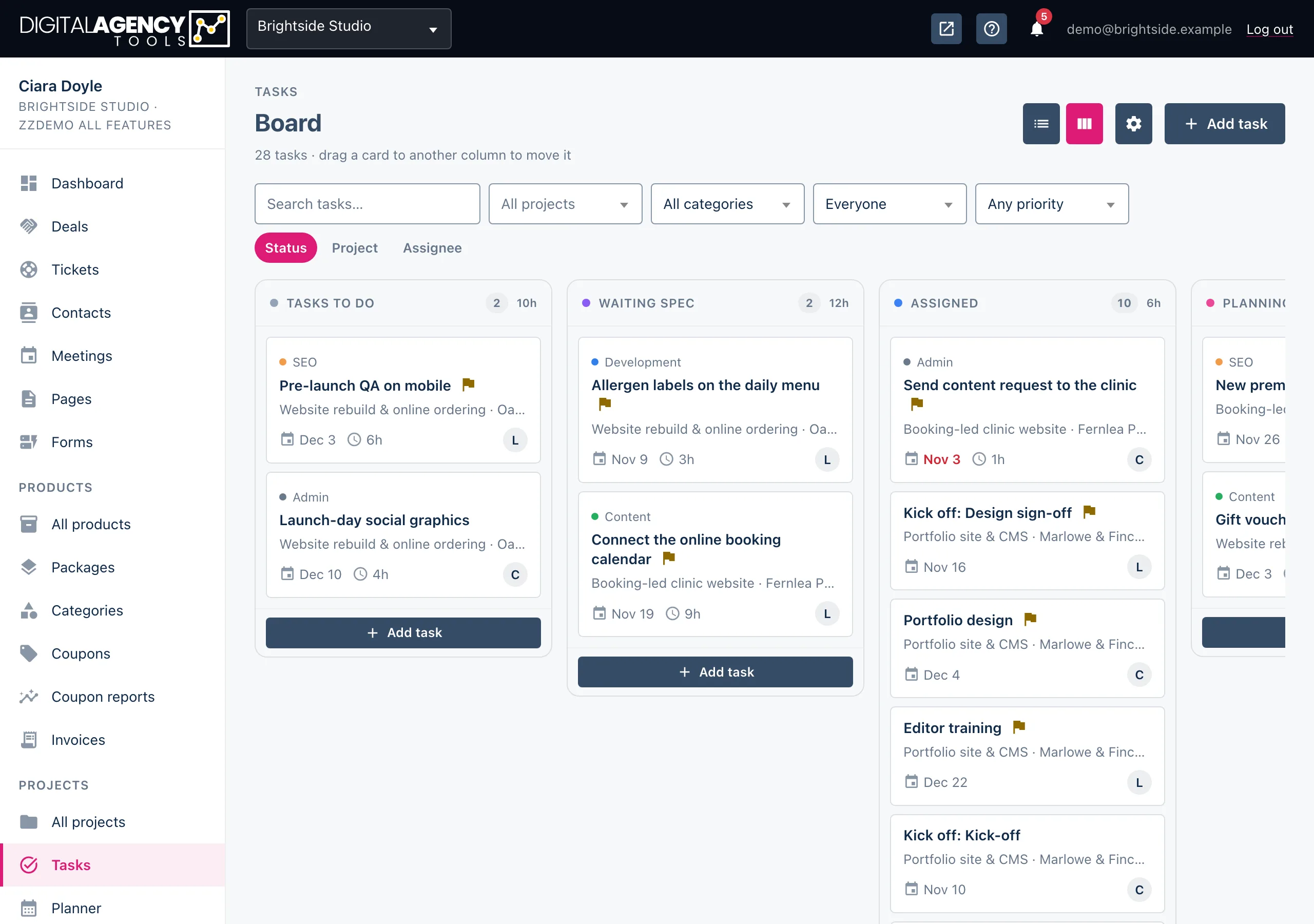
By default the board has one column per task status, in your status order. Use the Status, Project and Assignee pills at the right of the filter bar to change what the columns are.
Drag a card anywhere except its title link. Dropping it in another column changes that field on the task — its status, its project or who it is assigned to — and you see Task moved. If the move cannot be saved, the card goes back where it was.
Each column shows its task count and the total estimated hours. Use Add task at the foot of a column to add a task that starts in that column.
Due dates turn amber when they are within two days and red once they have passed, unless the task is finished.
Board columns
/tasks/board                 by status
/tasks/board?group=project   by project
/tasks/board?group=assignee  by person
                             (+ Unassigned)
Filtering
The list and the board share the same filter bar:
- Search tasks… — press Enter to search. On the board, cards also filter as you type.
- All projects, All categories (including No category), Everyone (or Me, Unassigned or a named person) and Any priority.
Each choice applies straight away and becomes part of the page address, so you can bookmark or share a filtered view. Clear removes every filter.
Assigning tasks
You can assign a task to anyone on your business's team. When you assign a task to someone else, they get a Task assigned to you notification. Nobody is notified when you assign a task to yourself.
Still stuck?
Can't find what you're looking for? Send us a message and we'll reply by email.