
Chat with the agent
An internal assistant for you and your team. Scope a chat to a project and it answers using that project's milestones, tasks, deliverables and open requests.
How to
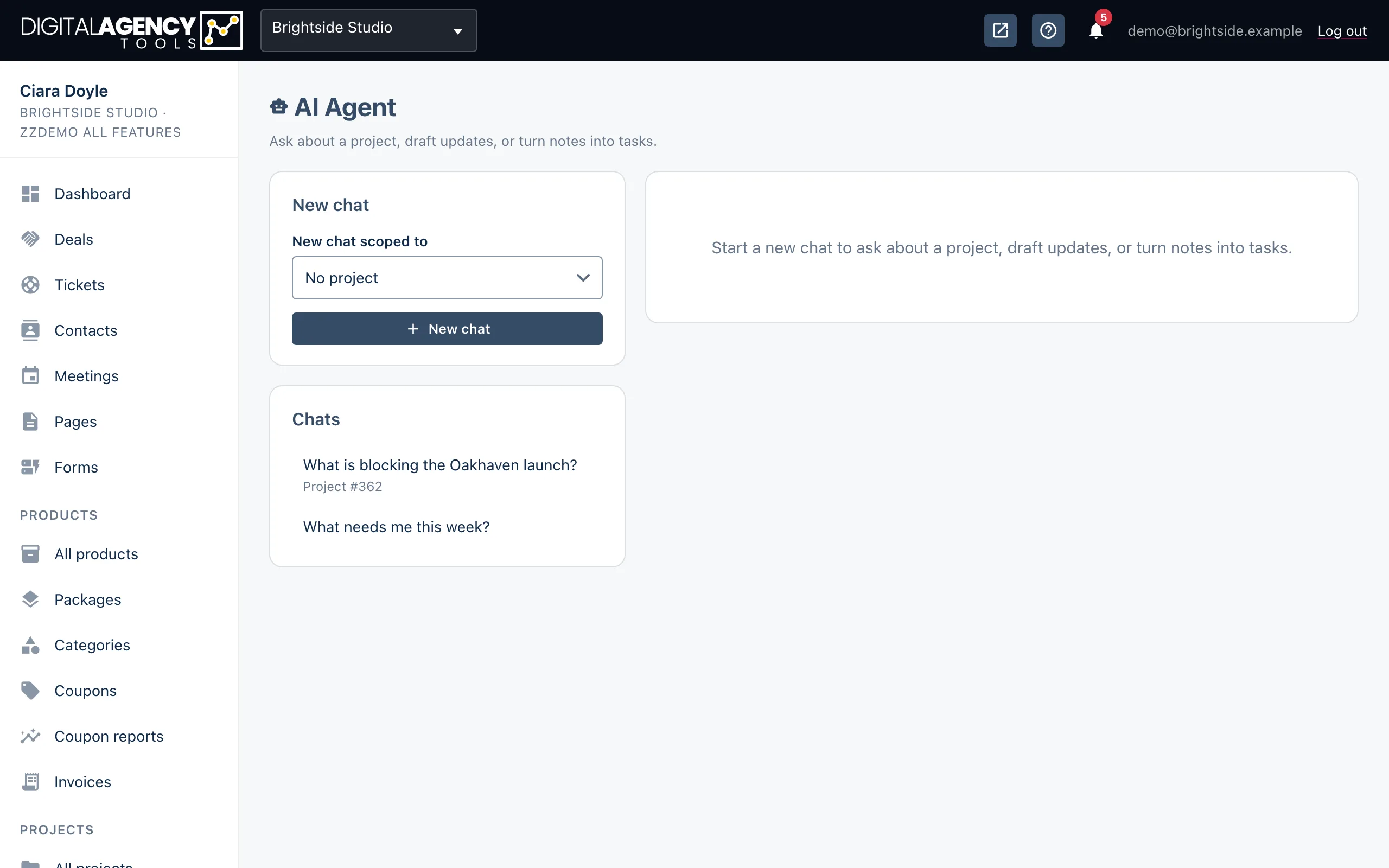
- In the sidebar, under Projects, open AI Agent.
- In New chat scoped to, pick a project, or leave it on No project.
- Click New chat.
- Type your question in Ask the agent… and press Enter or click Send.
- Come back to a chat later from the Chats list.
What it knows
When a chat is scoped to a project, every question is sent with a snapshot of that project. The snapshot holds its name, status and dates, its milestones, a count of tasks by status, its deliverables and any open client requests.
It does not see task descriptions, files, messages, invoices or other projects. If something is missing, it should say so rather than guess.
A chat with No project has no business data at all. Use it for general help, such as rewording an email or planning an approach.
The project snapshot
project       name, status, dates
milestones    title, status
task_counts   per status
deliverables  title, status
open_requests title, due date
Good things to ask
The agent is set up to help staff move projects forward. It is concise and practical. Try:
- "Where are we on this project?"
- "What's blocking us, and what do we need from the client?"
- "Draft a short update for the client about this week."
- "Which milestones look at risk?"
Ask one complete question
✗ "and the second one?"
✓ "Summarise the open client
   requests and who to chase."
Each message stands alone
Your chats are saved, but the agent answers each message on its own. It does not read the earlier messages in the chat. Make each question complete, rather than relying on "that" or "the one above".
The project snapshot is taken fresh with every message, so answers reflect the project as it is now.
If it is switched off
If no AI provider is set up, the page shows Configure an AI provider to use the agent, and New chat and Send are greyed out with the tooltip AI not configured. If AI Agent is missing from the sidebar, your plan doesn't include it. See When AI buttons are switched off.
Still stuck?
Can't find what you're looking for? Send us a message and we'll reply by email.