
Create a project
A project is the home for one piece of client work: who it is for, when it is due, what it is worth, and every task, milestone and deliverable that goes with it.
How to
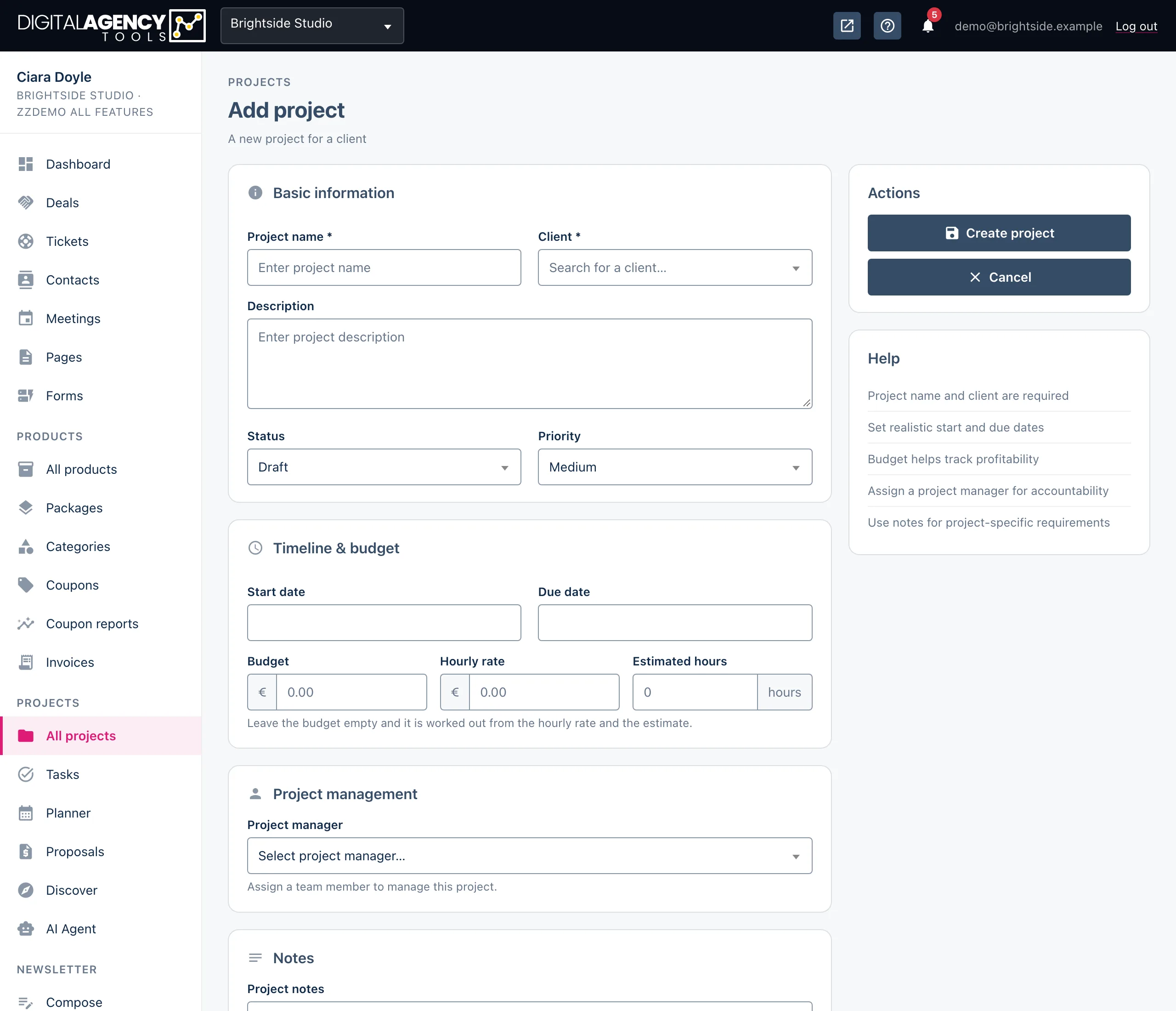
- Open Projects → All projects and click Add project.
- Enter a Project name and search for the Client. Both are required. The client is one of your contacts.
- Add a description, then choose a Status and a Priority.
- Under Timeline & budget, set the start and due dates, and the budget, hourly rate and estimated hours.
- Optionally pick a Project manager from your staff and add internal Project notes.
- Click Create project. You land on the new project's page.
Statuses and priorities
Every project has one of five statuses. New projects start as Draft unless you choose otherwise. Set the status yourself as the work moves on. Nothing changes it for you, except that a project created from an accepted proposal starts as Active.
When you save a project as Completed, today's date is recorded as its completion date and shown on the project's timeline.
Priority is Low, Medium (the default), High or Urgent. It is a label for you and your team. It does not change any dates.
Statuses
draft      Draft
active     Active
on_hold    On hold
completed  Completed
cancelled  Cancelled
Budget, rate and hours
If you leave Budget empty and enter both an Hourly rate and Estimated hours, the form fills in the budget for you (rate × hours). You can still change it before saving. Amounts are in your business's currency.
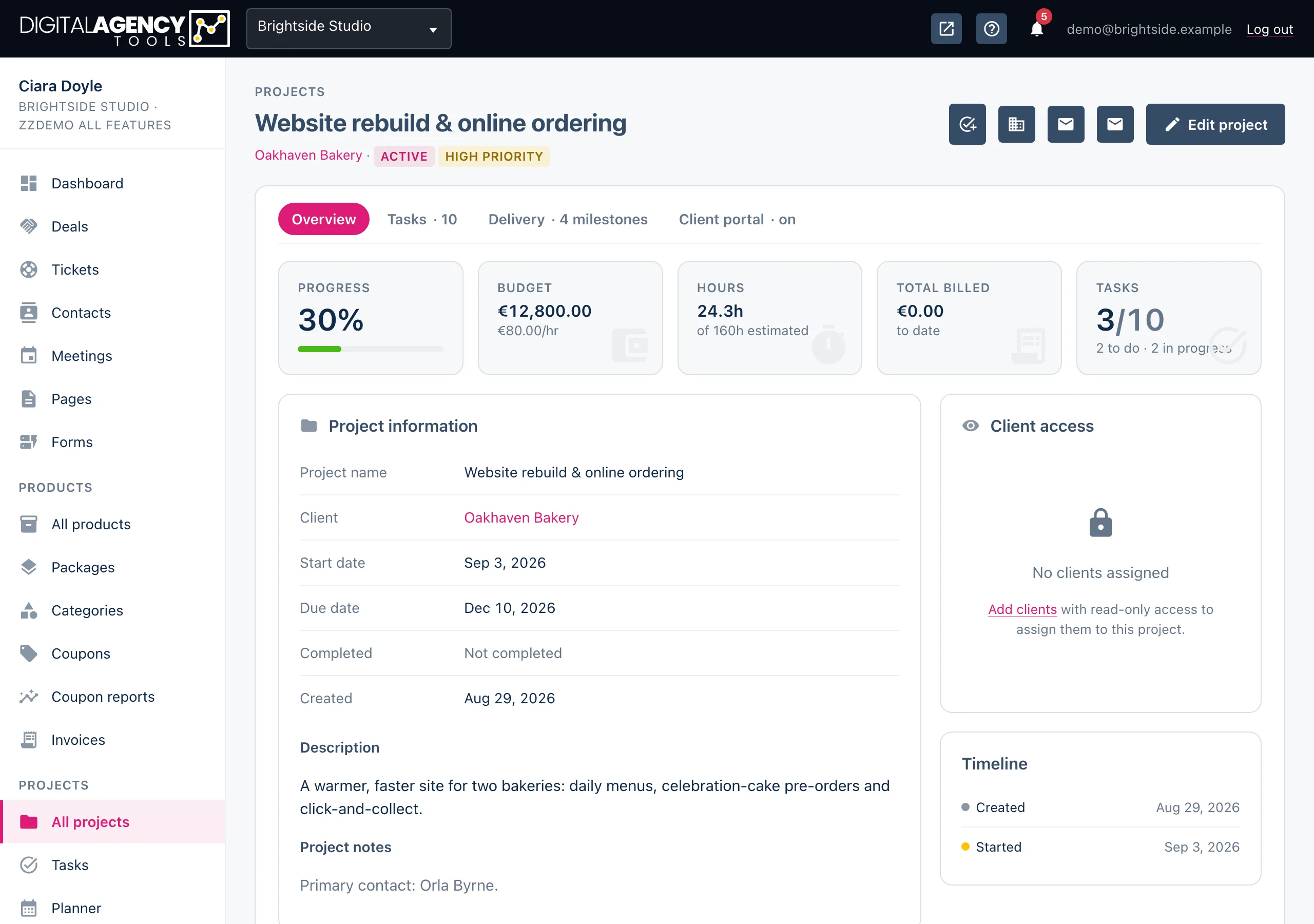
On the project's Overview tab, the Hours tile compares the hours logged on its tasks with your estimate. Total billed adds up the billed amounts recorded on the project's tasks.
The project page
Each project has four tabs:
- Overview: the figures, the project information and a short timeline (created, started, completed).
- Tasks: every task in the project. Use Add task to add one without leaving the page.
- Delivery: milestones and deliverables, scope and requests from the client.
- Client portal: the private link your client uses to follow along.
The icons at the top right add a task, open the client's contact, email the client and open Client updates. Edit project opens the same form you created it with.
Finding projects
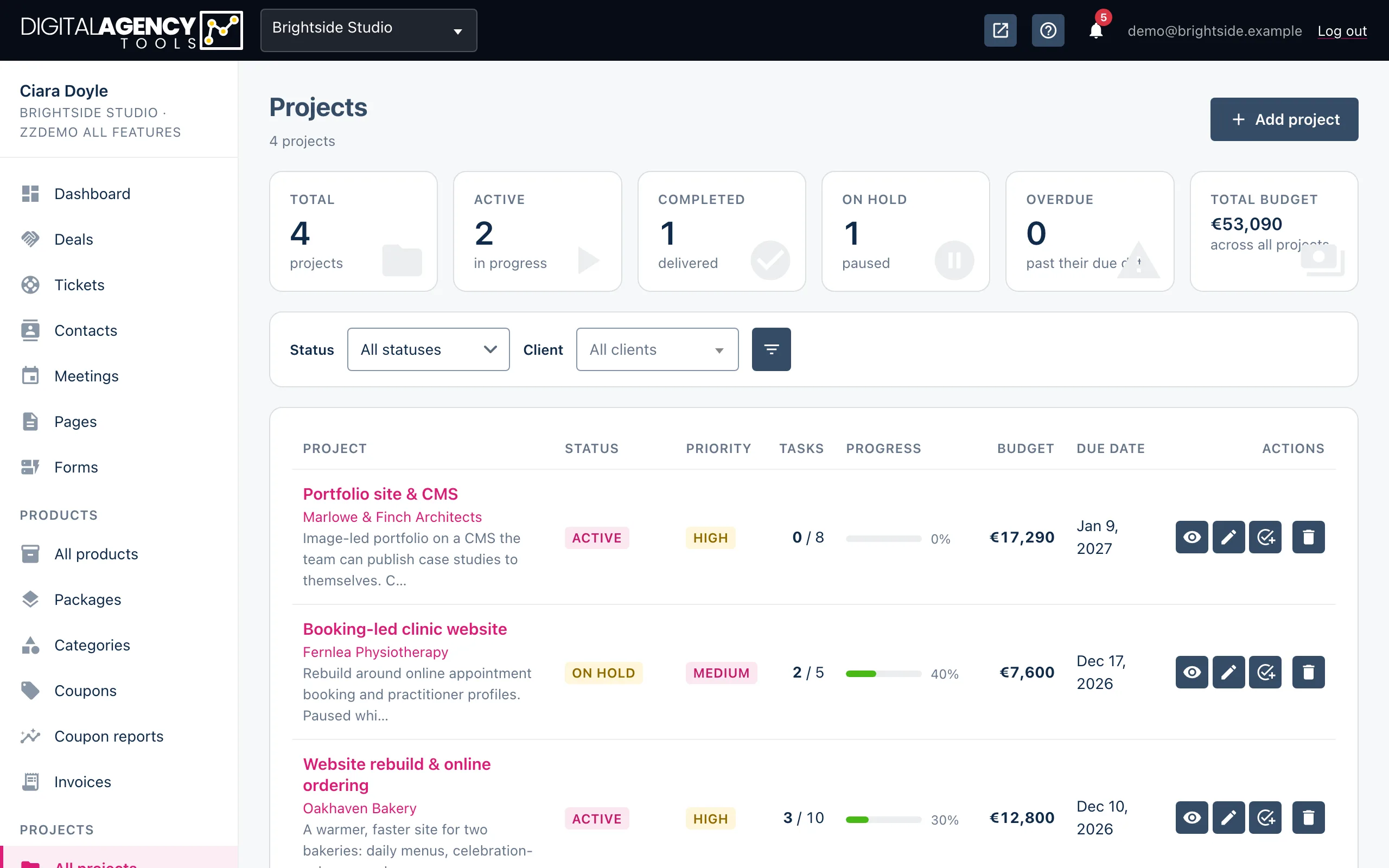
The tiles at the top of the list count your projects: Total, Active, Completed, On hold and Overdue (past the due date and not completed), plus the Total budget across all of them.
Filter the list by Status or Client, then click the filter icon. A project past its due date that is not completed shows an Overdue badge.
Deleting a project
Use the bin icon on the list, or Delete project on the edit page. You are asked to confirm first.
Still stuck?
Can't find what you're looking for? Send us a message and we'll reply by email.