
Notes to tasks
Paste meeting notes into a project chat. The agent suggests a task list, and nothing is created until you confirm.
How to
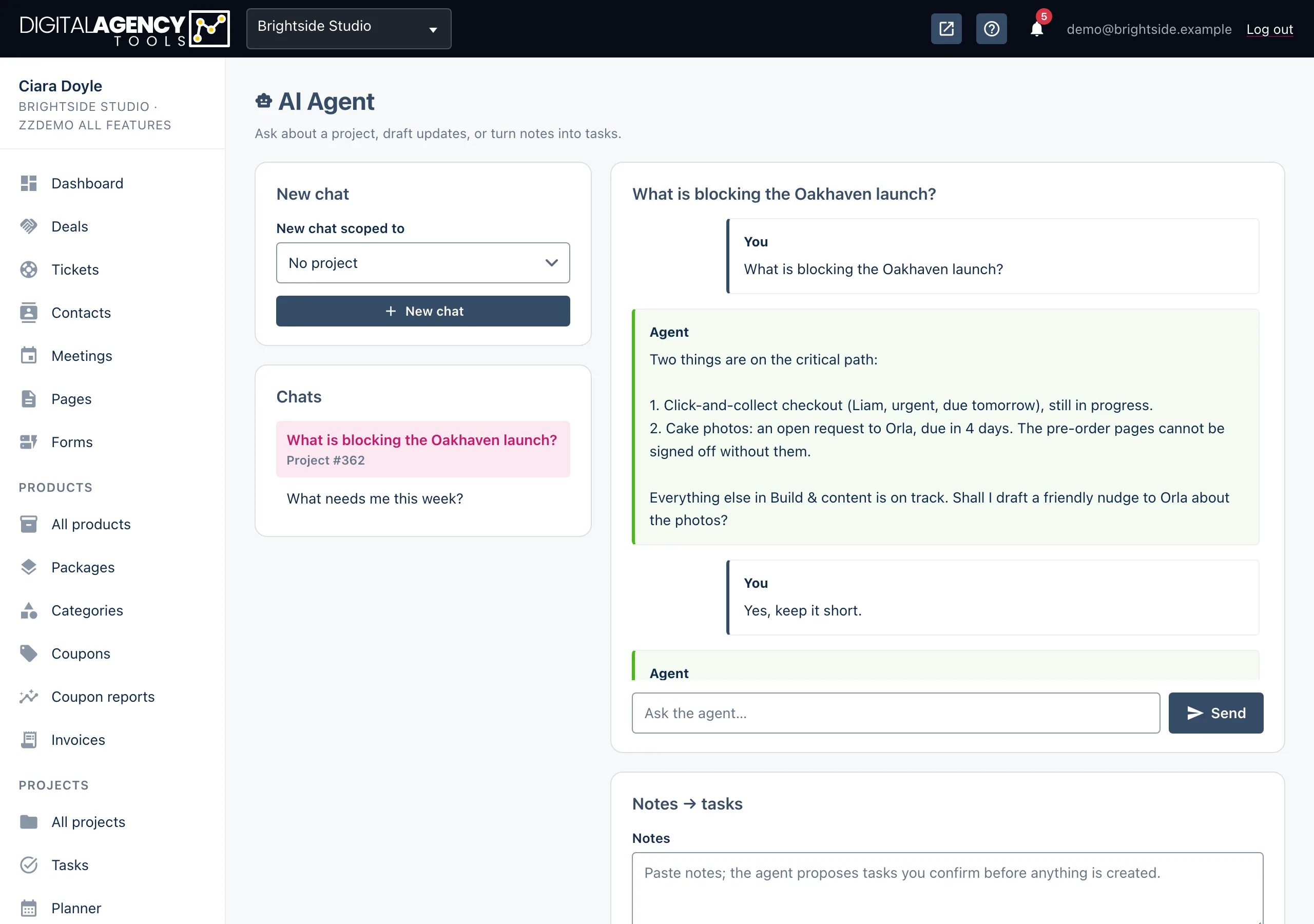
- Open Projects → AI Agent.
- In New chat scoped to, choose the project, then click New chat. Or open an earlier chat for that project.
- In the Notes → tasks card, paste your notes.
- Click Propose tasks. The button reads Thinking… while it works.
- Read the list under Proposed tasks — confirm to create.
- Click Create these tasks. You'll see how many were created.
What you get
The agent turns your notes into short, action-first task titles, often with an estimate in hours. It also sees the project's milestones, deliverables and open client requests, which helps it word tasks in your project's terms.
Confirmed tasks are added to the chat's project with your default task status. If a task came with an estimate, it is saved as the task's estimated hours.
Notes in, tasks out
"Client wants the blog moved to the
main nav. Sarah to send logos by
Friday. We need to redo the footer."

→ Move blog link into main navigation (1h)
→ Chase Sarah for logo files
→ Redesign footer (3h)
It is all or nothing
Create these tasks creates every task in the proposed list. You can't untick one first. If the list isn't right, edit your notes and click Propose tasks again. Or create them and tidy up on the task board.
Tasks are not assigned to anyone and have no due date. Open Projects → Tasks to assign them, set dates and move them onto a milestone.
Still stuck?
Can't find what you're looking for? Send us a message and we'll reply by email.