
Manage your subscription
Your card, your invoices and your plan are handled in Stripe's billing portal. The panel shows you where you stand.
How to
- In the sidebar, under Settings, click Billing. Stripe's billing portal opens.
- Update your card, download invoices or change your plan there.
- Click the link back to return to the panel.
The subscription page
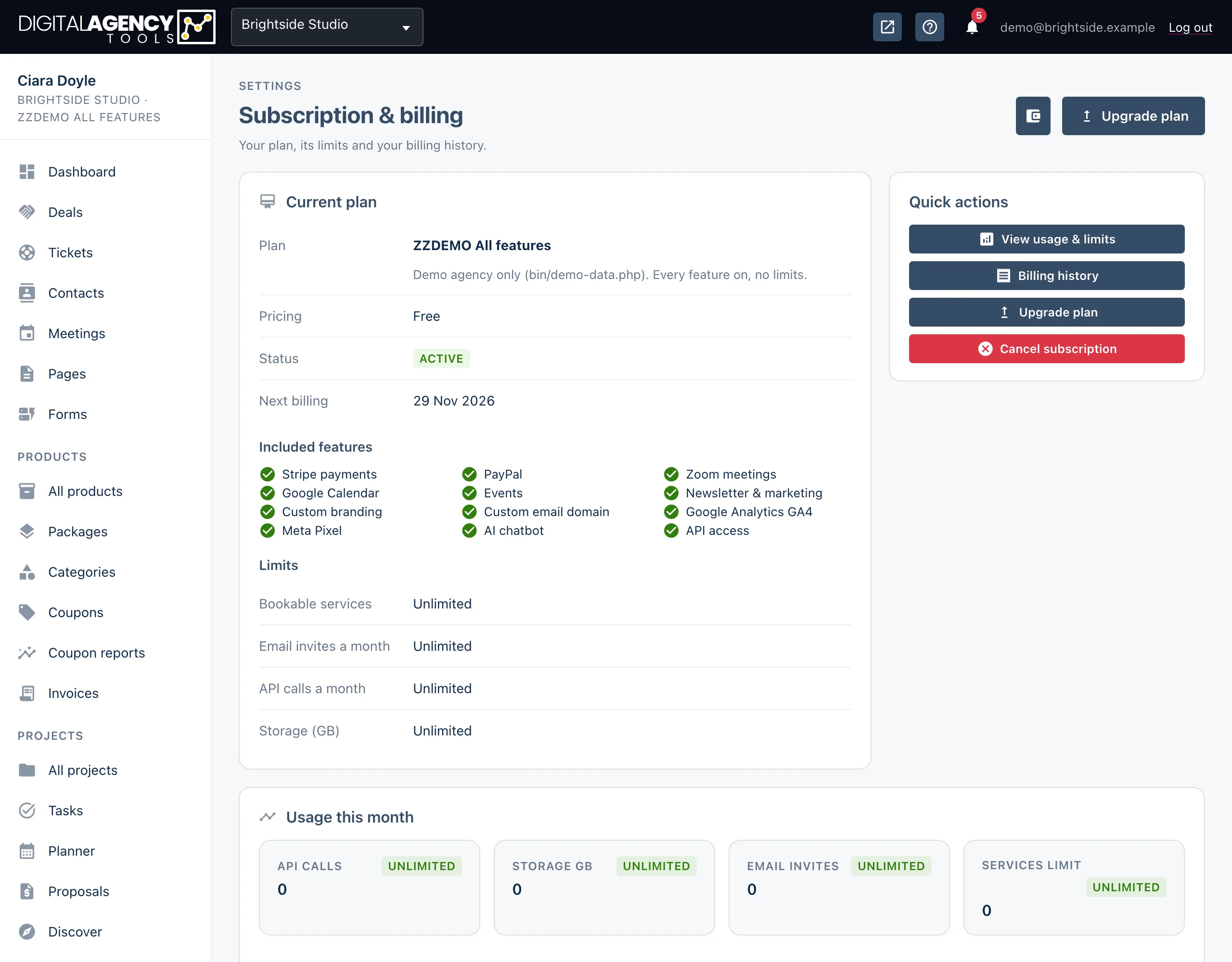
Go to /settings/subscription for a summary inside the panel. Current
plan shows the plan, its price, its status, the next billing date and — during a trial —
when the trial ends. Below that are your Included features and
Limits.
Usage this month shows how much of each limit you have used and what is left. Recent changes lists upgrades and cancellations, with the date and reason.
Status
Trialing       in the 7-day trial
Active         paid and current
Past due       a payment failed
Canceled       ended
Complimentary  given a plan, no card
Free           the Free plan
Quick actions
The Quick actions card links to View usage & limits, Billing history (the Stripe portal), Upgrade plan and, if you pay by card, Cancel subscription. The wallet icon at the top (Billing portal) also opens Stripe.
When a payment fails
If Stripe cannot take a payment, your status shows Past due. Open Billing and update your card; Stripe retries the payment.
If Billing says There is no billing account for this business yet, the business has never subscribed. Use Upgrade account instead.
Related
Still stuck?
Can't find what you're looking for? Send us a message and we'll reply by email.