
Needs attention
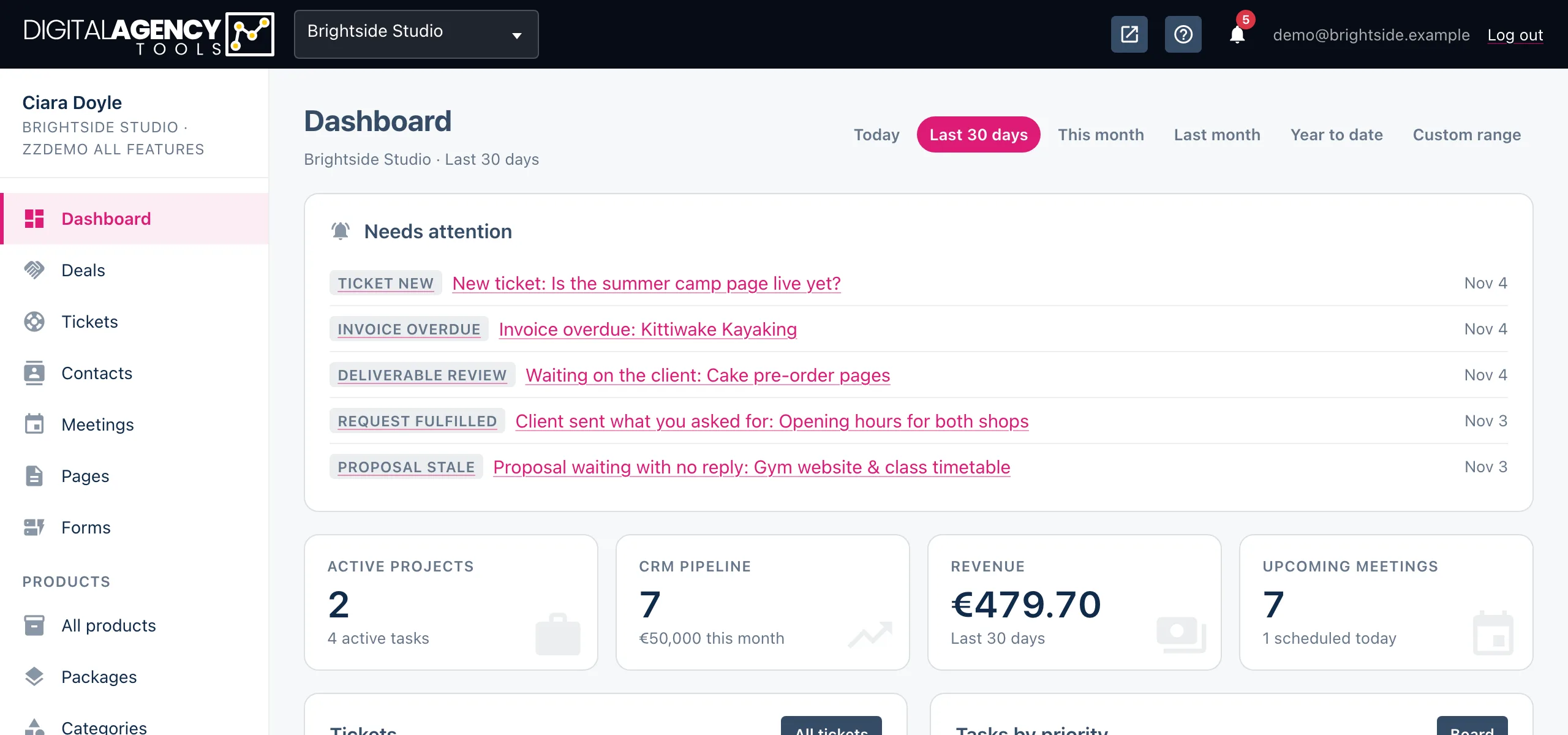
The Needs attention card at the top of the dashboard lists the things waiting on you: a proposal opened or accepted, a client who has sent what you asked for, an invoice gone overdue. It shows your unread notifications, so it empties as you read them.
How to clear it
- Click an item on the card to go to the proposal, project or invoice it is about, and deal with it.
- Open the bell in the top bar and click the same notification, or click Mark all read.
- Reload the dashboard. Read items no longer show, and when nothing is left the card disappears.
What lands here
The card shows the eight newest unread notifications for your business. Each one names the event, a short title and the date.
Clicking through from the card takes you to the right page, but does not mark the item read on its own. Mark it read from the bell or the Notifications page.
Typical events
proposal opened
proposal accepted
proposal stale    opened 5+ days,
                  no reply
deliverable approved
request fulfilled
portal file uploaded
invoice overdue
invoice payment claimed
invoice paid
ticket new
booking new
task assigned
Shared by the whole team
Read state is shared across your business. When a colleague marks a notification read, it is read for you too — one person handling an alert handles it for everyone. The exception is a notification meant for one person, such as task assigned, which only that person sees.
Some events come from a daily check rather than from something a person did: a proposal that has sat opened for more than five days without a reply, and an invoice past its due date. Each of those is raised once.
Still stuck?
Can't find what you're looking for? Send us a message and we'll reply by email.