
Notifications
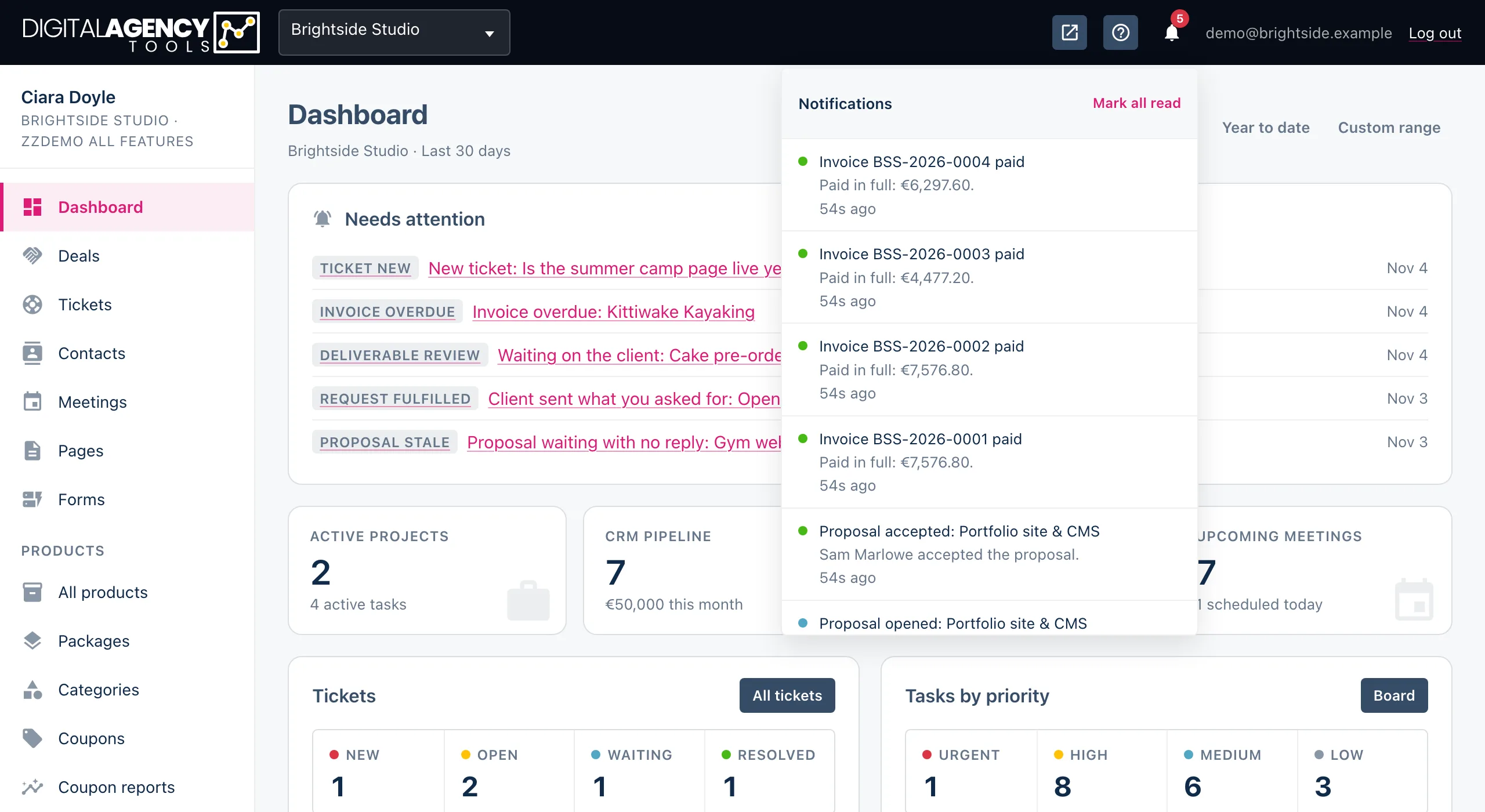
Everything that happens for your business lands in the bell in the top bar. Click it for the latest, open the full history, and choose who also gets an email or a WhatsApp message.
How to
- Click the bell in the top bar. The number on it is how many notifications are unread.
- Click a notification to mark it read and go to the page it is about.
- Click Mark all read to clear them all at once.
- Click View all to open the Notifications page with the full history.
The bell and the page
The bell shows the ten newest notifications. Unread ones are highlighted, and the coloured dot shows how much it matters: red for something wrong (an overdue invoice), amber for something waiting (a stale proposal, a new ticket), green for good news (accepted, paid, approved), blue for information.
The count on the bell refreshes about once a minute while the page is open, so you do not need to reload.
The Notifications page lists everything, fifty to a page, with the same rows and the same Mark all read button.
Dot colours
red    needs fixing
amber  waiting on you
green  good news
blue   for information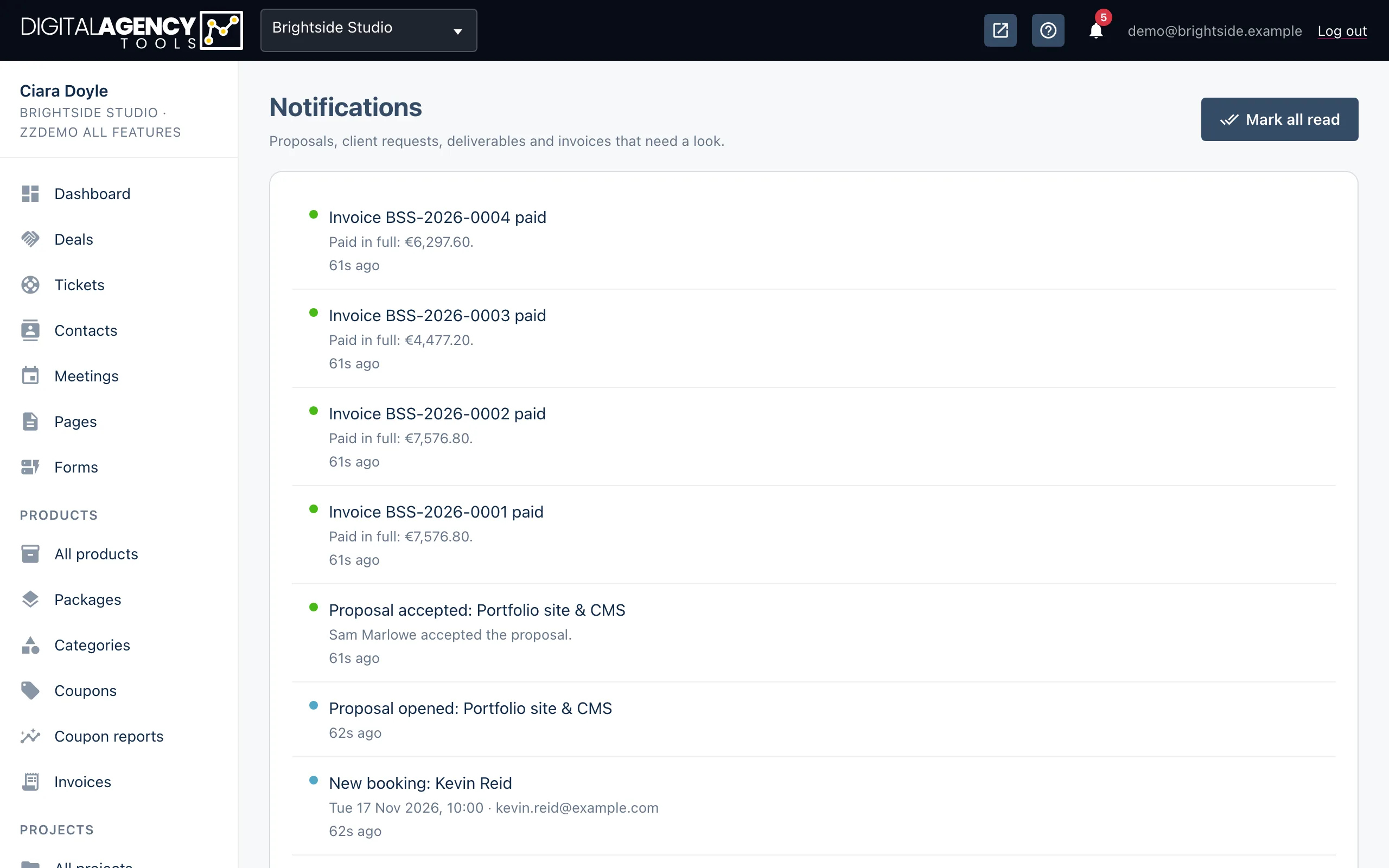
Email and WhatsApp copies
Every notification goes to the bell, always. On top of that, you can send copies by email or WhatsApp. Open Settings → Notifications: the Who hears about what table lists each event and lets the business owner choose who also hears about it — Owners, the Whole team, Extra addresses or WhatsApp.
Out of the box, owners are emailed about accepted proposals, paid and overdue invoices, transfer claims, approvals, fulfilled requests and new tickets. Use the reset icon on a row to go back to the default.
Under Just me, anyone can turn off Email me or WhatsApp me for themselves. Muting a channel never removes the notification from your bell.
Still stuck?
Can't find what you're looking for? Send us a message and we'll reply by email.