
Invite your team
Add the people you work with to your business so they can sign in and work alongside you. Each person needs their own account first; you then add them to your business and give them a role.

How to
- Ask the person to create their own account and verify their email.
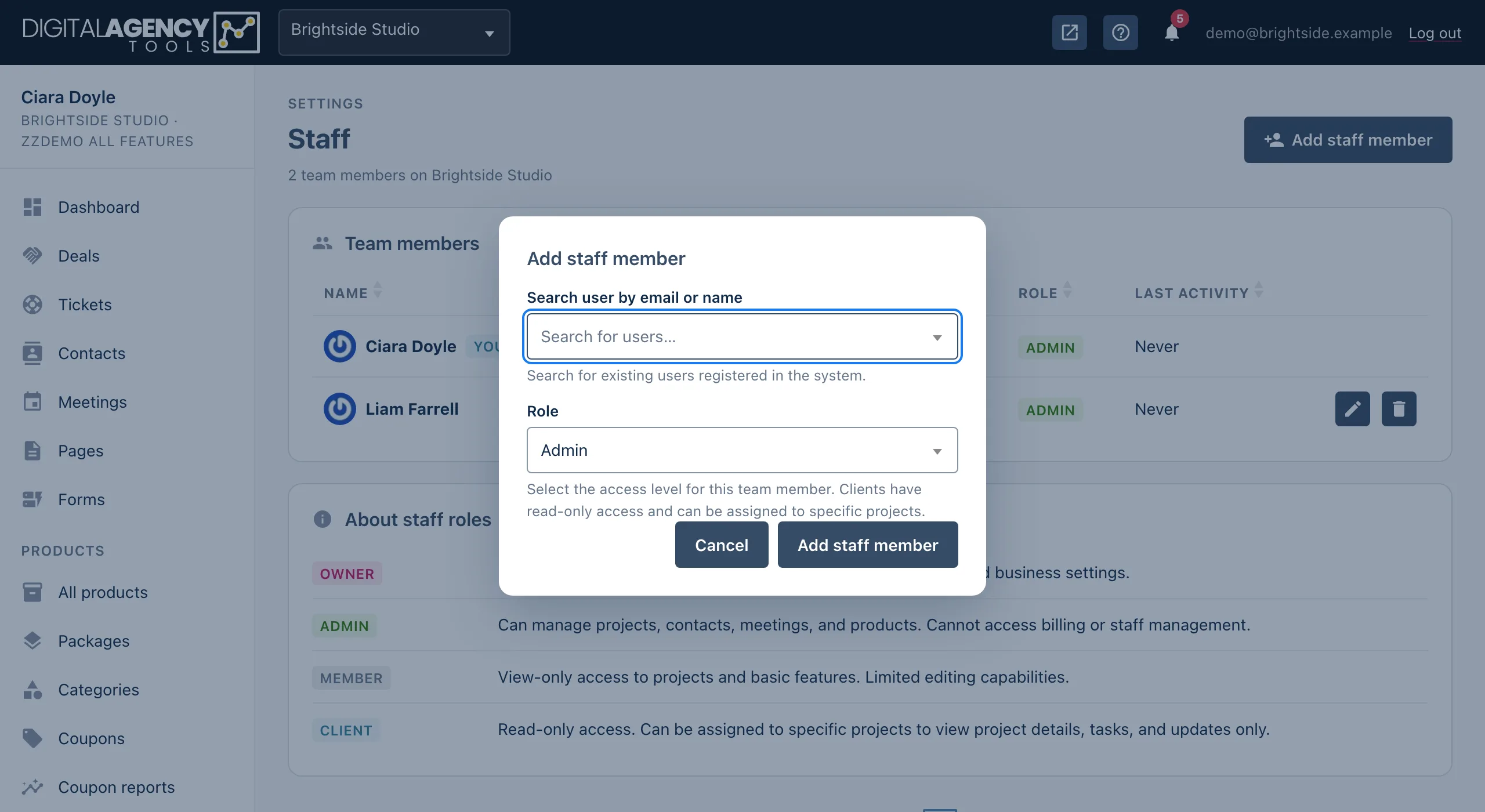
- Open Settings → Staff and click Add staff member.
- In Search user by email or name, type at least two letters of their email or name and pick them.
- Choose a Role and click Add staff member.
- Tell them to sign in. Your business now appears in their business switcher.
There is no email invitation
Adding someone does not send them an email, and you cannot add an address that has no account yet. The search only finds people who have already registered and verified. Let them know yourself once you have added them.
Someone who signs up on their own also gets a new, empty business of their own. That is normal: they simply switch to yours from the business switcher.
Roles
Admin    projects, contacts,
         meetings, products
Member   lighter, mostly viewing
Client   read-only, for specific
         projects
Roles
The About staff roles card on the page describes each role. You are shown as the Owner. When you add someone you can make them an Admin, a Member or a Client (Read-only).
To change a role, click the Change role icon on their row, pick the new role and click Update role.
To take someone off the team, click Remove from team on their row. Their account is not deleted, and you cannot remove yourself.
Still stuck?
Can't find what you're looking for? Send us a message and we'll reply by email.