
Google Calendar
Connect your Google account so busy times in your calendar stop people booking over them, and every new booking lands in the calendar you choose.
How to
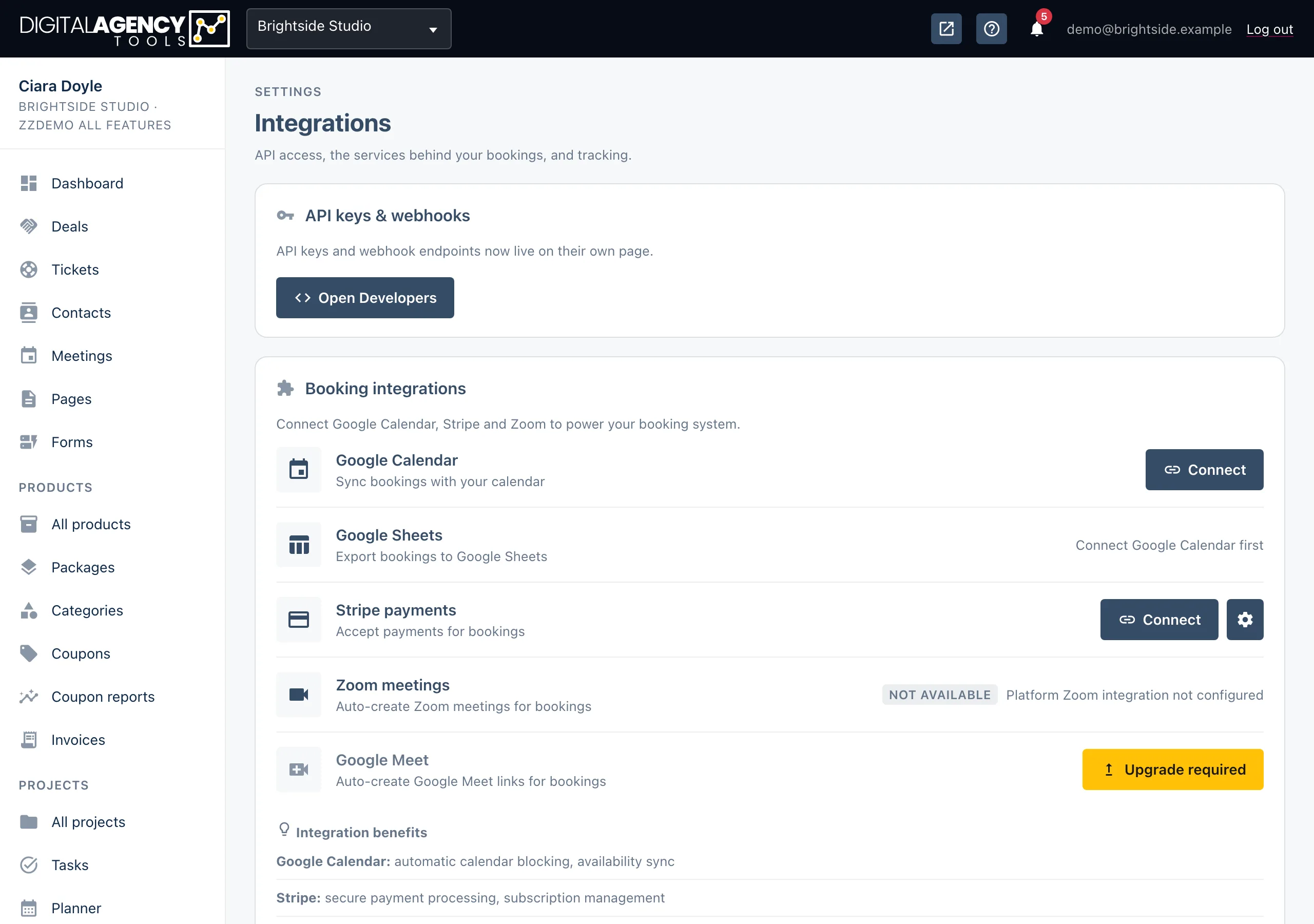
- Open Settings → Integrations.
- In the Booking integrations card, find Google Calendar and click Connect.
- Sign in to Google and allow access. You come back to the Integrations page and the row shows Connected.
- Open Calendar configuration under the row.
- Under Check for conflicts, tick every calendar whose events should block booking times.
- Under Write bookings to, pick the calendar new bookings are added to. Both settings save as soon as you change them.
What it does
Before a time is offered on your booking page, the platform looks at the events in the calendars you ticked. If something is already there, that time is not offered.
When a customer books, an event is created in the calendar you chose under Write bookings to.
To keep the booking page fast, your events are read from a cache. It covers the next 30 days and refreshes about once an hour. The configuration panel shows how many events are cached and how old the cache is.
Status under the configuration
Setup incomplete    no calendars loaded yet
Auto-sync enabled   bookings create events

12 events cached (5m ago)
Cache expired
No cache yet
The buttons on the row
Once you are connected, three icon buttons sit next to the Connected badge:
- Test connection asks Google for your calendar list, to prove the connection still works.
- Sync calendars fetches your calendar list again. Use it after you add a new calendar in Google.
- Refresh cache reloads your events now, instead of waiting for the next hourly refresh.
Disconnect removes the connection, after you confirm. Bookings stop being added to Google, and your Google events no longer block times.
Plans, and what depends on it
Google Calendar is part of the google_calendar plan feature. If your plan
does not include it, the row shows Upgrade required.
Google Sheets and Google Meet both use the same Google connection, so connect the calendar first.
Still stuck?
Can't find what you're looking for? Send us a message and we'll reply by email.