
Calendar is not syncing
People are booking times you are busy, or bookings are not turning up in your Google Calendar. Three buttons on the Integrations page fix most cases.
The symptom, and the causes
Either your booking page offers times that clash with events in Google, or new bookings do not appear in your calendar.
Likely causes:
- the calendar with the busy event is not ticked under Check for conflicts;
- bookings are written to a different calendar from the one you are looking at;
- the event was added recently and the cache has not refreshed yet;
- Google access has expired or was removed from your Google account.
The three tools
✓  Test connection
↻  Sync calendars
⟳  Refresh cache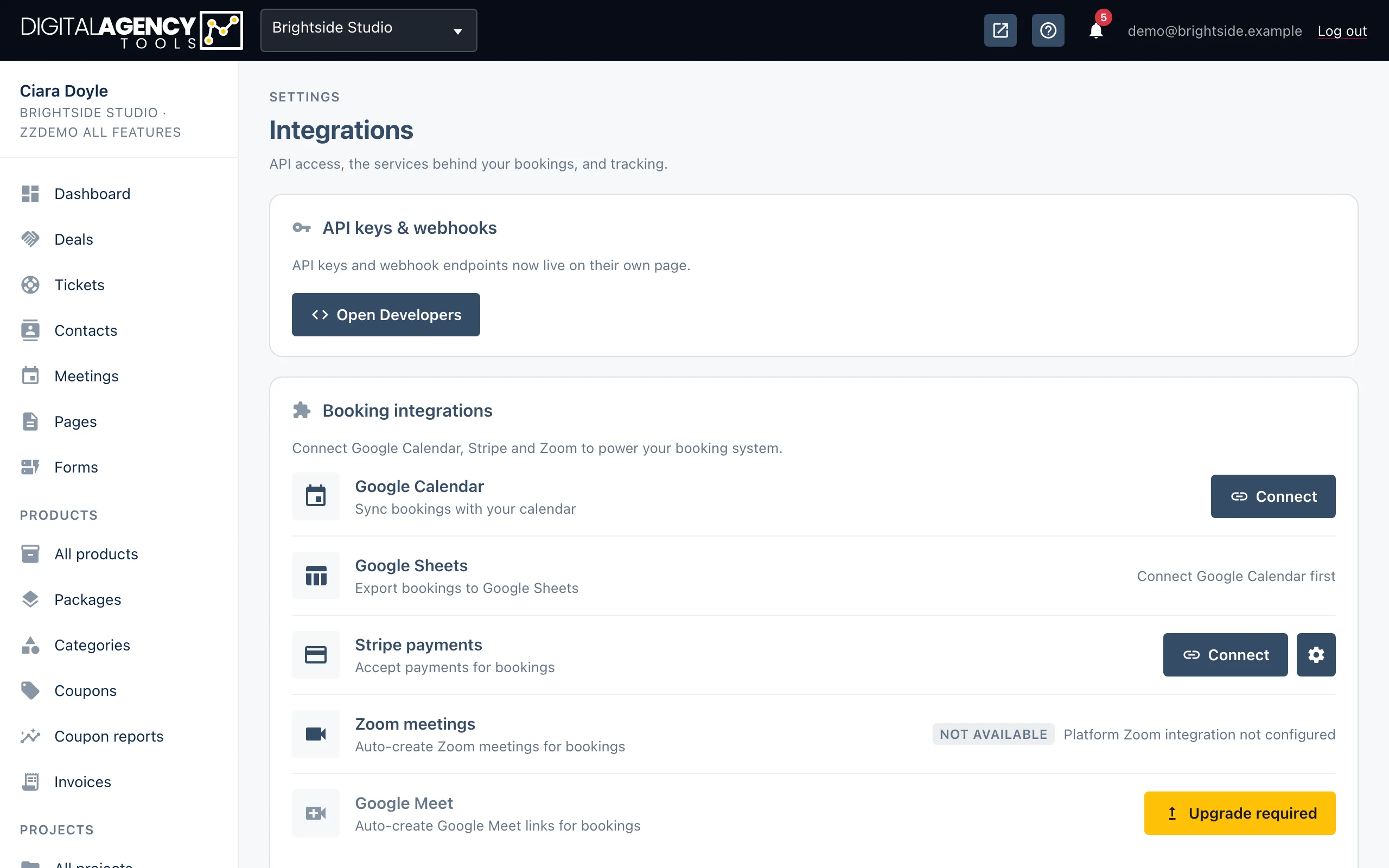
Checks, in order
- Open Settings → Integrations. Click the Test connection icon on the Google Calendar row. If it fails, skip to "Reconnect" below.
- Open Calendar configuration. Under Check for conflicts, make sure the calendar holding the busy event is ticked.
- If that calendar is not in the list, click the Sync calendars icon to fetch your calendar list again.
- Check Write bookings to is the calendar you expect new bookings in.
- Click the Refresh cache icon. The status under the configuration should show events cached a few seconds ago.
- Reload your booking page and check the time again.
Why it can lag
Your Google events are read into a cache covering the next 30 days. It refreshes about once an hour, so an event you add in Google can take up to an hour to block a time. Refresh cache does it straight away.
Events further than 30 days out are not checked.
If Google cannot be reached when a time is checked, the platform treats it as free, so your booking page keeps working. That is why a broken connection shows up as double bookings rather than an error.
Cache status
14 events cached (3m ago)   fine
Cache expired               refreshes on
                            next check
No cache yet                click Refresh
Reconnect
If Test connection fails, Google no longer accepts the platform's access. This happens if you changed your Google password, removed the app in your Google account's security settings, or the access simply expired.
Click Disconnect, confirm, then click Connect and sign in again. Afterwards, set your conflict calendars and write calendar again, because disconnecting clears them.
Still stuck?
Can't find what you're looking for? Send us a message and we'll reply by email.