
Stripe
Connect your Stripe account so customers can pay for bookings and clients can pay invoices by card. Then check the webhook, which is how Stripe tells the platform a payment went through.

How to
- Open Settings → Payments and choose your Currency. It saves as soon as you pick it.
- Click Connect Stripe at the top of the page. Where Stripe Connect is offered, you are taken to Stripe to set up your account. Otherwise you are sent to enter your own keys.
- To use your own keys, click the Manual API key setup (key) icon. In your Stripe Dashboard, go to Developers → API keys.
- Paste the Publishable key (starts
pk_) and the Secret key (startssk_), then click Save keys. - The card shows Connected and a Webhook status section. Click Verify connection.
The webhook
When you save your keys, the platform creates a webhook in your Stripe account. Stripe uses it to tell the platform about checkouts, payments and subscriptions as they happen. Without it, a payment can succeed in Stripe and still show as unpaid here.
The Webhook status section shows:
- Status: Active, Pending, Error or Disabled, with when it was last verified;
- Endpoint: the address Stripe sends events to;
- Events: the event types it listens for.
Verify connection checks the webhook with Stripe and marks it Active. Recreate webhook replaces it with a new one, after you confirm. Use the refresh icon to reload the status.
Events the webhook listens for
checkout.session.completed
invoice.payment_succeeded
payment_intent.succeeded
customer.subscription.created
customer.subscription.updated
customer.subscription.deleted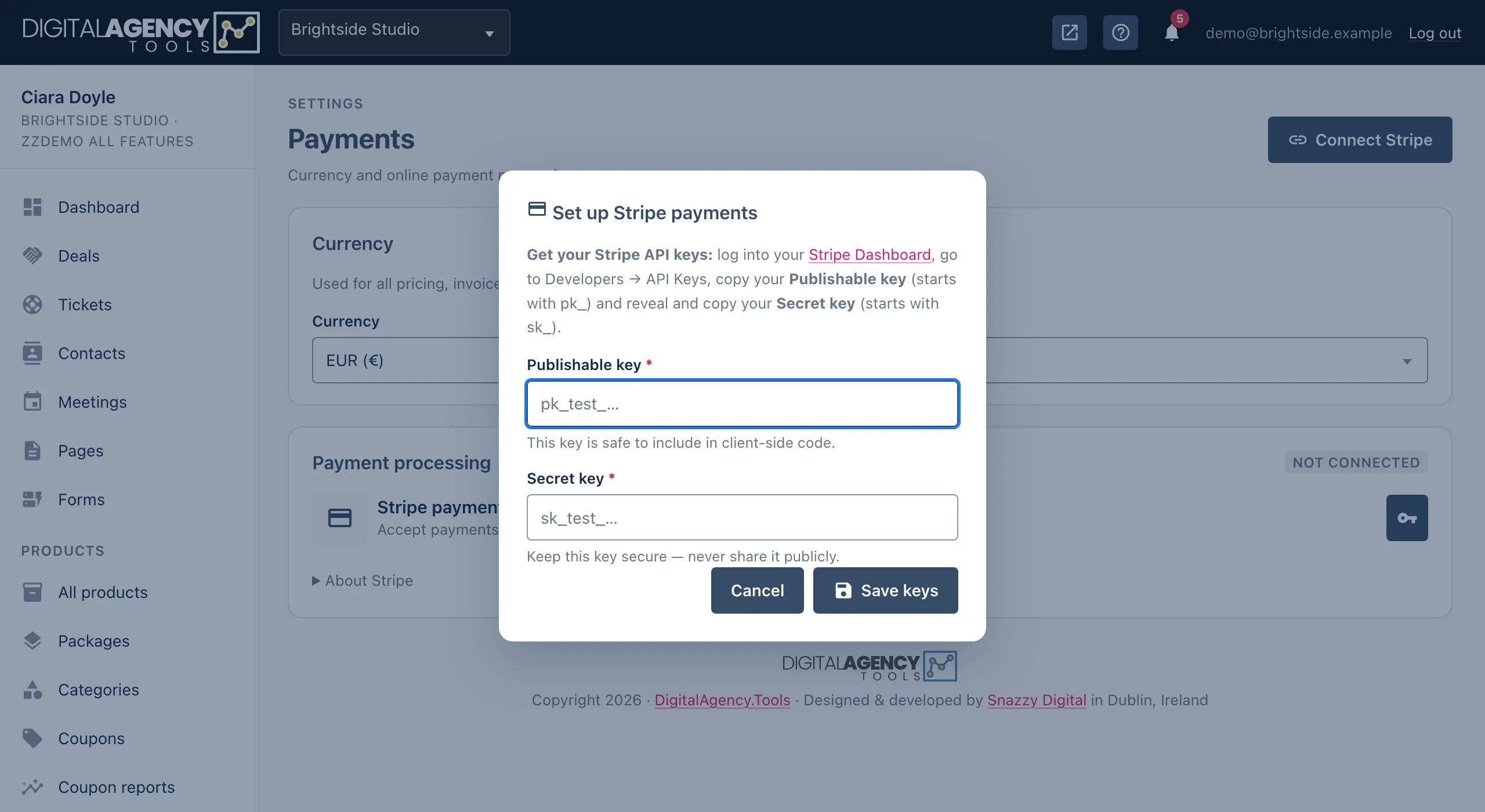
Test and live keys
Stripe gives you two sets of keys. Test keys (pk_test_,
sk_test_) take no real money and are for trying things out. Live keys
take real payments. Use the same mode for both keys.
To change keys, click Edit API keys. Leave the secret key blank to keep the current one. Remove keys disconnects Stripe and stops online payments, after you confirm.
Key prefixes
pk_test_…   sk_test_…   test mode
pk_live_…   sk_live_…   real payments
Plans
Online payments are part of the stripe_payments plan feature. Without
it, the Payments page shows Paid plans and an Upgrade to
access button, and Invoices, Coupons and VAT in the sidebar point to the
upgrade page.
Still stuck?
Can't find what you're looking for? Send us a message and we'll reply by email.