
Schedules and availability
Customers can only book times you have said you are available. You set those hours once, for the whole business, together with how far ahead and how close to the time people may book.
How to
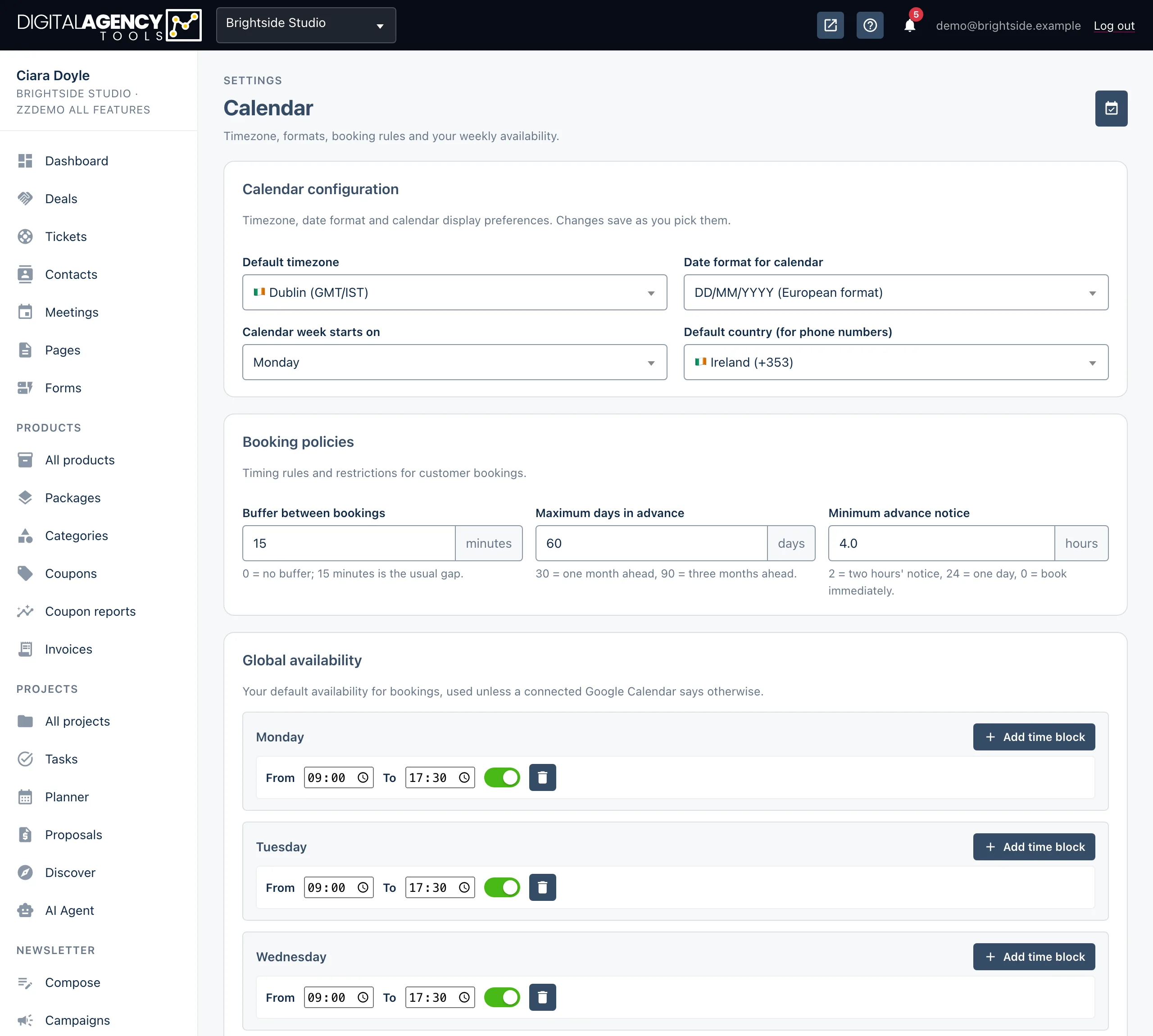
- Open Settings → Calendar.
- Check the Default timezone under Calendar configuration. Every available time is read in this timezone.
- Under Global availability, set the hours for each day. Use Add time block for a split day (say 9–12 and 2–5), the switch to turn a block off, and the bin to remove it. Quick set: Mon–Fri, 9–5 fills in a standard working week.
- Click Save availability.
- Set your Booking policies. These save as soon as you change them.
Booking policies
| Setting | What it does |
|---|---|
| Maximum days in advance | How far ahead a customer can book. 30 is one month; 90 is three months. Later times are not offered. |
| Minimum advance notice | How much notice you need, in hours. 2 means nothing can be booked within the next two hours; 0 lets people book immediately. |
| Buffer between bookings | The gap you want between appointments, in minutes (0 to 120). |
A time is offered when
it sits inside an available block
and the product fits before the
  block ends
and it is within "maximum days"
and it is after "minimum notice"
and no one has booked it
and Google Calendar is free
  (if connected)
How times are cut
Your available blocks are divided into slots the length of the product. A 60-minute product in a 9–12 block offers 9:00, 10:00 and 11:00. A slot is only offered if the whole appointment fits before the block ends.
Once a slot is booked it is no longer offered for that product. Times are shown to customers in your business timezone, and they can switch the display to their own on the booking page.
Google Calendar
If you have connected Google Calendar (on plans that include it), events in your chosen calendars block those times. Your weekly availability still sets the outer limits: Google can take time away, it cannot add hours you have not opened. Connect it from Settings → Integrations; see Google Calendar.
Events and classes
Group events work differently. They are not cut from your weekly hours, and the advance-notice rules do not apply. Customers can book any upcoming session that has places left, but not one that has already started. Events appear in their own Events section on your booking page.
Still stuck?
Can't find what you're looking for? Send us a message and we'll reply by email.