
The ticket inbox
Every support request lands in one list, wherever it came from. Filter it down, give each ticket an owner and work through them.
How to
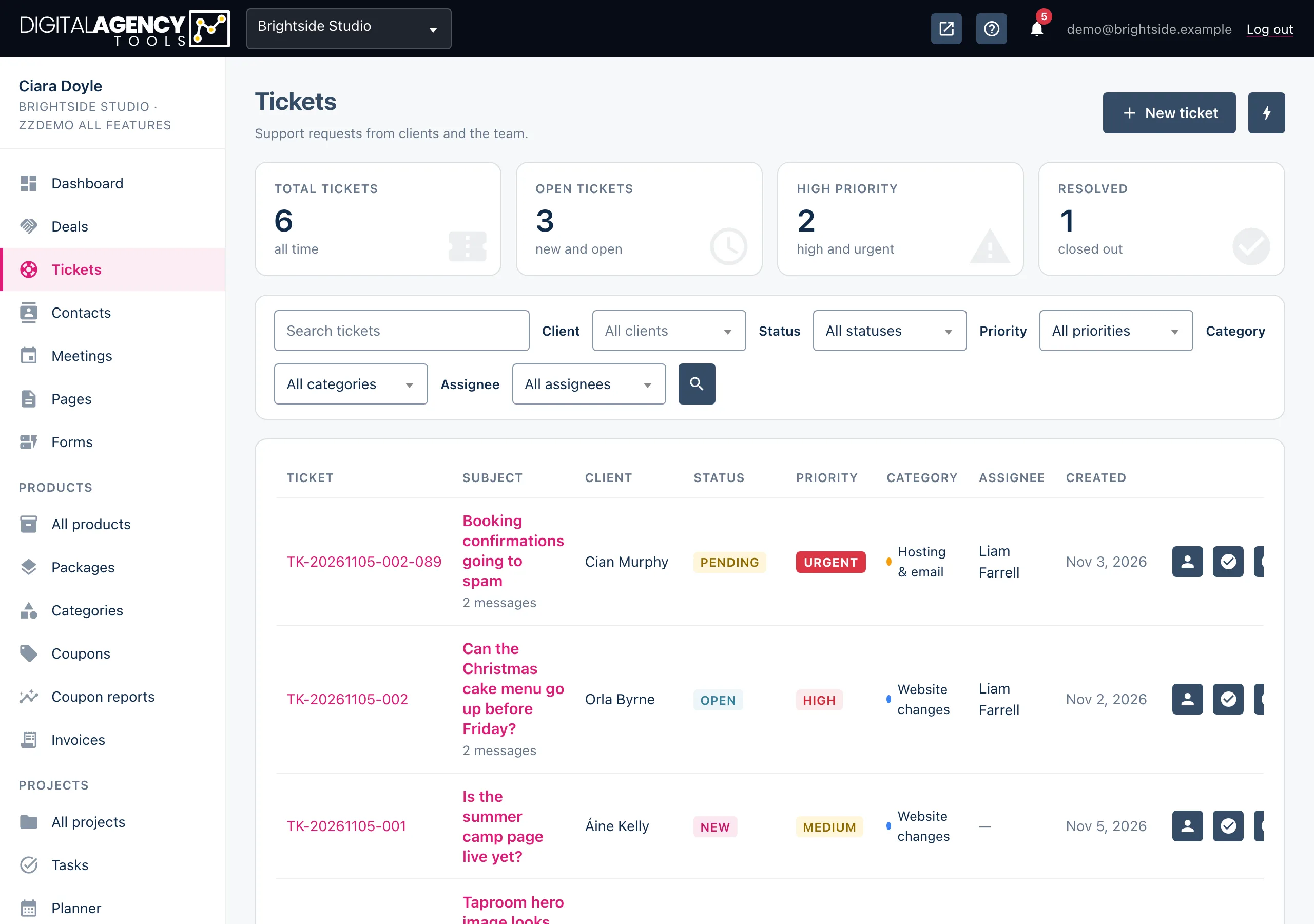
- Open Tickets in the sidebar.
- Narrow the list with the filter bar: search, status, priority, category or assignee. Click the search icon to apply.
- Click a ticket's number or subject to open it.
- Use the row icons to assign it, mark it resolved, close it or delete it.
The tiles
Four numbers sit above the list. Total tickets counts everything, ever. Open tickets adds up the new and open ones. High priority counts high and urgent tickets. Resolved counts the ones you have closed out.
If Open tickets keeps climbing, that is your backlog. If High priority is above zero, start there.
Statuses
new       just arrived, nobody has looked
open      someone is working on it
pending   waiting on the client
resolved  answered and done
closed    finished for good
Priority
Every ticket is Low, Medium, High or Urgent. New tickets start at Medium unless whoever raised it chose otherwise. Urgent shows as a loud red pill so it stands out in a long list.
Tickets that arrive by email or WhatsApp always come in as Medium. Change the priority from the ticket's Edit button once you have read it.
What each one is for
Low     minor issues, feature requests
Medium  standard support requests
High    important, affecting work
Urgent  needs attention now
Columns and row actions
Each row shows the ticket number (in the form
TK-20261105-001), the subject, the client, status, priority,
category, assignee and the date it was created. A subject with more than
one message shows the message count under it.
The icons on the right of each row do the common jobs without opening the ticket:
| Icon | What it does |
|---|---|
| Assign | Opens a small window to pick a team member, or leave it unassigned. |
| Mark resolved | Asks you to confirm, then sets the status to Resolved. |
| Close ticket | Asks you to confirm, then sets the status to Closed. |
| Delete ticket | Removes the ticket and its conversation. This cannot be undone. |
Raising a ticket yourself
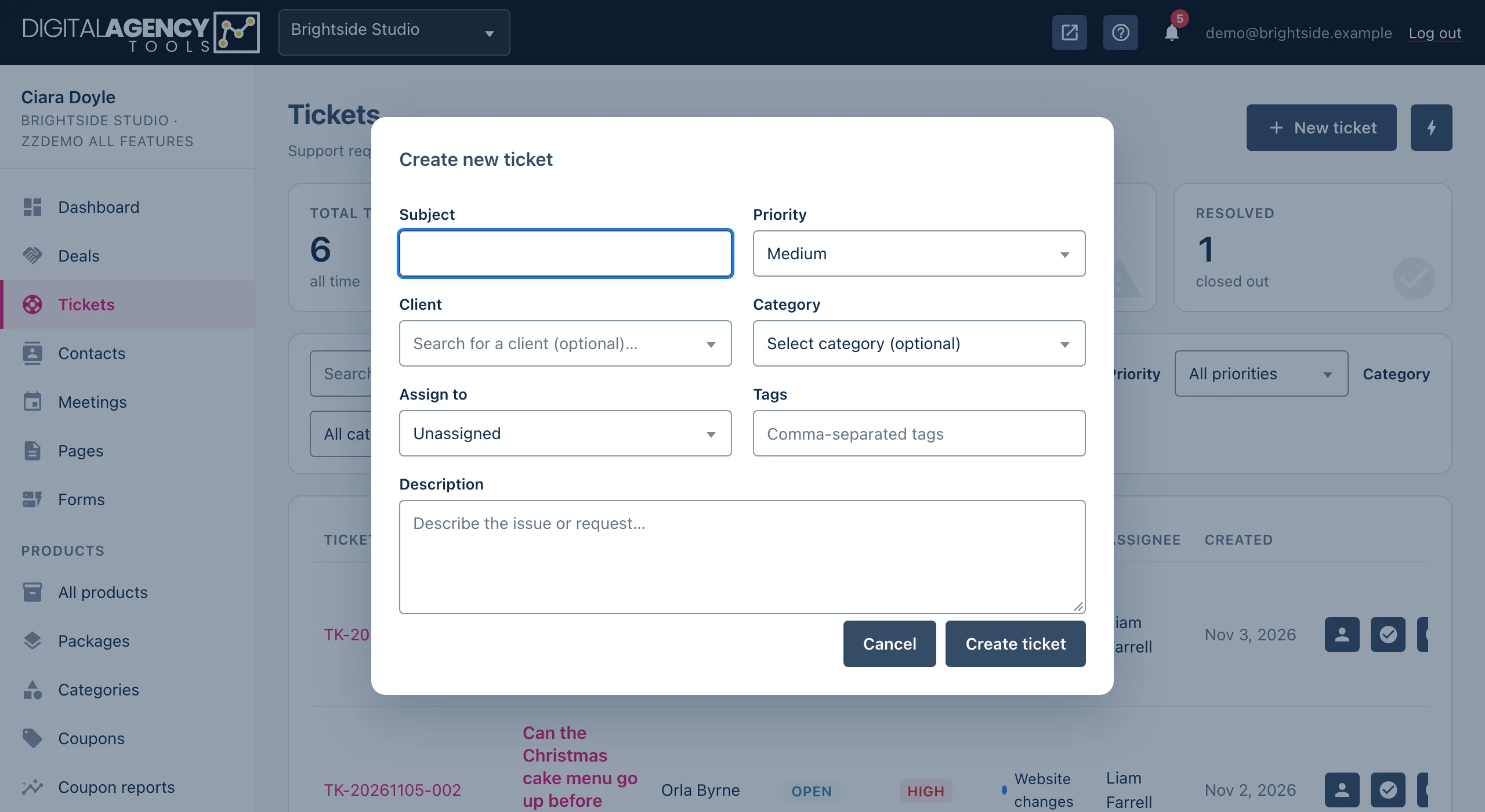
Click New ticket for the full form, or the lightning icon (Quick create) for the same fields in a pop-up. You need a subject. Client, category, assignee, tags and description are optional. When you save, the ticket opens so you can carry on.
What tells you a ticket is waiting
A ticket raised by someone outside your team, by email, WhatsApp or your public support form, also appears in Needs attention on your dashboard. Tickets you raise yourself do not, because you already know about them.
Still stuck?
Can't find what you're looking for? Send us a message and we'll reply by email.